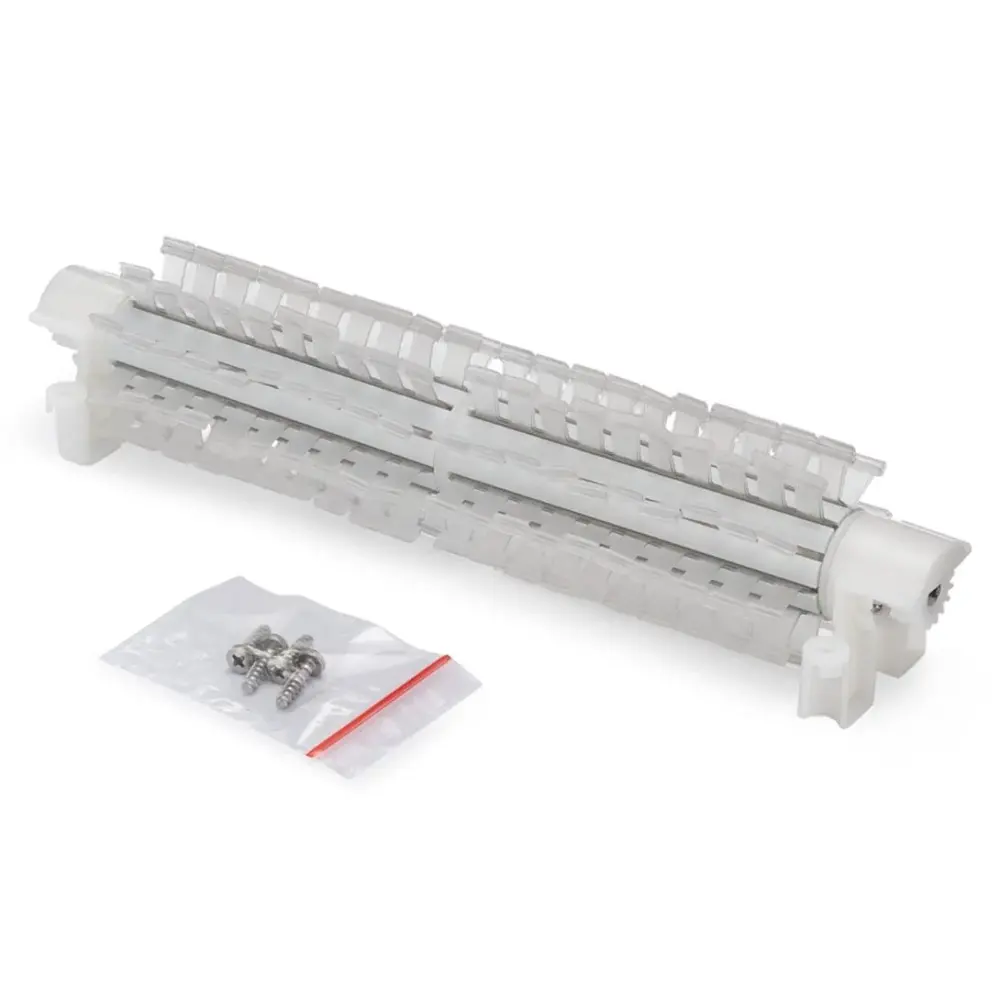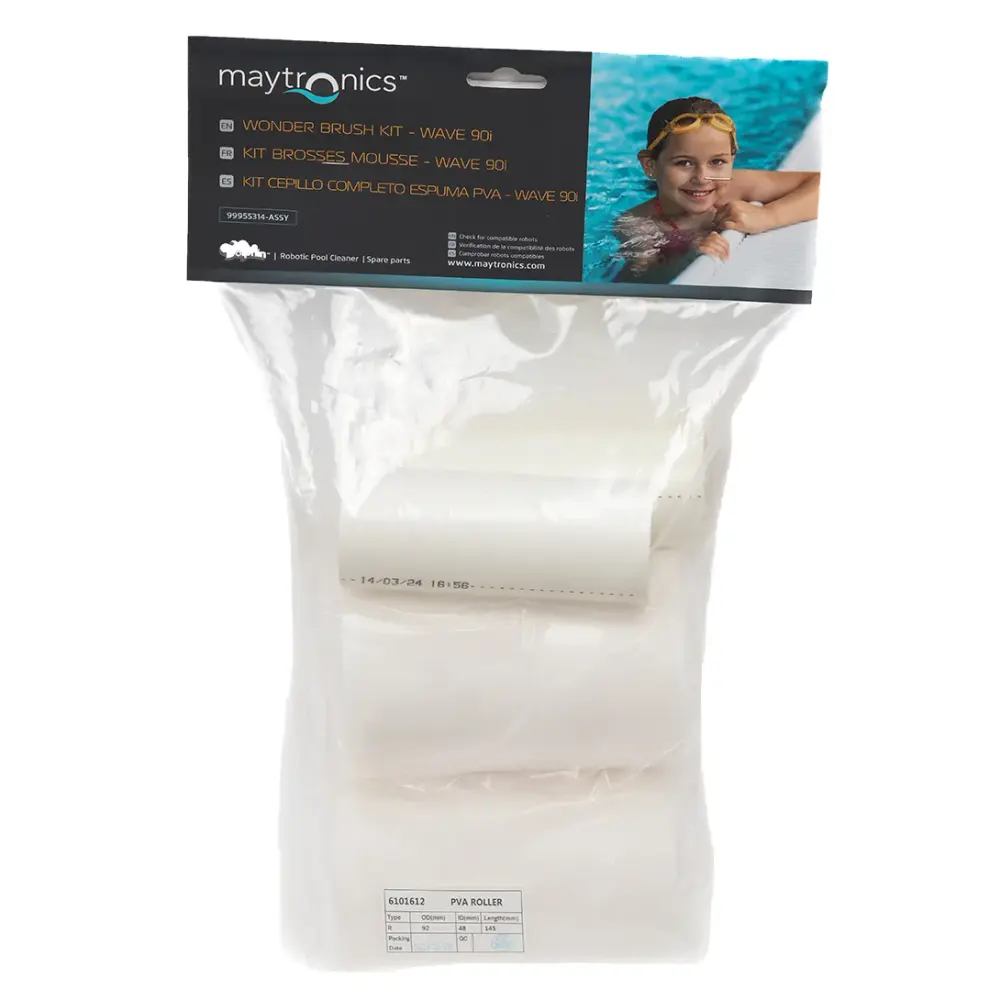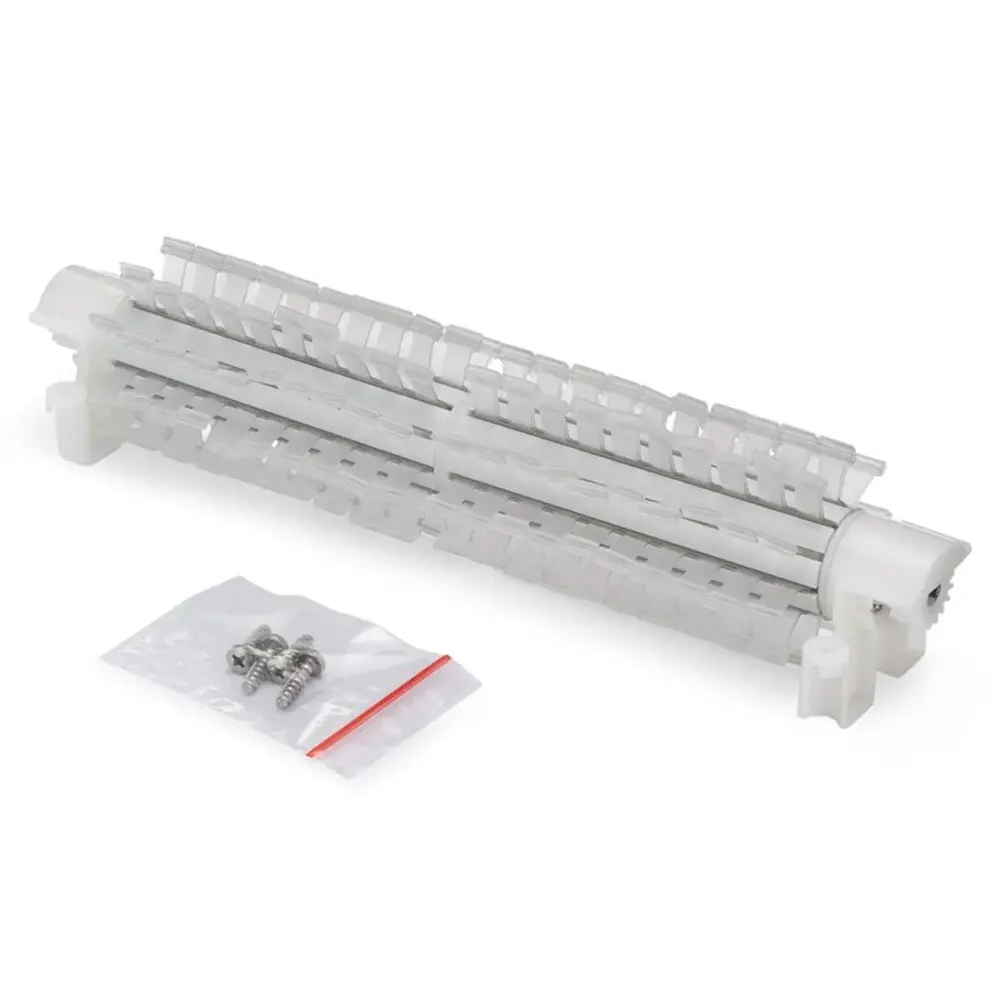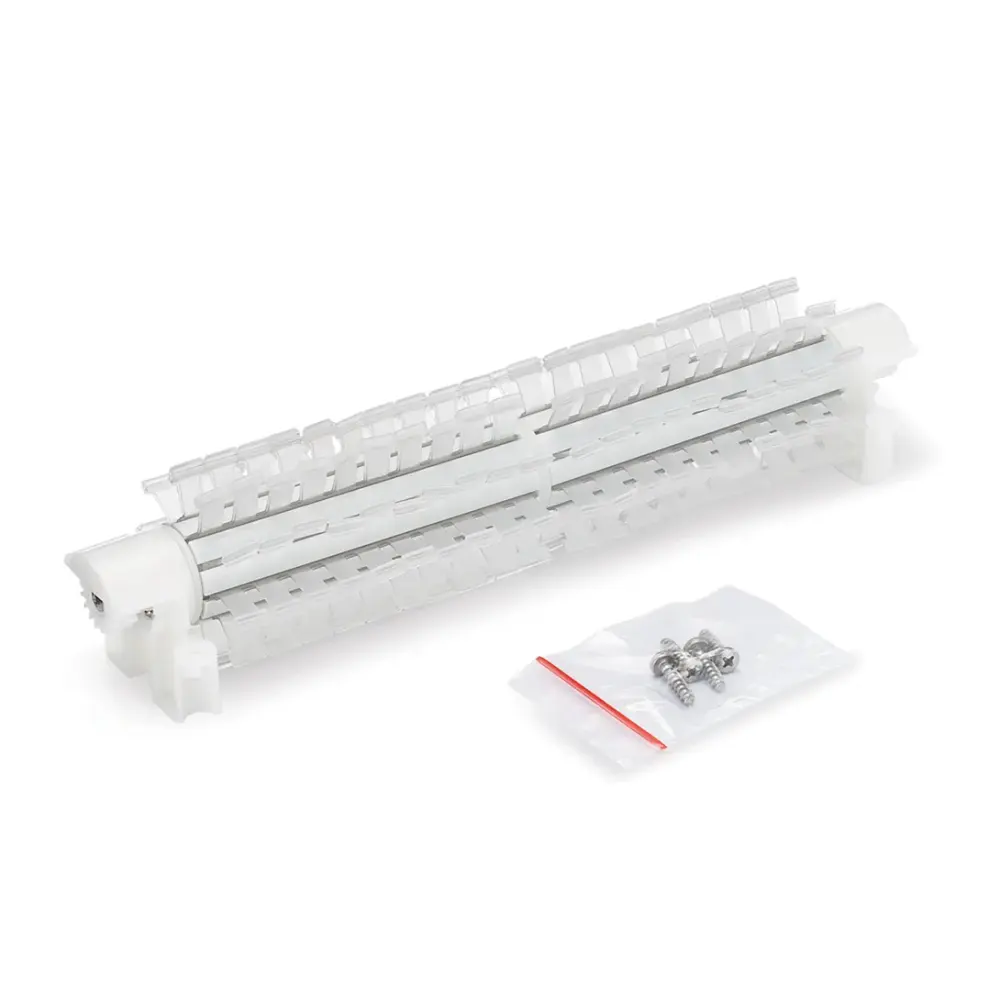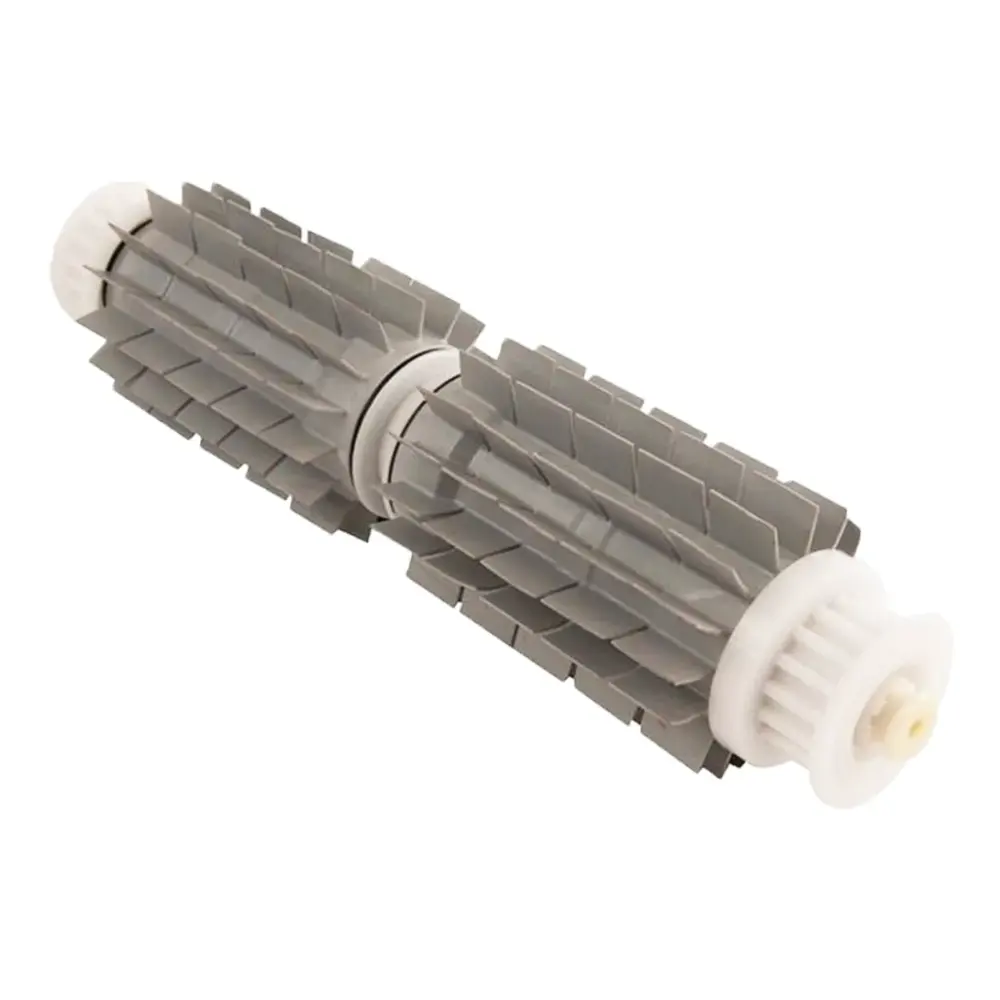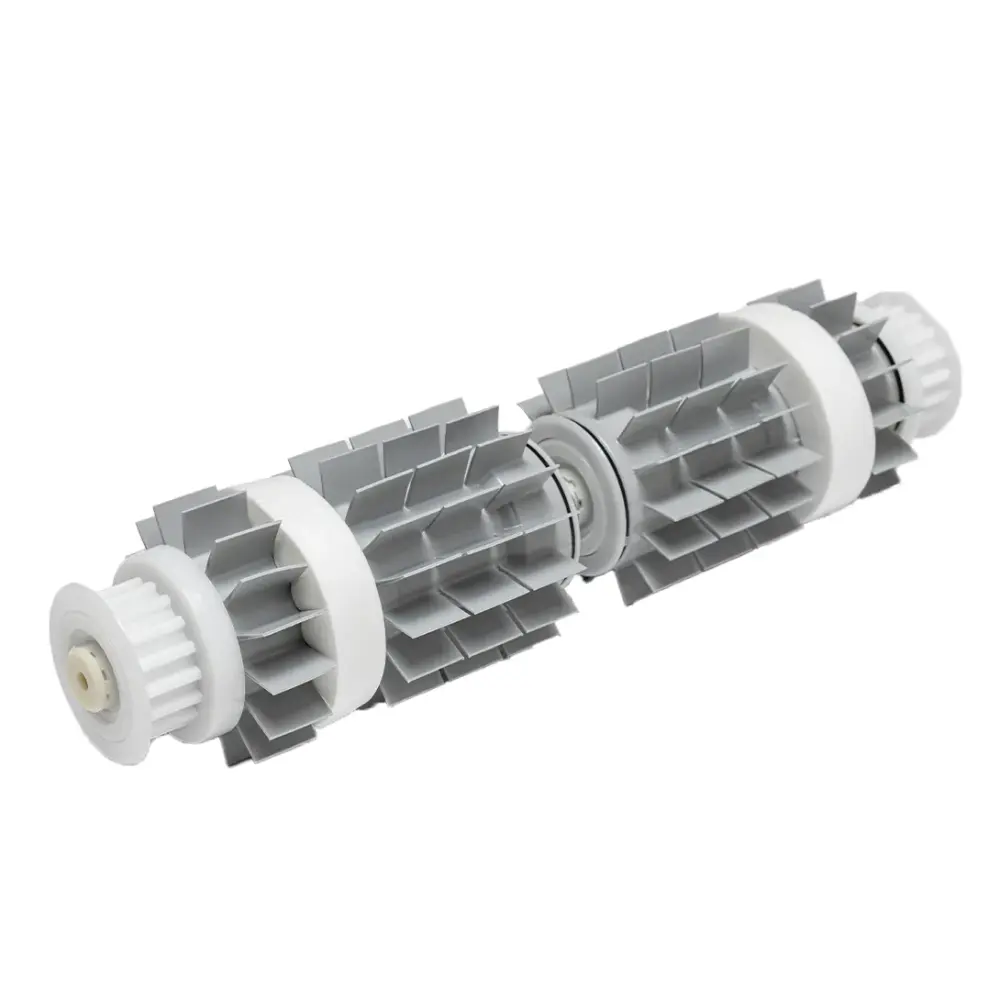
Rear Brush BLUE(S2)
Part number 6101311-R1 · UPC 810071221767 · 1-year warranty
$28.91 on Amazon
Maytronics list price $12.99
We do not stock this part in our own store yet, so the link goes to this part number on Amazon. It is also sold by Maytronics. As an Amazon Associate we earn from qualifying purchases.
- Replacement Rear Brush, Blue
Check the fit before you order.
Maytronics lists no US robot for this part number. Send us your robot's model number (on the label under the handle) and we will confirm whether this is the right part.
How to replace it at home.
Maytronics' own step-by-step answers and videos for this kind of part.
How to replace the climbing rings on my Dolphin brushes?Video
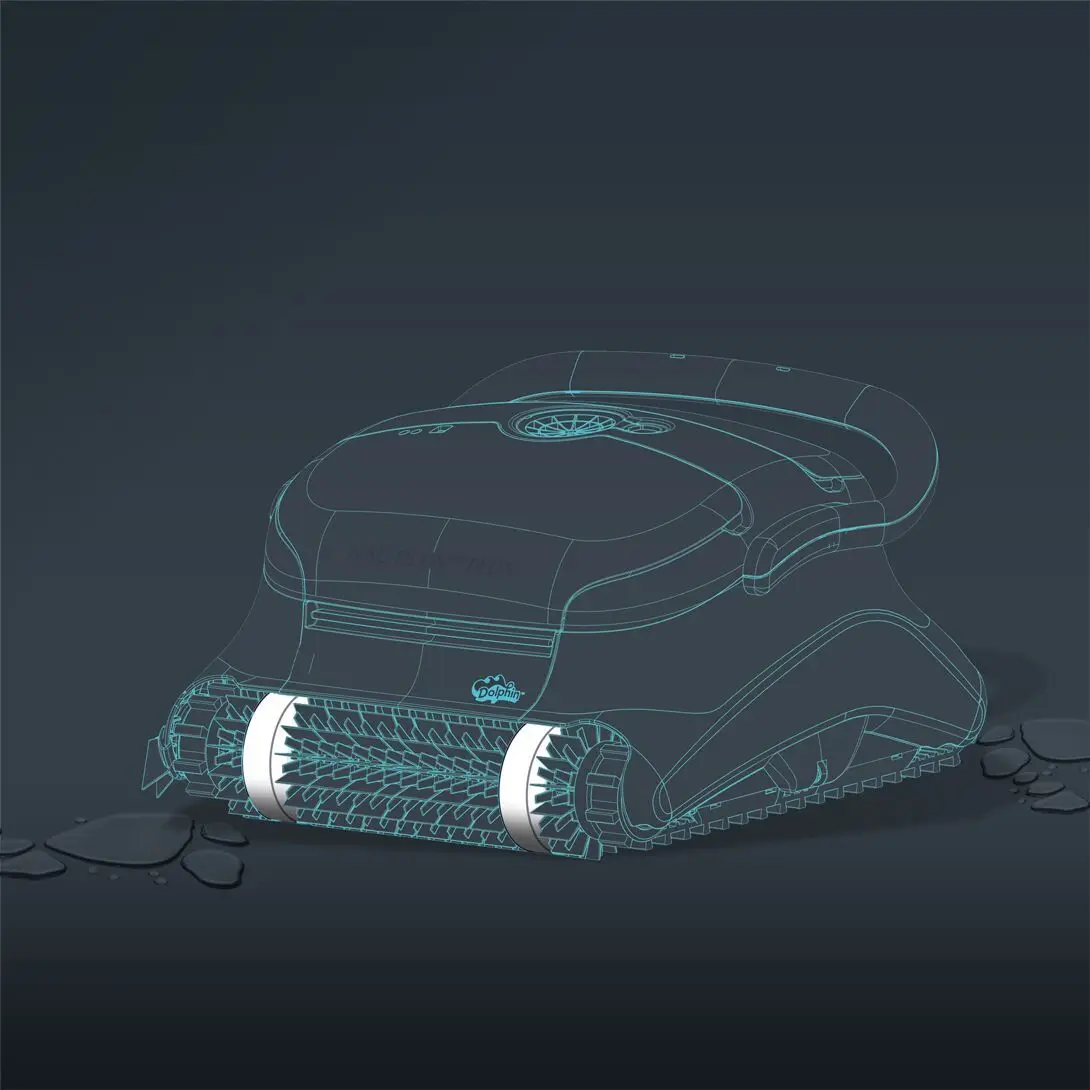
Please follow the steps below for proper installation:
(The following steps are applicable for all models that have climbing rings)
-
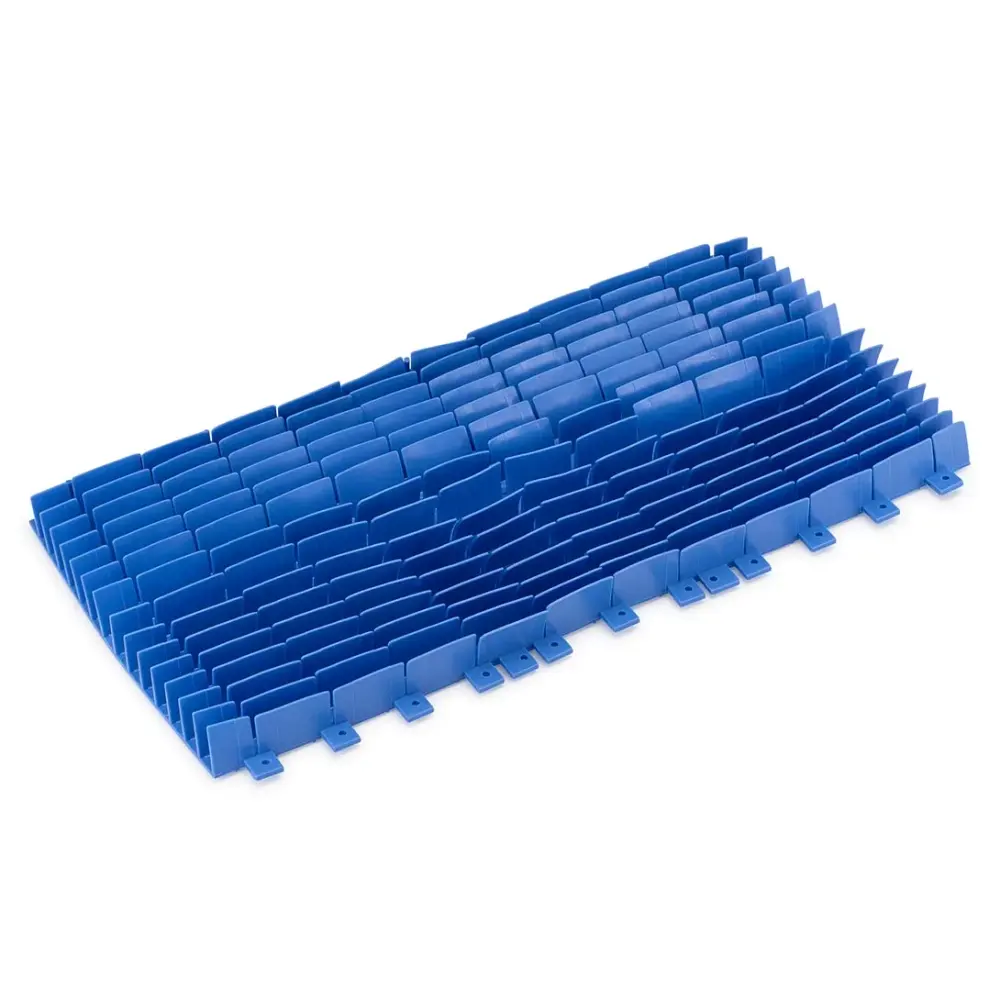
Wet the climbing rings in the pool or soak them in water for 10 minutes until they are fully soaked.
-
Remove the robot from the pool, and turn the robot upside down.
-
Make sure the power supply is unplugged from the outlet.
-
Use a flathead screwdriver to release the brush from it on both sides.
-
Remove the brush.
-
Remove the climbing rings.
-
Soak the new climbing rings in water so they are flexible. Take the new climbing rings and work them onto the brushes.
-
Once the climbing rings are in place, slide the brush back into its sockets and push it into place.
Video references for assistance in how to remove and install the brushes (applicable for steps 2-5, and 8):
M Line (DX3/Sigma/Nautilus CC Plus/Nautilus CC Supreme/M400)
M600 (Active 60, Explorer E70)
If you are interested in purchasing replacement climbing rings, our replacement parts.
How do I replace the brushes on my Dolphin robot?Video
Choose your brush and click your robot model to see the video and instructions.
FRONT BRUSH:
S50 (E10, E20/E25, Active 10, Cayman, Escape, Encore)
- Unplug the power supply from the outlet.
- Turn the robot upside-down.
- Remove the tracks from the robot.
- Remove the wheel disk with the flathead of the screwdriver.
- Rotate the wheel until the screw holding the drive gear is visible through the wheel.
- Unscrew the screw holding the white drive gear and then release the screw and gear.
- Gently pull out the old brush.
- Slide the new brush back into place, then return the gear to its place. Screw the gear holding the brush into place back in.
- Reinstall the wheel cover and tracks.
- Rotate the brush to ensure everything is working smoothly.
S100 (Advantage, Proteus DX3, Saturn, Echo, Nautilus CC, Active 15, Cayman, Escape, Explorer E20)
- Unplug the power supply from the outlet.
- Turn the robot upside-down.
- Remove the tracks from the robot.
- Remove the wheel disk with the flathead of the screwdriver.
- Rotate the wheel until the screw holding the drive gear is visible through the wheel.
- Unscrew the screw holding the white drive gear and then release the screw and gear.
- Gently pull out the old brush.
- Slide the new brush back into place, then return the gear to its place. Screw the gear holding the brush into place back in.
- Reinstall the wheel cover and tracks.
- Rotate the brush to ensure everything is working smoothly.
S200 (E30, Advantage Ultra, Active 20, Quantum, T35, Triton PS)
- Unplug the power supply from the outlet.
- Remove the tracks from the robot.
- Using a Phillips screwdriver, unscrew the four screws holding the brush into place.
- Remove the old brush.
- Reinstall the new brush and insert the four screws.
- Rotate the brush to ensure that everything is working smoothly.
S300 & S400 (click for models)
S300 (E35/E35i, Proteus DX5i, Active 30, T35/T45, Premium 40, Explorer E30, E40i, Active 30i, T55i)
S400 (E50i, Active 50, Explorer E50)
- Unplug the power supply from the outlet.
- Remove the tracks from the robot.
- Using a Phillips screwdriver, unscrew the four screws holding the brush into place.
- Remove the old brush.
- Reinstall the new brush and insert the four screws.
- Rotate the brush to ensure that everything is working smoothly.
M400/M500 (Sigma, Oasis, Nautilus CC Supreme, Aquarius XL, C4)
- Use a flathead screwdriver to gently push out the brush until it pops out.
- Place the new brush in the same position.
- Press it inside to make sure it's in place.
- Rotate the wheels to make sure it's working.
M250 (Nautilus CC Plus, Dx3, Zenit 20)
Premier
MIDDLE BRUSH:
M400/M500
- Unplug the power supply from the outlet.
- Flip the robot upside-down.
- Release all four screws from each corner that are holding the brush.
- Remove the brush from the robot.
- Place them in the same position as the new brush.
- Insert and tighten the four screws.
Sigma
- Unplug the power supply from the outlet.
- Flip the robot upside-down.
- Release all four screws from each corner that are holding the brush.
- Remove the brush from the robot.
- Place them in the same position as the new brush.
- Insert and tighten the four screws.
This repair is relevant for Sigma produced in 2026 and onwards
REAR BRUSH:
S200 (E30, Advantage Ultra, Active 20, Quantum, T35, Triton PS)
- Unplug the power supply from the outlet.
- Flip the robot upside-down.
- Remove the tracks from the robot.
- Gently release the brush from the notches on the sides and remove the brush.
- Place the new brush in the same position as the previous brush.
- Reinstall the tracks on each side.
- Rotate the brush to ensure that everything is working smoothly.
S300 & S400 (click for models)
S300 (E35/E35i, Proteus DX5i, Active 30, T35/T45, Premium 40, Explorer E30, E40i, Active 30i, T55i)
S400 (E50i, Active 50, Explorer E50)
- Unplug the power supply from the outlet.
- Flip the robot upside-down.
- Remove the tracks from the robot.
- Gently release the brush from the notches on the sides and remove the brush.
- Place the new brush in the same position as the previous brush.
- Reinstall the tracks on each side.
- Rotate the brush to ensure that everything is working smoothly.
M400/M500 (Sigma, Oasis, Nautilus CC Supreme, Aquarius XL, C4)
- Use a flathead screwdriver to gently push out the brush until it pops out.
- Place the new brush in the same position.
- Press it inside to make sure it's in place.
- Rotate the wheels to make sure it's working.
M600/M700 (Active 60, E60i, Explorer E70)
- Unplug the power supply from the outlet.
- Flip the robot upside-down.
- Remove the tracks from the robot.
- Gently release the brush from the notches on the sides and remove the brush.
- Place the new brush in the same position as the previous brush.
- Reinstall the tracks on each side.
- Rotate the brush to ensure that everything is working smoothly.
M250 (Nautilus CC Plus, Dx3)
M550
Specifications
Product Info
- Active Brush
- No
- Brush Type
- Standard Brush
Size & Dimension
- Package Dimensions
- 17.0x2.4x9.9 inch
General Info
- Warranty (years)
- 1
- UPC
- 810071221767