
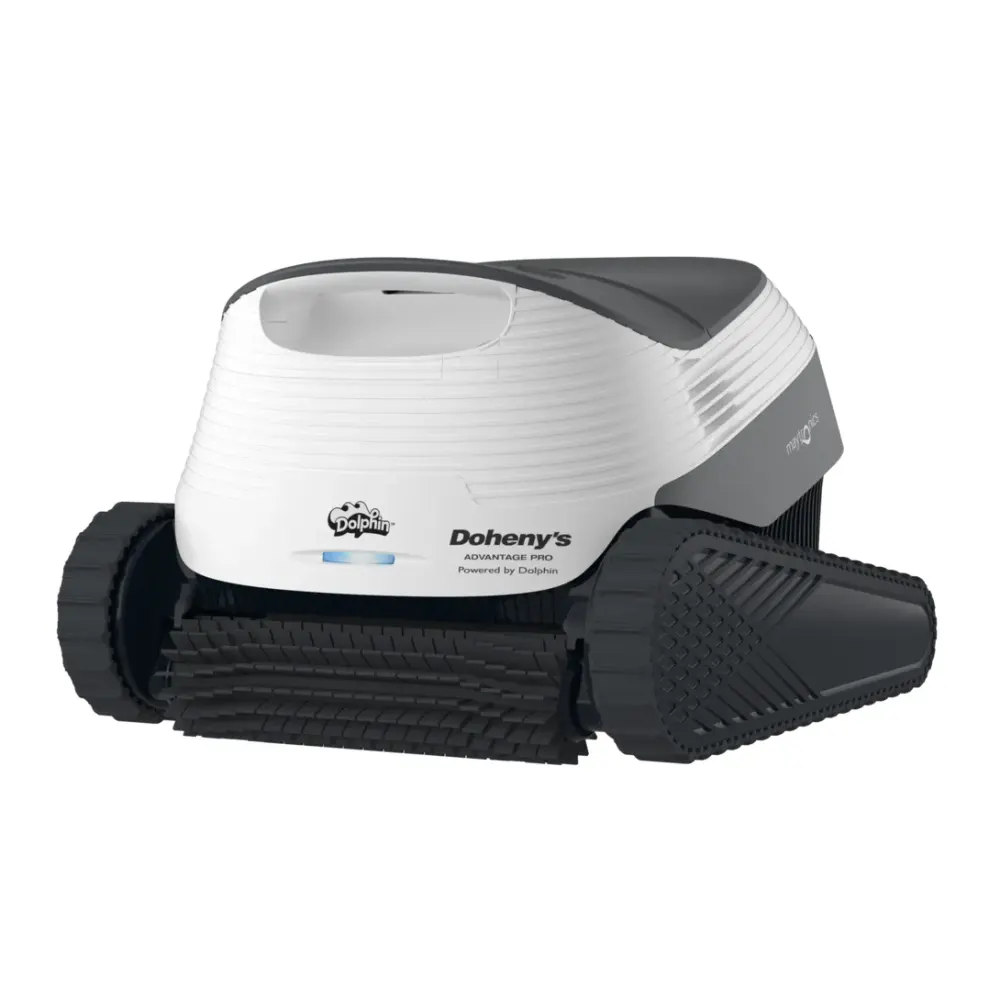
Dolphin Advantage PRO
The Dolphin Advantage PRO pool cleaner robot is supported by Maytronics’ 40 years of experience, guaranteeing a sparkling clean pool and ready for fun!
- Pool size
- Up to 50 ft
- Cleans
- Floor, Walls and Waterline
- Cycle
- 2 Hours
- Warranty
- 2 years
- Filter
- Fine Filter Kit
- Weight
- 18.4 lb
Compare the Advantage & Echo lineup19 compatible partsManual & guidesHow-to videos11 FAQs
Maytronics list price $999 (listed as out of stock at Maytronics). Not sold here: use a local Dolphin dealer or compare the models we ship free.
Advantage PRO at a glance.
- Scrubs your pool floor, walls, and waterline
- Powerful active scrubbing of your pool surface
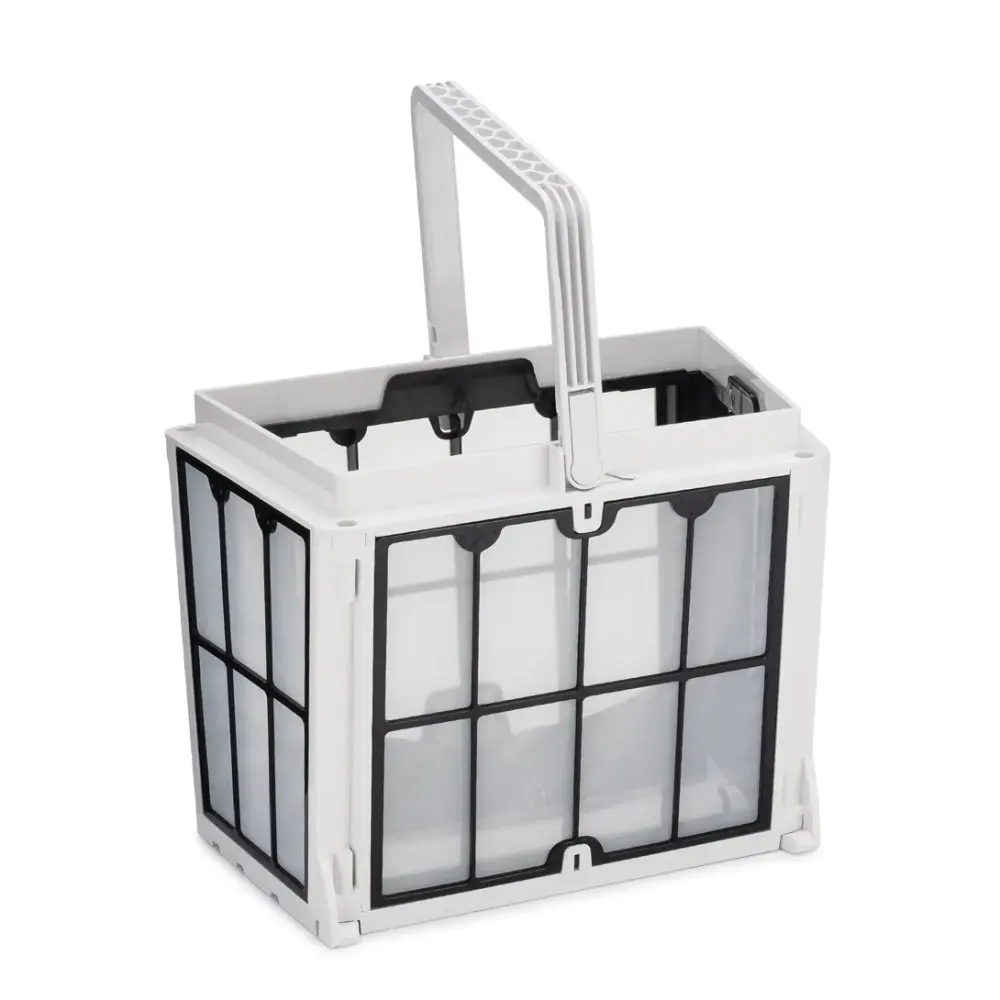
- Extra-large, top load fine filtration basket
- Always connected with the mobile app
- Lightweight for easy lifting and handling

Lightweight
Lightweight design for easy lifting and handling

Powerful Active Scrubbing
Intense scrubbing for an unmatched clean

Easy Access Top Load Filter
No more touching the debris! Lift the filter out, unsnap the bottom and rinse

Plug'n'Play
Just plug it in, drop into the pool, for a hassle free clean
Dolphin Advantage PRO specifications.
As published by Maytronics for model 99996207-ADP.
Product Attributes
- Maximum Pool length
- 50 ft
- Cleaning Coverage
- Floor, Walls and Waterline
- Default Cycle Time
- 2 Hours
- Warranty (years)
- 2
- Delay Feature
- No
- Weekly Timer
- Yes
- Mobile Application
- MyDolphin™ Plus
- Anti Tangling Swivel
- Yes
- Filter Type
- Fine Filter Kit
Connectivity & Automation
- Automation Mode
- Yes
Size & Dimension
- Package Dimensions
- 22.1x17.7x12.4 inch
- Robot Weight
- 18.478 lb
- Net Height
- 11.425 inch
- Net Length
- 17.472 inch
- Net width
- 15.839 inch
Cleaning
- Filter Access
- Top Access
- Full Filter Indicator
- No
- Waterline Scrubbing
- Yes
- Enhanced Cleaning Cycles
- No
- Active Brush
- Yes
- Number of Brushes
- 2
- Brush Type
- Standard Brush
- Suction Rate
- 4000.0 gph
Pool Attributes
- Pool Shape
- Rectangular, Round, Free Shape, Kidney
- Pool Classification
- In ground and Above Ground
Other
- Remote Control
- No
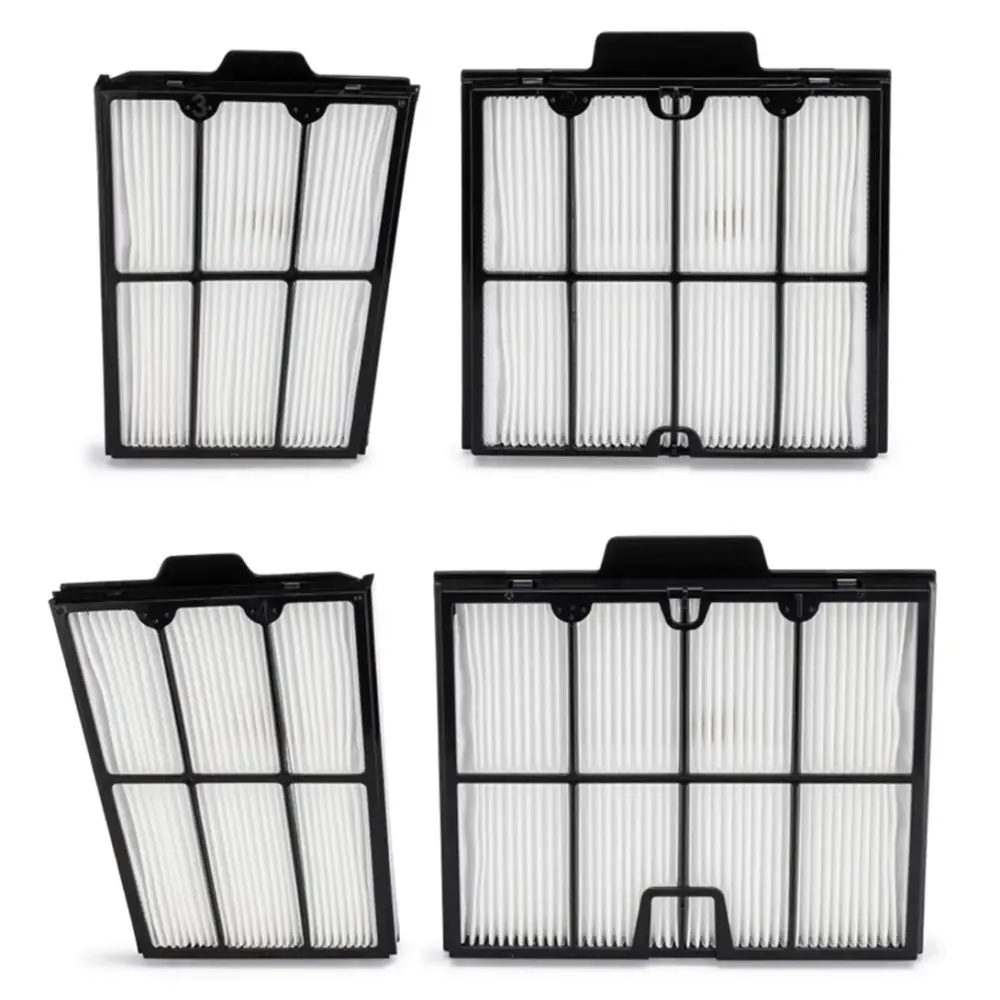
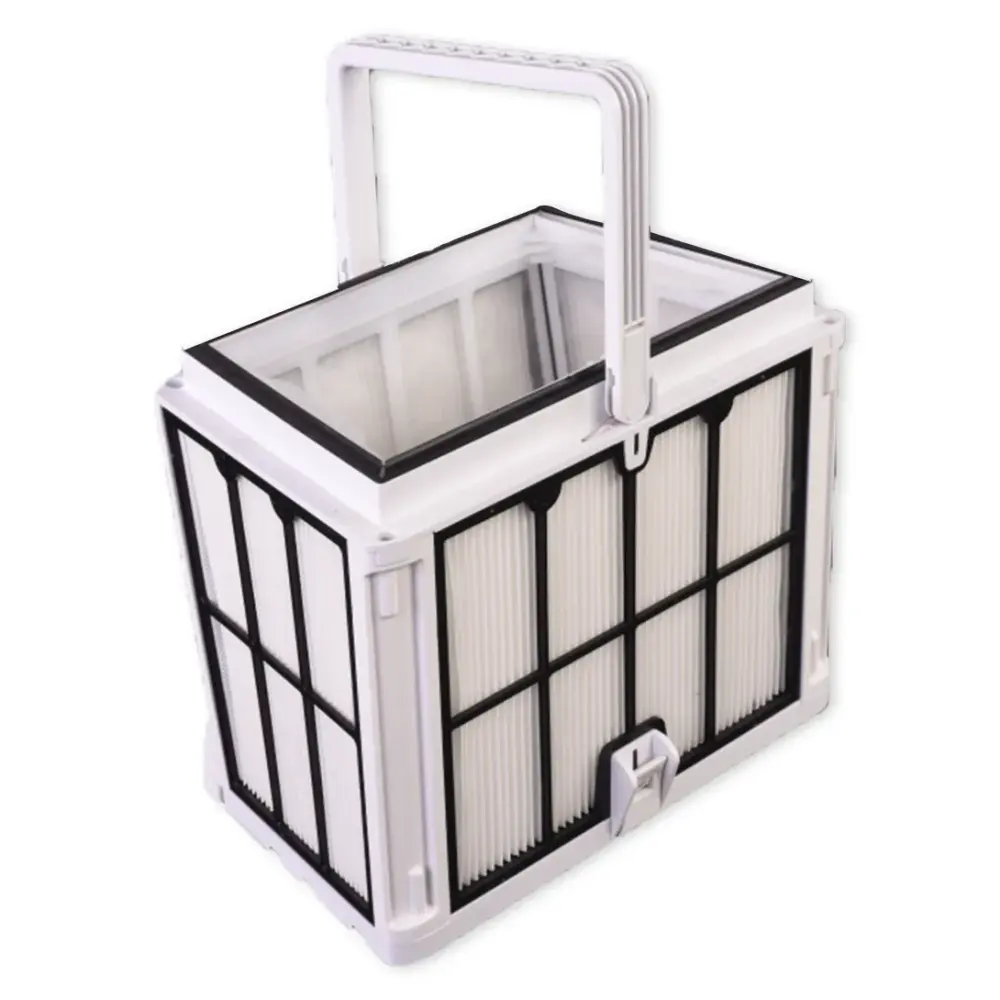
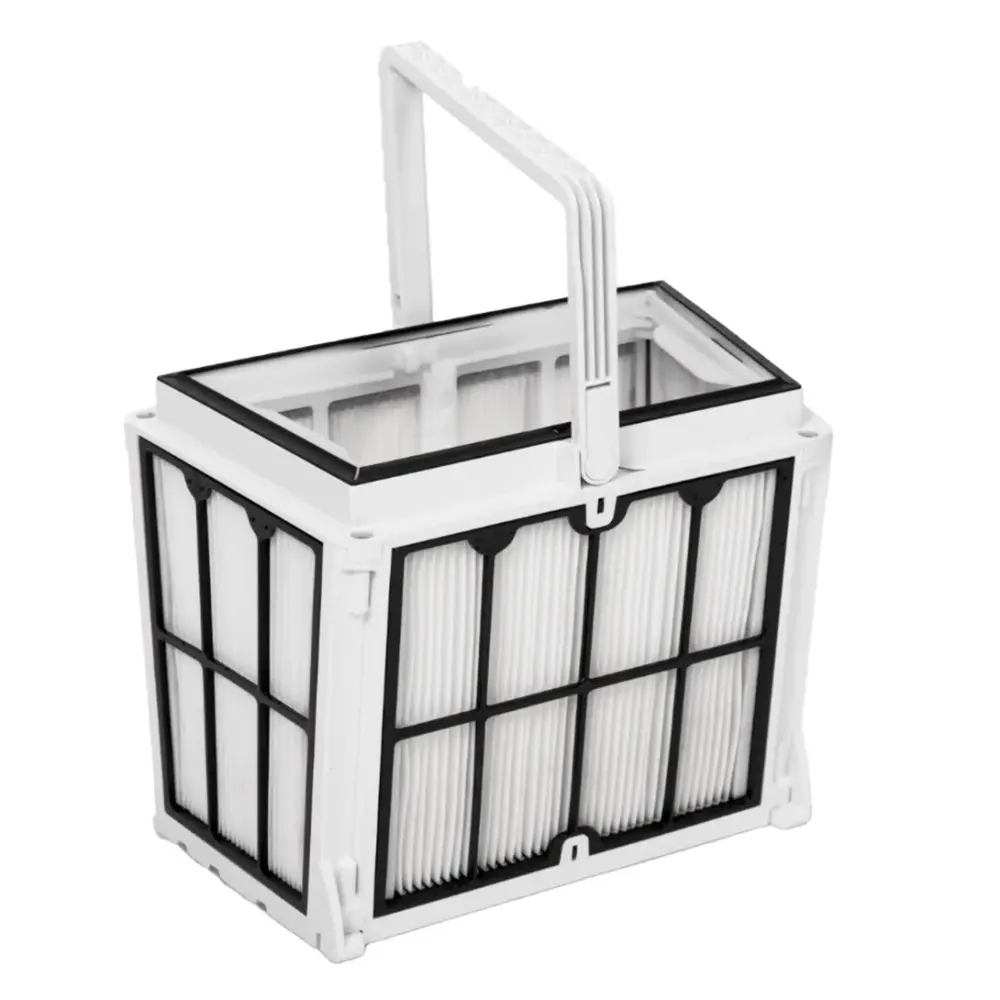
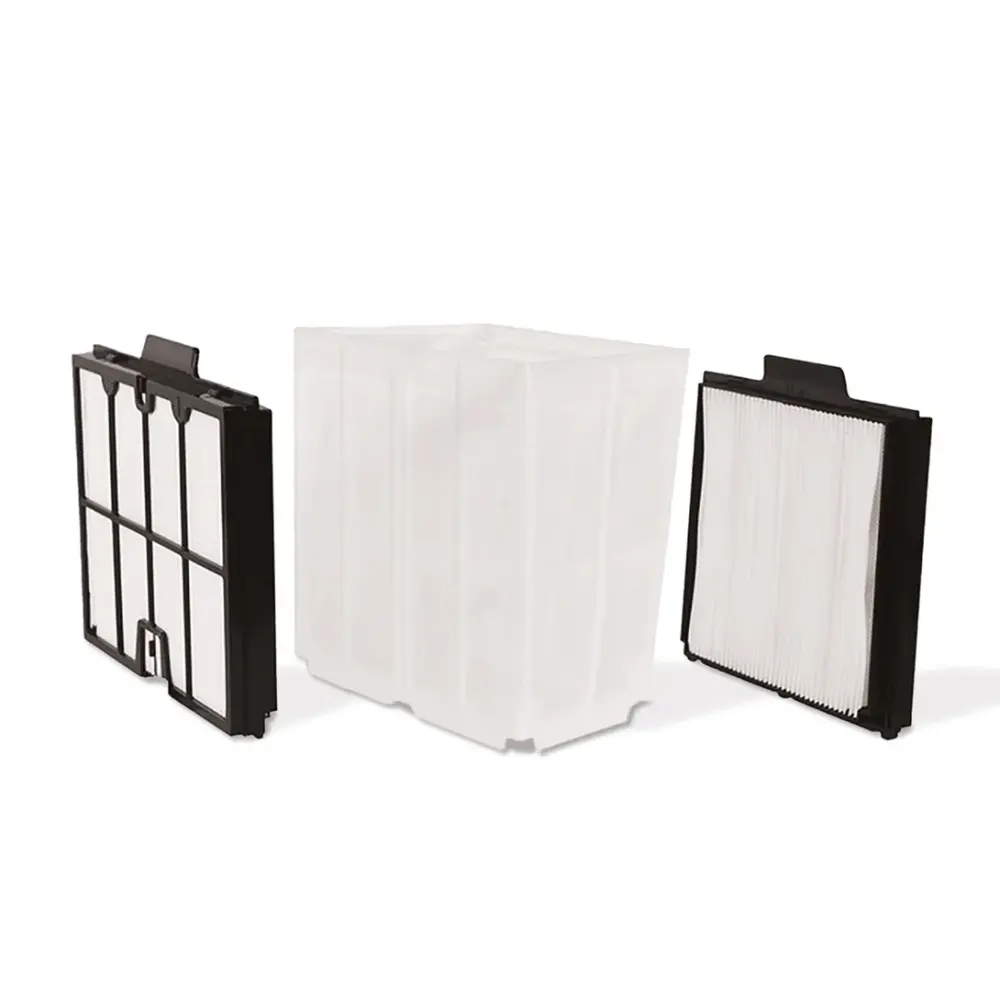
19 genuine parts for the Advantage PRO.
Filters, brushes, tracks, cables and power supplies confirmed by Maytronics for model 99996207-ADP. Every part page lists the other robots it fits and how to install it.
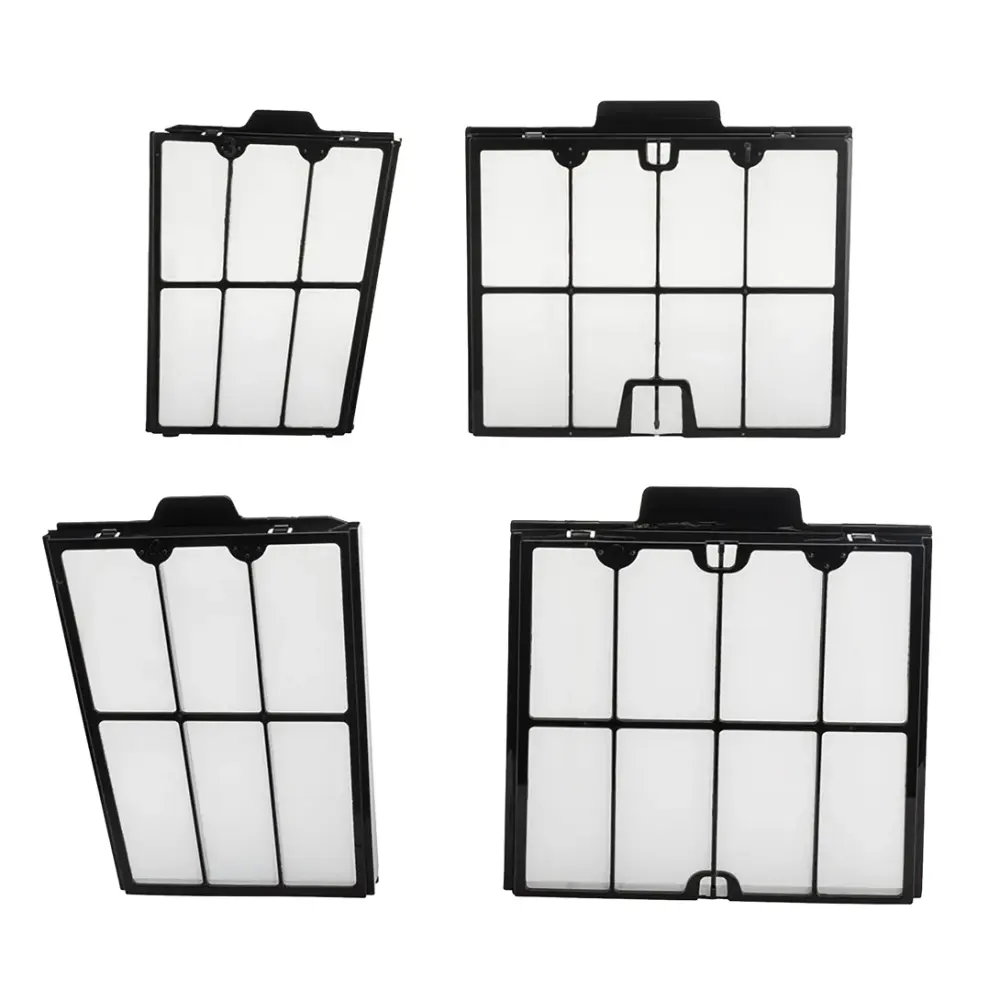
Filters
7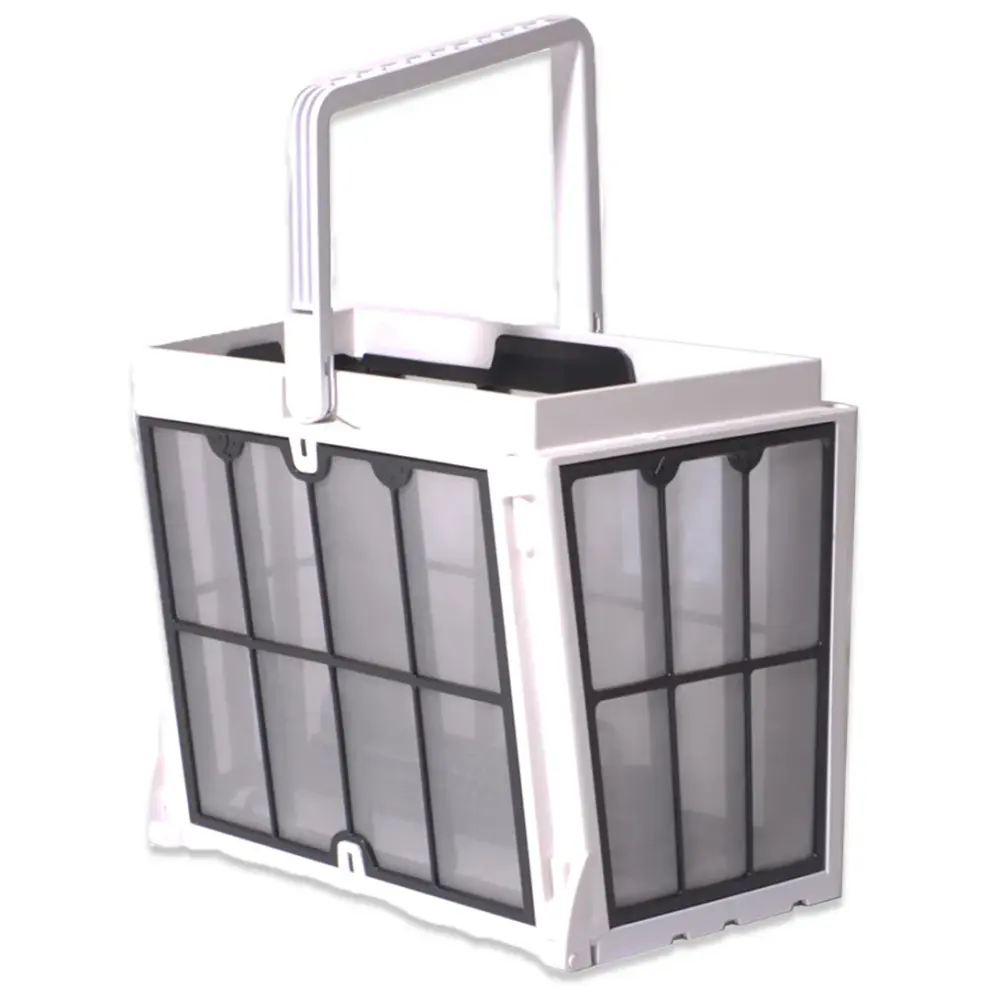
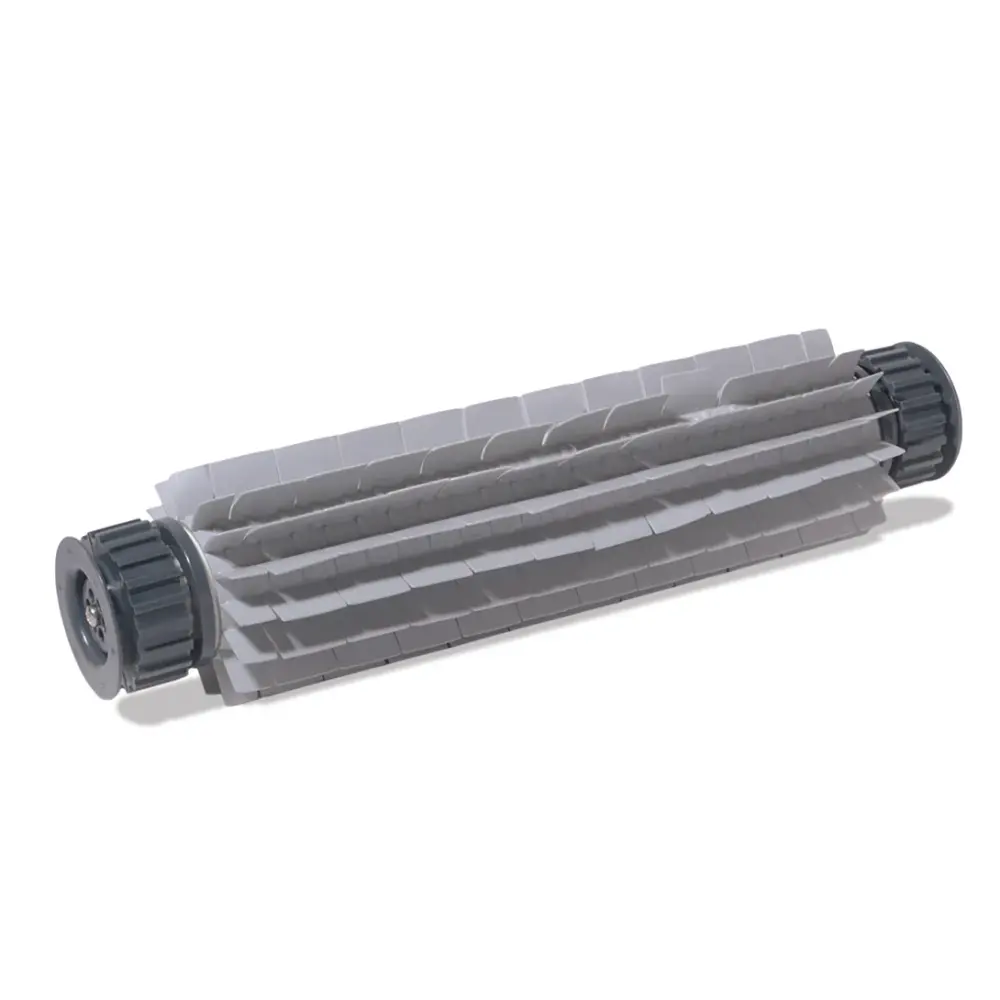
Brushes & Climbing Rings
2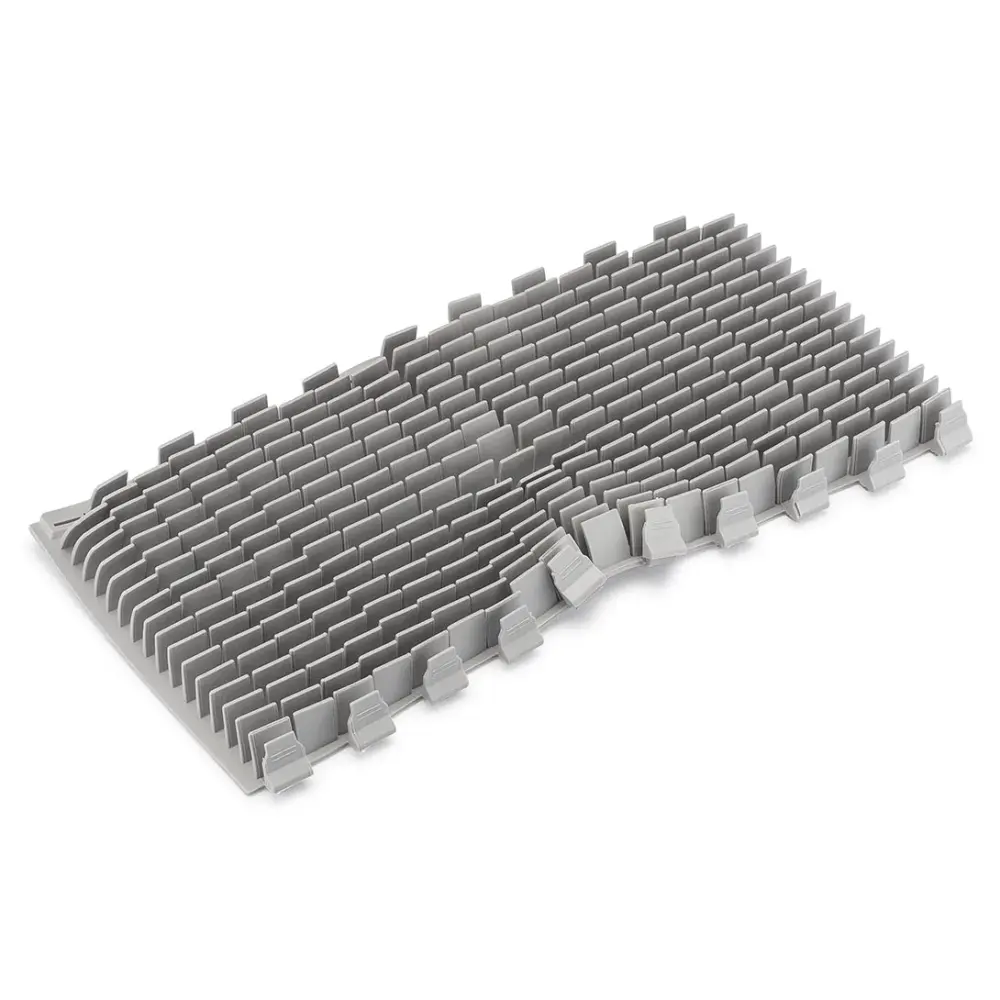
Tracks & Wheels
1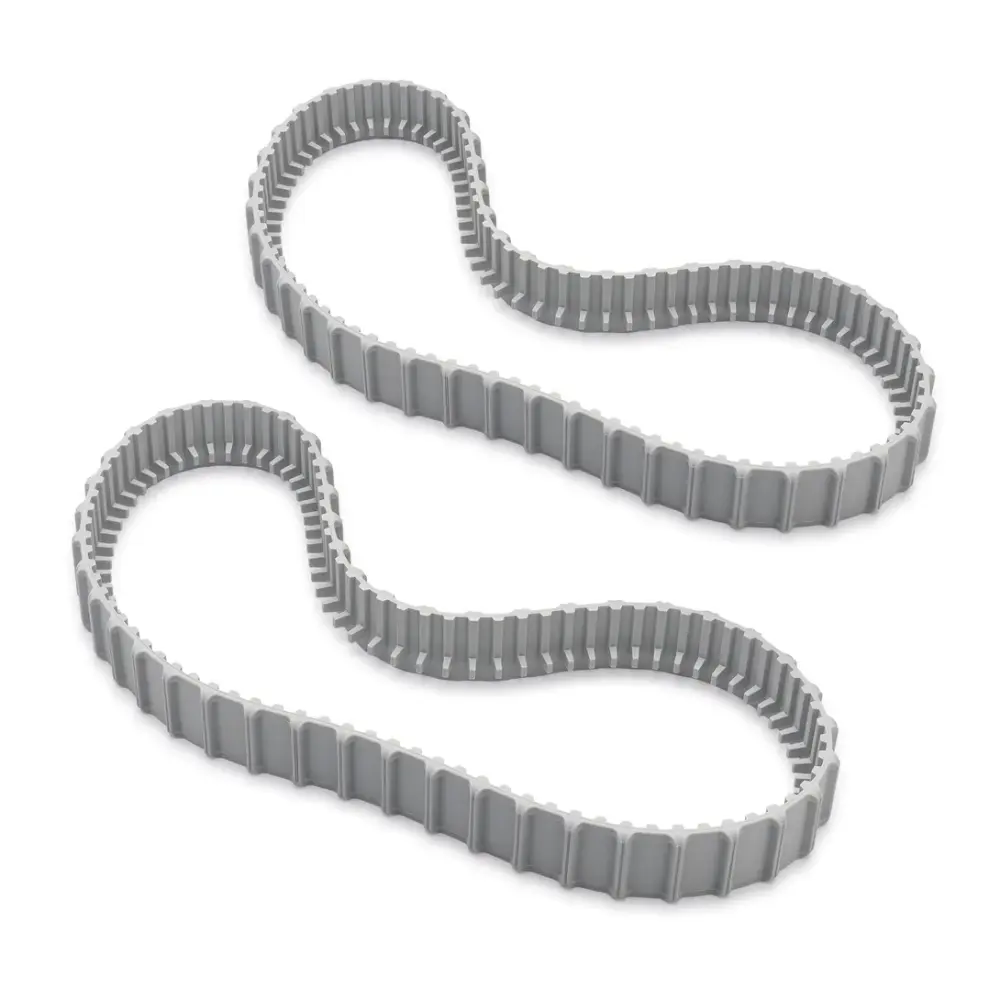
Grey Tracks (2)
Power Supplies & Chargers
2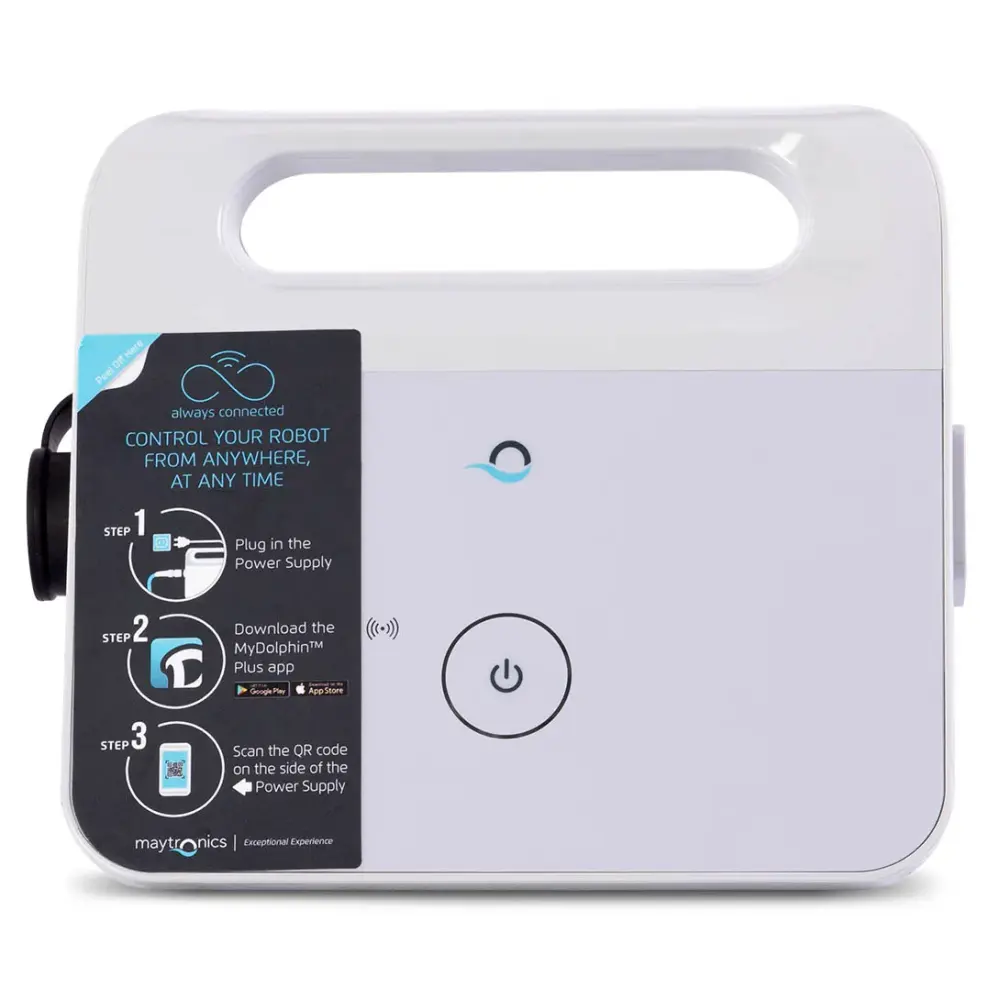
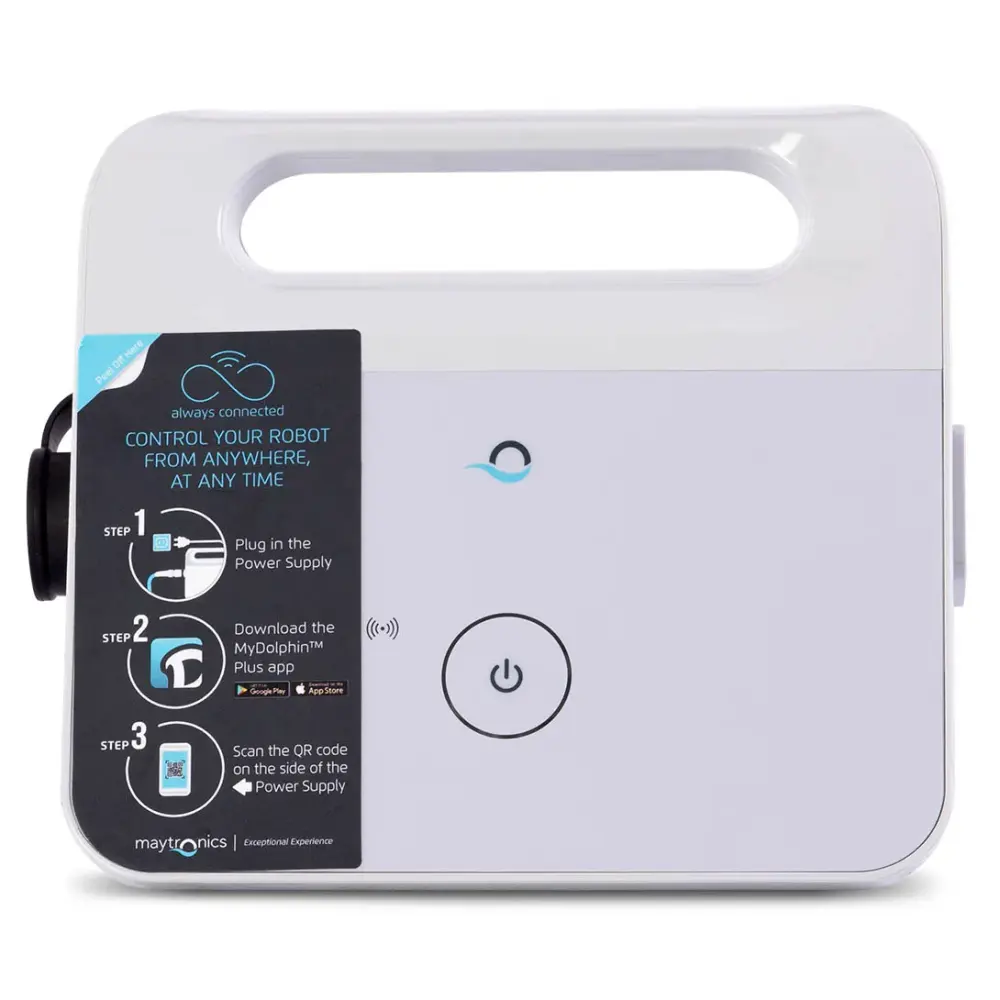
Cables & Swivels
2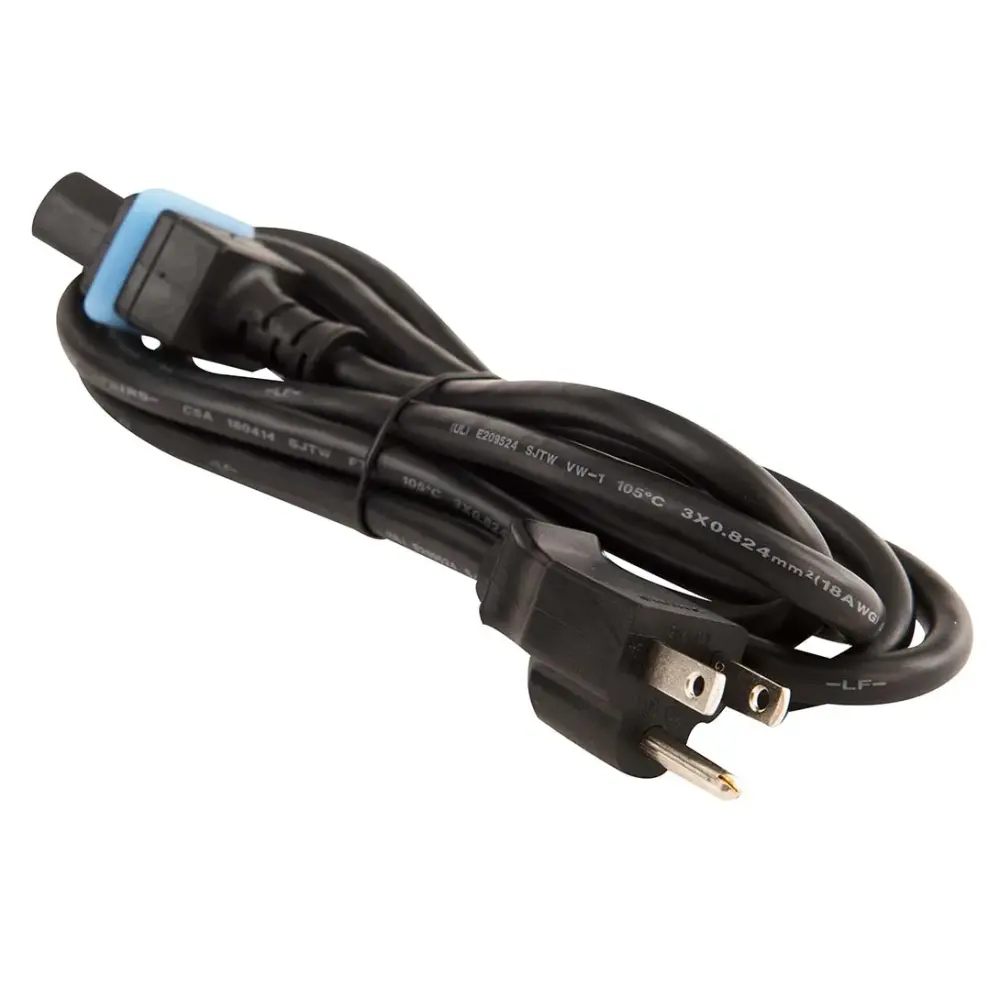
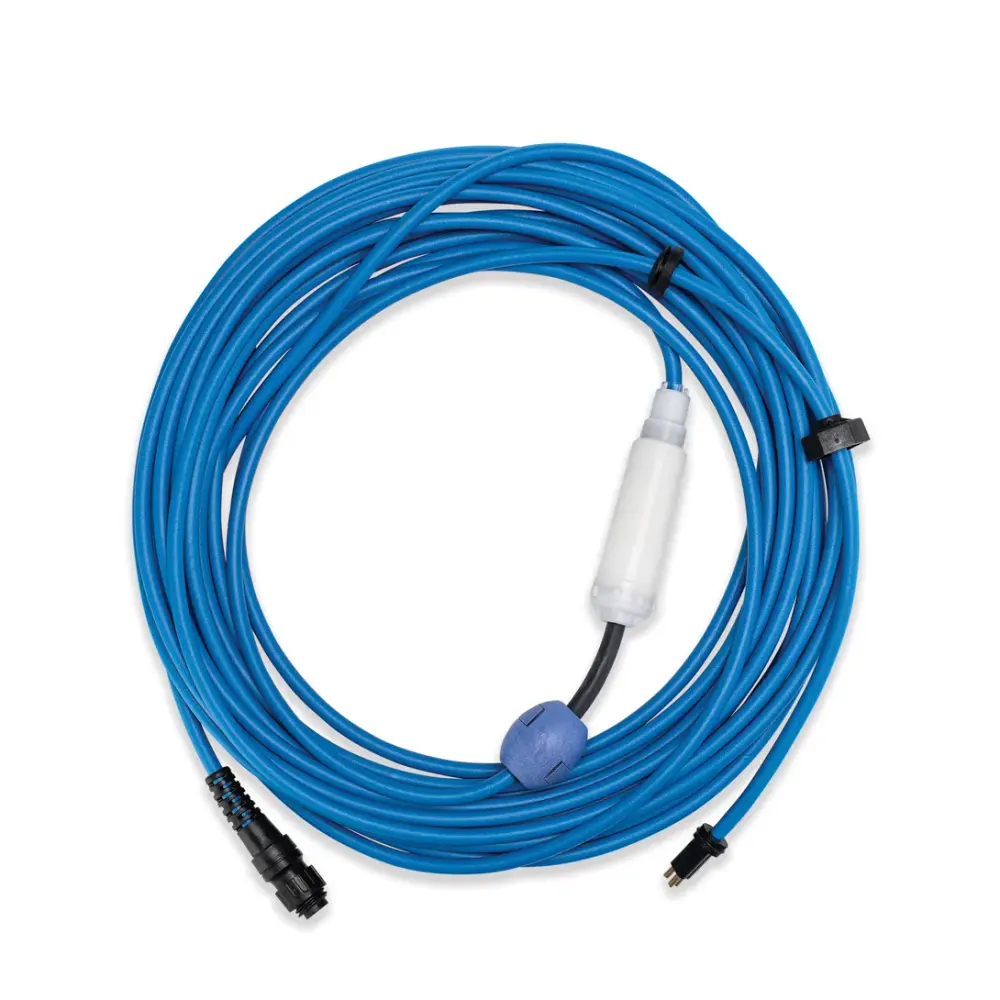
Cable with Swivel 3W S, 17M/56FT
Motor Units & Impellers
2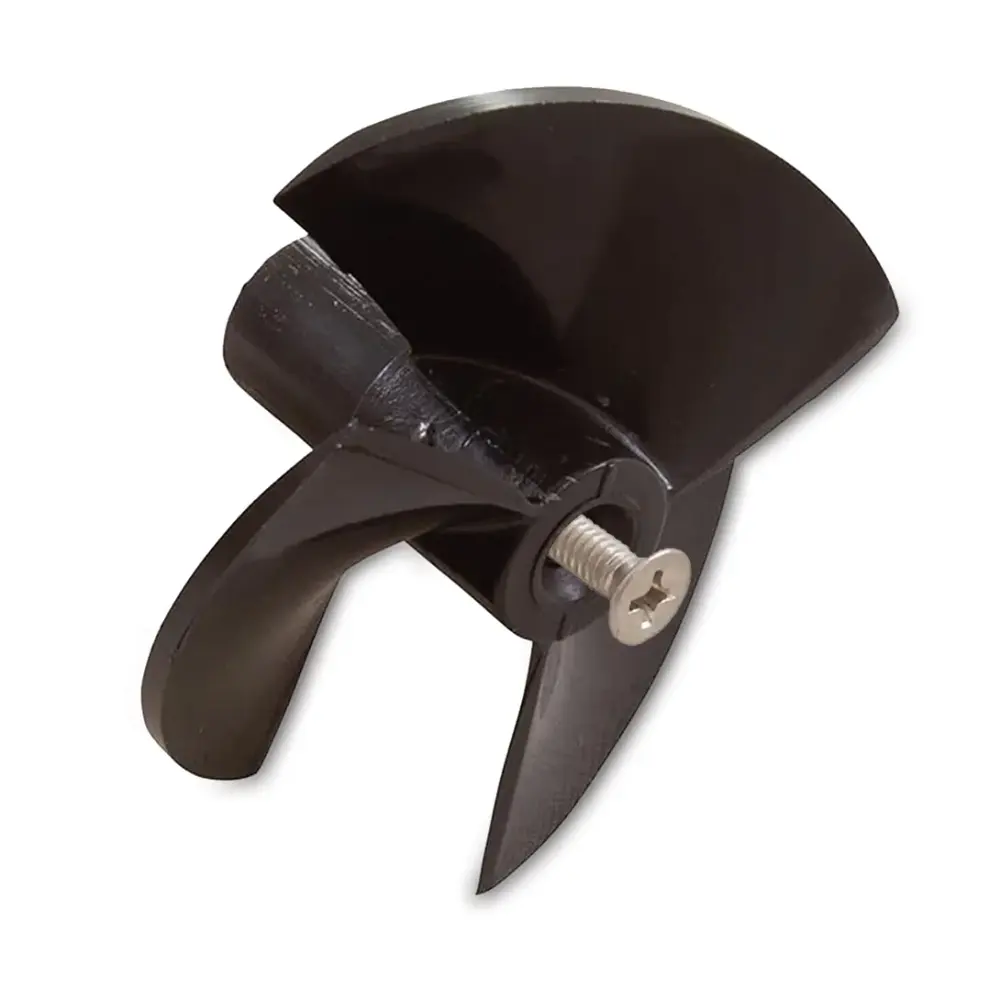
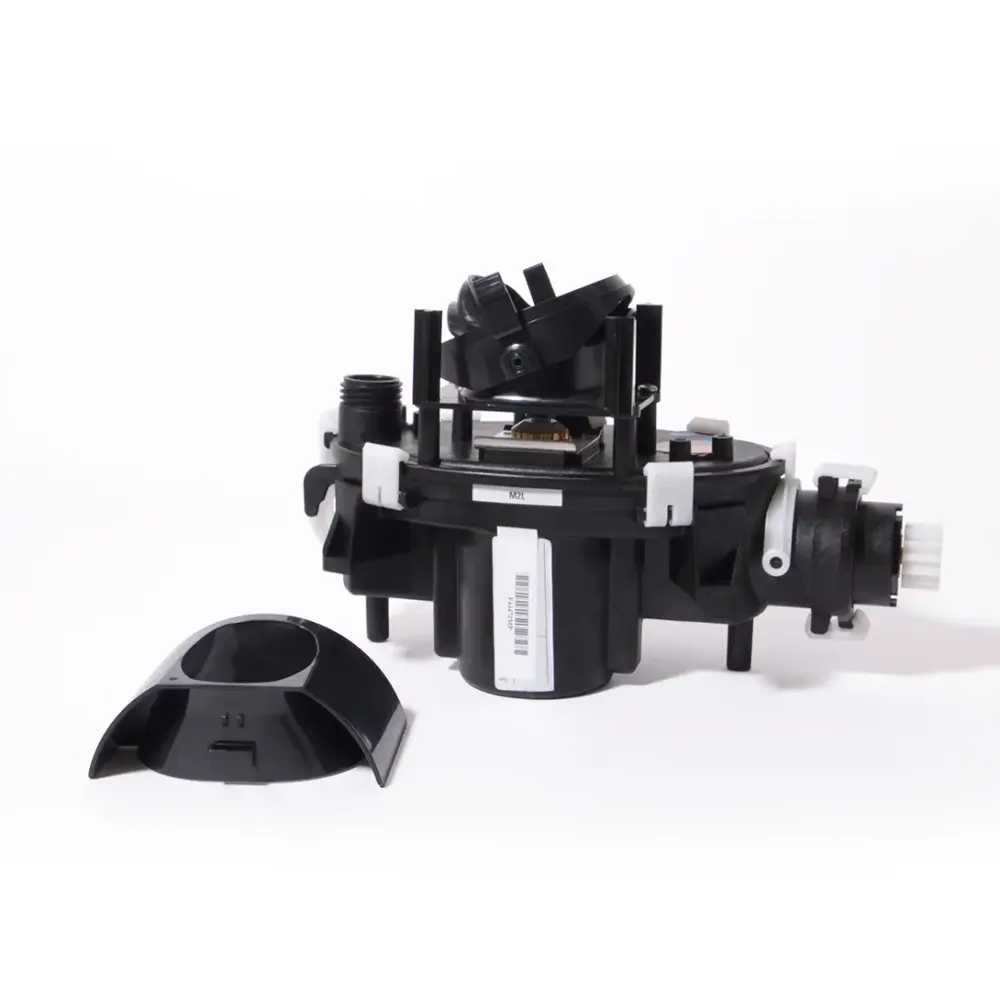
Motor Unit, S2 with LED
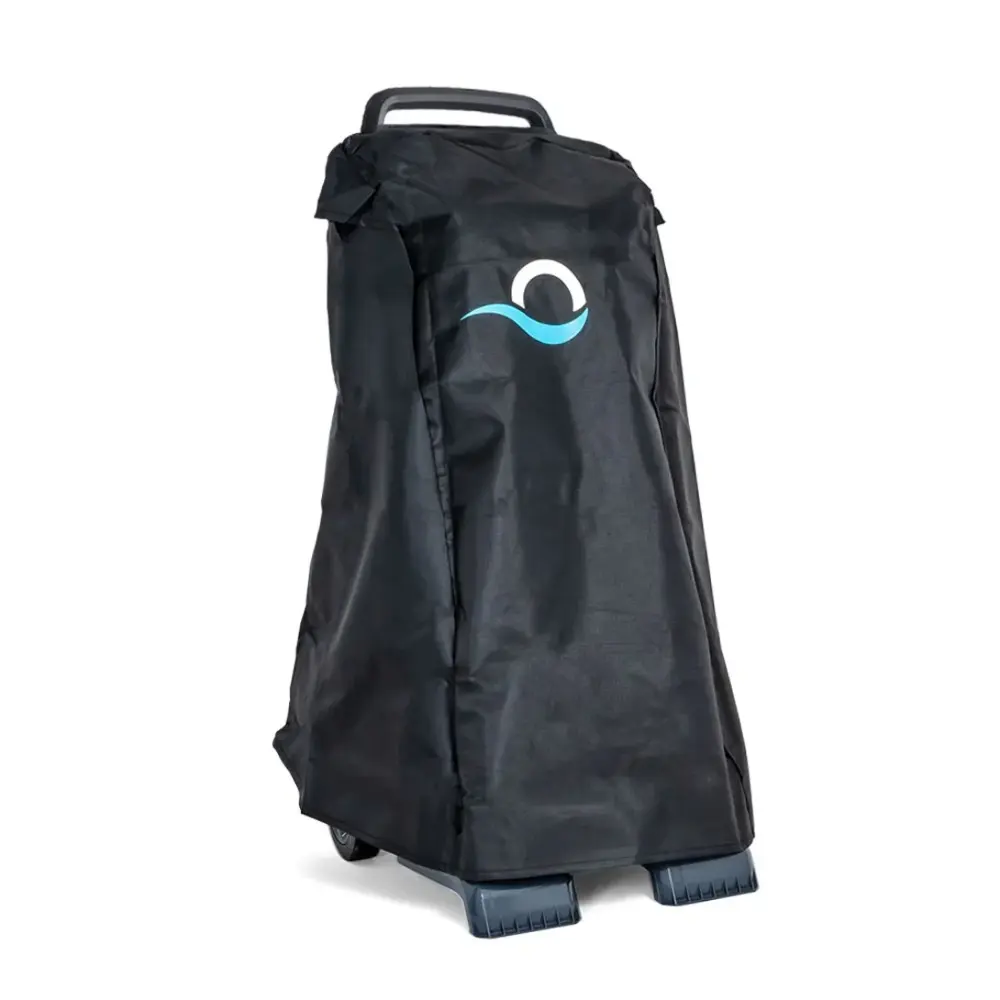
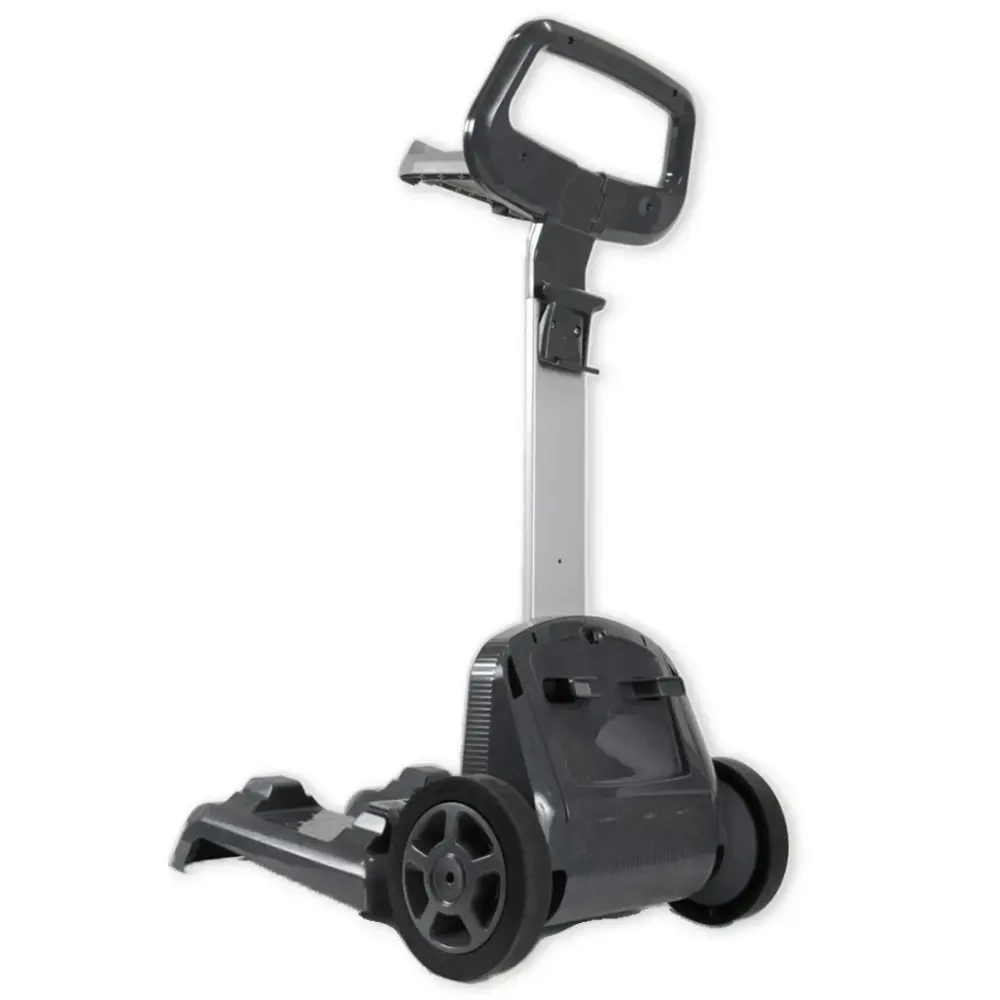
Caddies & Covers
3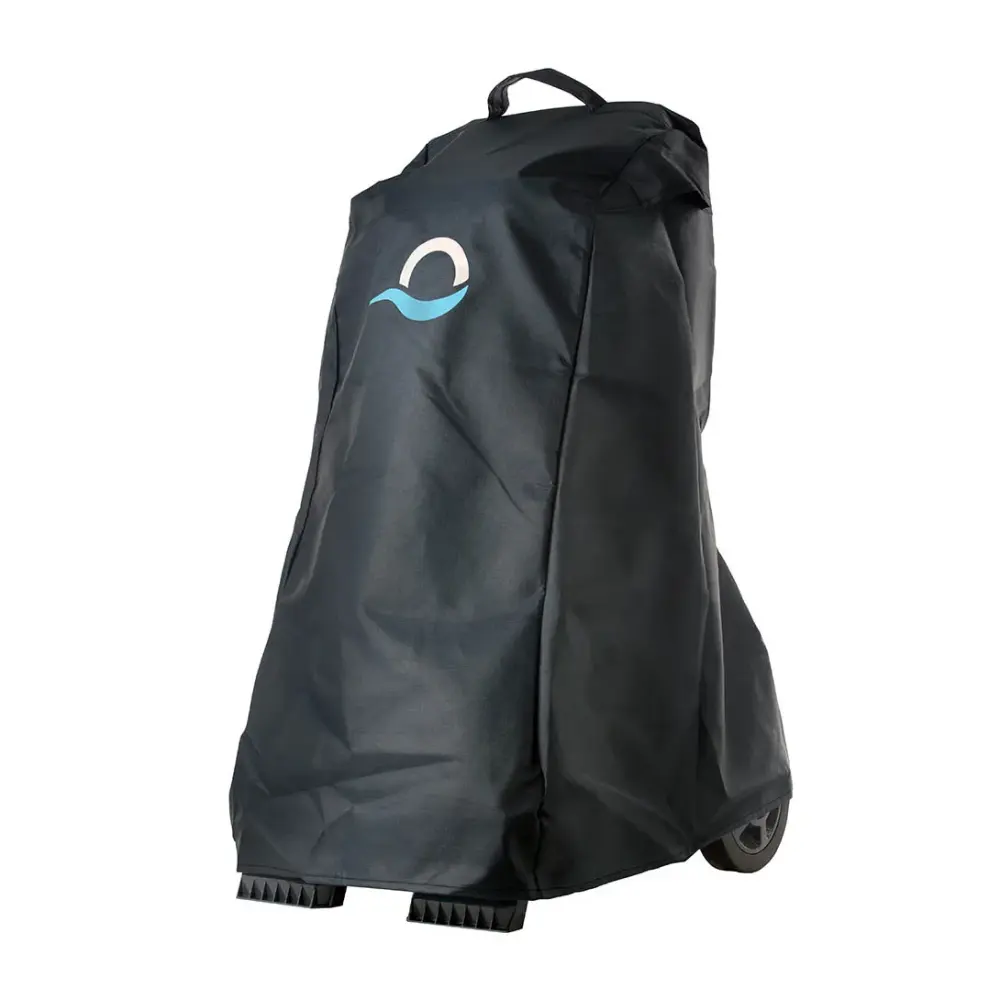
Advantage PRO manuals, videos and answers.
Something not working? The Advantage PRO troubleshooting guide has 29 fixes grouped by problem. Below: the official documents, Maytronics' how-to videos and the questions owners ask most.
User manual in other languages: Français, Deutsch, Español, Italiano, Nederlands.
How-to videos
Questions about the Advantage PRO
Getting started with your Dolphin
Congratulations on your new Dolphin! We are so happy to have you as a part of the family!
After you have unpacked the robot and removed all the plastic wrapping it's time to start!
Preparing your Dolphin for use:
Step 1Preparing
- If your Dolphin has white climbing rings, make sure to remove the plastic wrap on the rings before starting the first cycle.
- Make sure that the power supply unit is placed at least 12ft (3.5m) from the edge of the pool and in the shade if possible. Our power supplies are splash-proof, but not waterproof.
Caution: We do not recommend using an extension cord.
- Release the minimum length of blue cable necessary to ensure that the robot will cover the entire pool. You can measure the amount of cable needed by measuring the longest part of the pool. Leave the excess cable rolled up outside the pool.
- Connect the blue cable to the power supply, align the plug on the connector with the notch on the power supply plug, and then turn clockwise until secure.
- Plug the power supply into a power outlet, but don't turn it on just yet!
- Place the Dolphin in the water in the middle of the longest part of the pool.
Step 2Launching
Getting started!
Place the Dolphin in the pool and let it sink to the bottom. In the case of brushes with foam rings, or foam brushes, press the brushes into the water until they are completely soaked.
Step 3Starting
You can now start your Dolphin robot using the ON/OFF button on your power supply.
Here is some additional information on how to use your Dolphin:
- Our Dolphin robots are designed to maintain the cleanliness of your pool once you have done your initial spring cleaning, activated the pool filtration, chemically balancing the pool, and removing major debris using your pool net.
- Our Dolphin robots can be equipped with fine spring filters that remove large debris (leaves, grass, twigs) and/or ultra-fine filters that can clean small particles (like sand or dust). We recommend using the spring filters for initial spring cleaning.
- Some models have adjustable handles to control the speed during the cleaning of the waterline.
- Make sure to never pull your Dolphin robot by the cable when it is in operation.
- At the end of each cycle, the Dolphin robot automatically turns off. If you stop the robot before the end of the cycle, (for example, because the filter is full), the unit will start the cleaning cycle from the beginning once it's turned on again.
If you want to know more about your robot features, we advise you to refer to the user manual of your robot.
You will need to indicate the model of your Dolphin or its serial number.
How do I properly store my Dolphin?
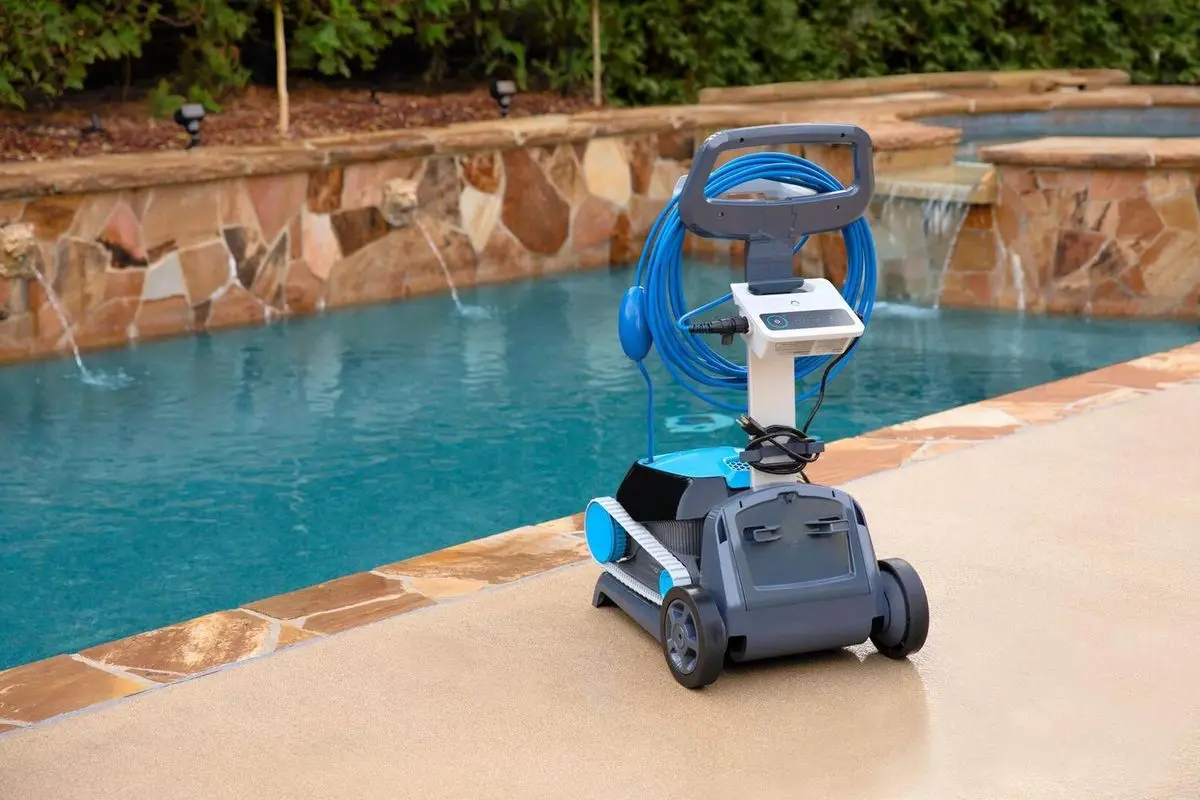
(The picture is for illustrative purposes)
After each cleaning cycle, for optimal maintenance, we recommend removing the Dolphin from the pool and storing the robot and the power supply away from direct sunlight, excessive heat, or cold to prevent accelerated wear and tear.
Store the Dolphin robot in a shaded spot on the Dolphin caddy and wrap the cable carefully to prevent any kinks.
The power supply unit should be used in a covered, shaded area protected from the outdoor elements, including rain, heat, and cold. We recommend mounting the power supply on the Dolphin caddy or placing it on a higher surface away from the edge of the pool. The power supply unit should be positioned at least 12 ft from the pool.
If you are putting your Dolphin away for the season, for offseason storage, we recommend storing the Dolphin on the caddy and in a protected and well-ventilated area that is between the temperature 41°-113°F.
Keep the robot and power supply a reasonable distance from pool chemicals, as strong chemical fumes can be corrosive over time.
My Dolphin came with fine filters. Are there finer filters available for my Dolphin?
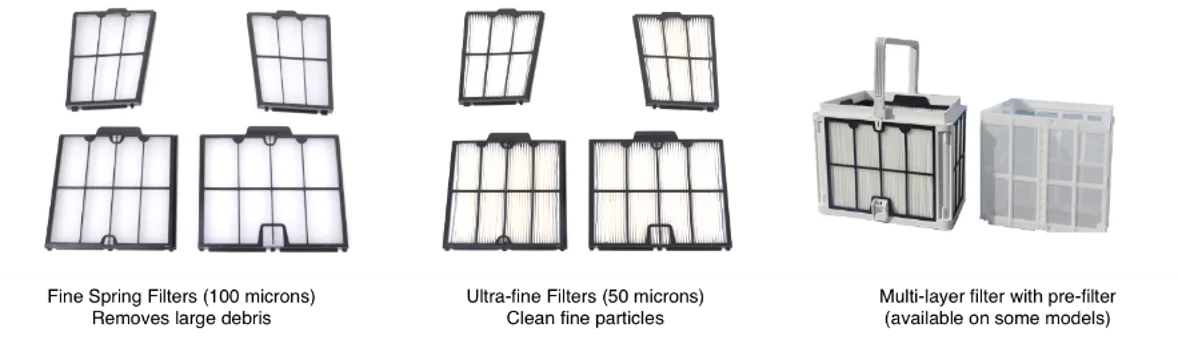
Multilayer filter with pre-filter (30 microns)
Your Dolphin robot comes with fine spring filters (100 microns) that remove large debris including leaves and twigs.
Depending on your model, it also consists of another set of ultra-fine filters (50 microns) that clean small particles like sand, dirt, and algae.
Some robot models have an additional spring filter that can be added to the ultra-fine filter basket for super filtration (30 microns). More and see if it is compatible with your robot model
The fine spring filters should be used for the initial opening season cleaning and if you have large debris in your pool. The ultra-fine filters should be used if you have mainly small debris and algae in your pool.
Click the user manual to refer to the user manual to verify which filters come with your robot and for illustrations on how to replace the filter panels.
If you wish to purchase a set of ultra-fine filters (for fine debris, such as algae) for your robot, please visit our Dolphin Spare Parts & Accessories page or check with your local Dolphin dealer if they sell replacement filters.
MyDolphin Plus Wi-Fi Connectivity GuideFix
Maytronics MyDolphin™ Plus application, connected via the Cloud, allows you to control your Dolphin robot from anywhere, at any time, thanks to real-time connectivity.
Here is a quick video to make your first connection easy!
Compatibility
- Apple (iOS): version 10 or later / iPhone, iPad, iPod
- Android: operating system version 5 or later
Wi-Fi Network Requirements
- Transmitting the 2.4 Ghz frequency only
- Network password of less than 32 characters, without spaces and special characters (i.e., # % & " $ £)
- A signal strength at the location of the power supply unit that is at least 60%, i.e., 2 out of the 3 possible bars.
If your Wi-Fi® network's technical specifications do not allow this connection, you can also connect to your Dolphin robot via Bluetooth® only.
Getting started with the MyDolphin™ Plus App
- Ensure that your smart mobile device is connected to your Wi-Fi® network and that your signal strength is at least 60% at the location of the power supply, i.e. 2 bars out of 3.
- Verify you have the name and password of your Wi-Fi® network available (the password must be less than 32 characters).
- Make sure Bluetooth® is enabled on your phone or tablet.
For Android users: Please make sure that your GPS and location-based services are turned ON.
For iOS 13 users only: You must allow the application to use Bluetooth® and location-based services while the application is running.
Preparing your Dolphin to establish the connection
- Connect the power supply unit to an electrical outlet and the blue cable on the Dolphin robot to the power supply unit.
- The power supply connectivity LED will start flashing blue.
- Place the Dolphin in the water.
- Press the power supply unit on/off button to start the cleaning cycle of your Dolphin.
Connecting your Dolphin to your phone/tablet
- Launch the MyDolphin™ Plus app.
- Click Accept and grant access to all required permissions.
- Sign up by creating an account or use your Gmail/Facebook/Apple account.
- Scan the QR code on the side of the power supply unit, or press "Search manually" to establish the connection with your robot. "Search manually" will appear under the QR scanner. The application will start pairing with your power supply once the robot is found via Bluetooth®.
- Wait until the connectivity LED is solid blue and a success message shows in the application.
- The application will now ask you to connect to your Wi-Fi network.
- Verify that the name of your Wi-Fi network appears in the Wi-Fi network name field.
- Type in the password (which must be less than 32 characters) for your Wi-Fi network, and press Continue.
- Wait a few moments, because this might take up to 2 minutes, depending on the signal strength of your Wi-Fi network. During this process, your power supply LEDs will flash between green and blue.
- Wait until the connectivity LED is solid green and a success message is displayed in the application.
First Bluetooth® Connection
-
Please verify that you have granted all permissions when signing up on the app (location / BLE / etc.) and that all conditions are met (Wi-Fi / Cellular / BLE).
-
Please make sure that the blue cable is properly connected to the PWS.
-
When trying to connect, does a picture of the robot come up?
You have now successfully paired your robot to the app!
You can now give your Dolphin a name, register its warranty, and enjoy the app's features.
Stuck on Loading screen:
The connection process is divided into three stages. Percentages represent these stages. If the app is stuck on one of these percentages, this can indicate a specific issue.
First Stage – 0-10% / Sending WIFI info to the power supply (phone-power supply)
After the initial Bluetooth® connection, the app sends Wi-Fi details from the phone to the power supply. If it is stuck at this percentage, the connection was cut or not sent properly.
Close the app, reopen it, and try reconnecting, standing close to the power supply to ensure connection. Also verify that the Wi-Fi network’s name is correct and that there are no foreign letters or characters.
Second Stage – 10-50% / Power supply is connecting to the router
This stage is checking the Wi-Fi network requirements (2.4 GHz), this will take up to two minutes.
Verify that the network requirements are correct if stuck on this stage.
Third Stage – 50-90% / Power supply is connecting to cloud
If the connection fails here, it is because there is an issue with the cloud/connection to the cloud.
Reset the router.
The MyDolphin Plus app works with WPA/WPA2-Personal & WPA2/WPA3-Personal.
Note - It is not possible to purchase a Wi-Fi-compatible power supply and pair it with a non-Wi-Fi robot to use the MyDolphin Plus app.
Refer to the user manual to verify if your Dolphin model is compatible with the MyDolphinPlus app.
What water conditions should I use my Dolphin?
It is important to maintain balanced pool chemicals since imbalanced chemicals can affect the Dolphin robot's efficiency. It can also cause premature wear and tear to the robot's components.
For example, if there is not enough chlorine, small algae deposits can clog the Dolphin filters and limit the motor's power. If the pH levels in the pool are higher than recommended, the robot will not climb the walls.
After doing a chemical shock/flocculant treatment it is important to wait 24 hours before putting the robot back in the pool.
Using the robot in the chemical and temperature levels outside of the following ranges can affect the proper function of the robot and can cause premature wear and tear.
These are the recommended chemical and temperature levels:
43-95°F (below 59°F climbing performance may be affected)
| Parameter | Recommended Levels |
|---|---|
| Alkalinity | 80–120 ppm |
| pH | 7.2–7.6 |
| Calcium Hardness | 150–250 ppm |
| Chlorine | 1.0–3.0 ppm |
| Cyanuric Acid | 30–50 ppm |
| Algaecide | 30–50 ppm |
Our Dolphin robots can also be used in saltwater pools!
For optimal use and maintenance, the salinity levels should not exceed 5,000 P.P.M. We recommend rinsing the robot with tap water after each cycle to avoid buildup.
How long can I leave my Dolphin in the pool?
After each cycle, we recommend taking your Dolphin robot out of the pool to empty and clean the filters. Store the robot and power supply in a dry place, away from direct sunlight when not in use. Use the power supply in a shaded, covered area, away from water and direct sunlight.
We also recommend regularly rinsing the Dolphin with clear, tap water to prevent buildup on the robot.
For Dolphin robots with a weekly timer option or Eco Mode, the robot can remain in your pool's water for the entire week; however, you will need to clean the filter at the end of the weekly cycle.
Additional recommendations:
- If you leave your robot in the pool for the weekly timer, make sure the chemicals are balanced (see What water conditions should I use my Dolphin? for more information).
- For safety purposes, remove the robot from the pool before swimming.
- Check the user manual here or your Dolphin model's product page to verify the length of your robot's cleaning cycle(s).
How does my Dolphin scan and move around the pool?
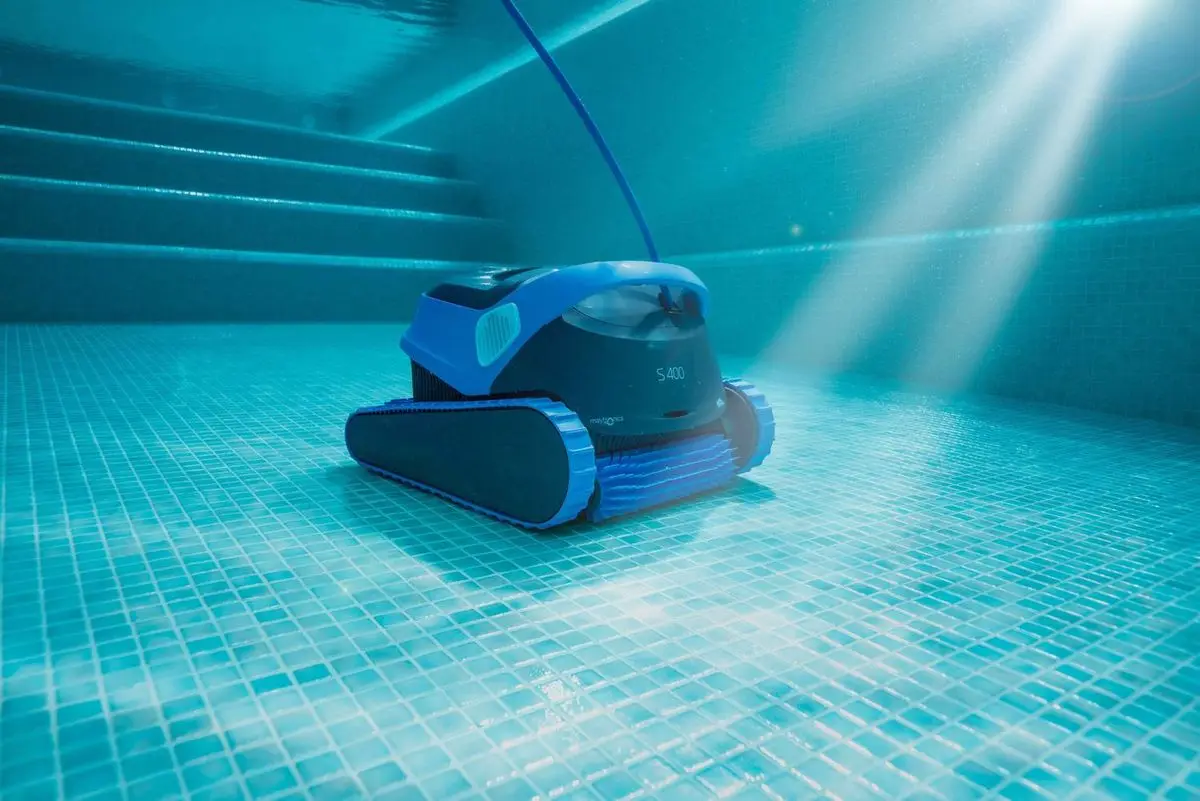
Our Dolphin robots use the CleverClean algorithm, built on timing, to navigate the pool.
The robot is programmed to clean the pool floor areas and if it includes a climbing feature, to clean the walls and/or waterline. Robots with a wall and waterline cleaning feature are programmed to clean the walls and waterline every 4-6 minutes.
Once the robot is turned on, it will start cleaning in the direction it is facing at that moment in the pool. The robot can clean with the pool filter pump working.
For information about your Dolphin robot's cleaning modes and cycle length, check the user manual or the product page for your specific model.
We recommend placing the robot in the middle of your pool, lengthwise, to ensure it reaches all areas of the pool.
How do I register my Dolphin's warranty?
You can complete your product registration and rebate submission through our online portal at https://registration.maytronics.com/.
Before you get started, make sure you have your robot’s serial number and your proof of purchase available.
You can find your Dolphin’s 10-character serial number located in these three places:
- On the outside of the box on a white label
- On your warranty card
- On the inside casing of the Dolphin on a white label with a barcode
Follow the steps below to register your product:
-
Go to the registration portal: https://registration.maytronics.com/.
-
Enter your robot’s serial number: Type the serial number into the first field. If you need help locating it, click the “i” icon next to “Where do I find my robot’s serial number?”.
-
Select your previous pool-cleaning method, then click Continue.
-
Enter your personal information:
- As you begin typing your country or state, a dropdown menu will appear. Select the correct option from the list.
- Click Continue to move forward.
- Rebate/Promotion Code Section:
- If you have a rebate or promotion code, enter it in the first field.
- If you do not have a code, leave the field blank and continue by selecting your purchase date.
- You may also add the store name, address, and ZIP code.
- Upload your proof of purchase by selecting “Upload Your Receipt.” Accepted proof of purchase includes:
Preferred: Original receipt or original invoice (must show purchase date, product, and price).
If the original receipt cannot be located:
- A credit card statement or bank statement is acceptable.
- Only the date, merchant/product, and amount should be visible.
- Personal information must be hidden or removed.
-
Agree to the Terms & Conditions, then click Continue.
-
Review your information and click Submit to complete the registration.
To check your Dolphin’s warranty length, visit your model’s product page every Dolphin model. (Warranty lengths vary per model and region.)
Does your Dolphin need to be repaired? run the power supply checks to use our self-service tool to complete a warranty claim (RMA/Return Merchandise Authorization) to repair your Dolphin or to replace the power supply.
What are the voltage requirements for the Dolphin power supply unit?
The Dolphin requires a standard 120V outlet for power. We recommend using a GFCI-protected outlet.
Most Maytronics Dolphin pool cleaners are highly energy-efficient, using approximately less than 1 amp of electricity (approximately 100–180 watts) during operation.
How do I remove my Dolphin from the pool?
Before removing the robot from the pool, turn the power supply off and unplug the black cable from the socket.
Pull gently on the blue floating cable, to raise the Dolphin up to the edge of the pool. Then grasp the handle and remove it from the pool, letting the water drain from the robot slightly before pulling it out completely.
If you need assistance removing the robot from the pool, a retrieval hook is available for purchase. The hook attaches to a standard pool pole, allowing you to safely and easily lift the robot out of the water. Purchase
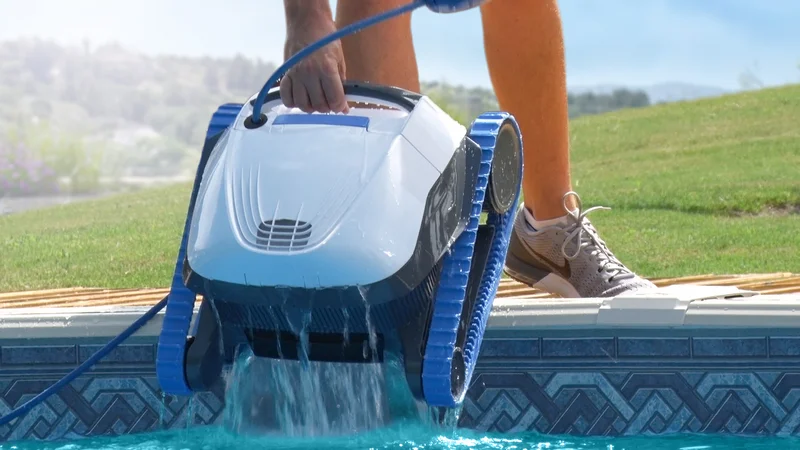
Do not yank the blue cable roughly to pull the Dolphin out, as this can damage it.
You can place your robot on the edge of the pool to allow the water to drain easily.
Does my Dolphin come with cleaning modes?
Some of our Dolphin models come with cleaning modes, and some don't. To see if your specific Dolphin robot model has cleaning modes and which ones, verify in the user manual.
If the cleaning modes feature is included with your robot, there are cleaning modes with different cycle durations that vary between Dolphin models. This is indicated in the user manual of your robot model or product page of your robot.
Depending on the model of your Dolphin and if cleaning modes are included, you can choose the cleaning mode and cycle duration on the MyDolphin/MyDolphin Plus App.
Other Advantage & Echo models.
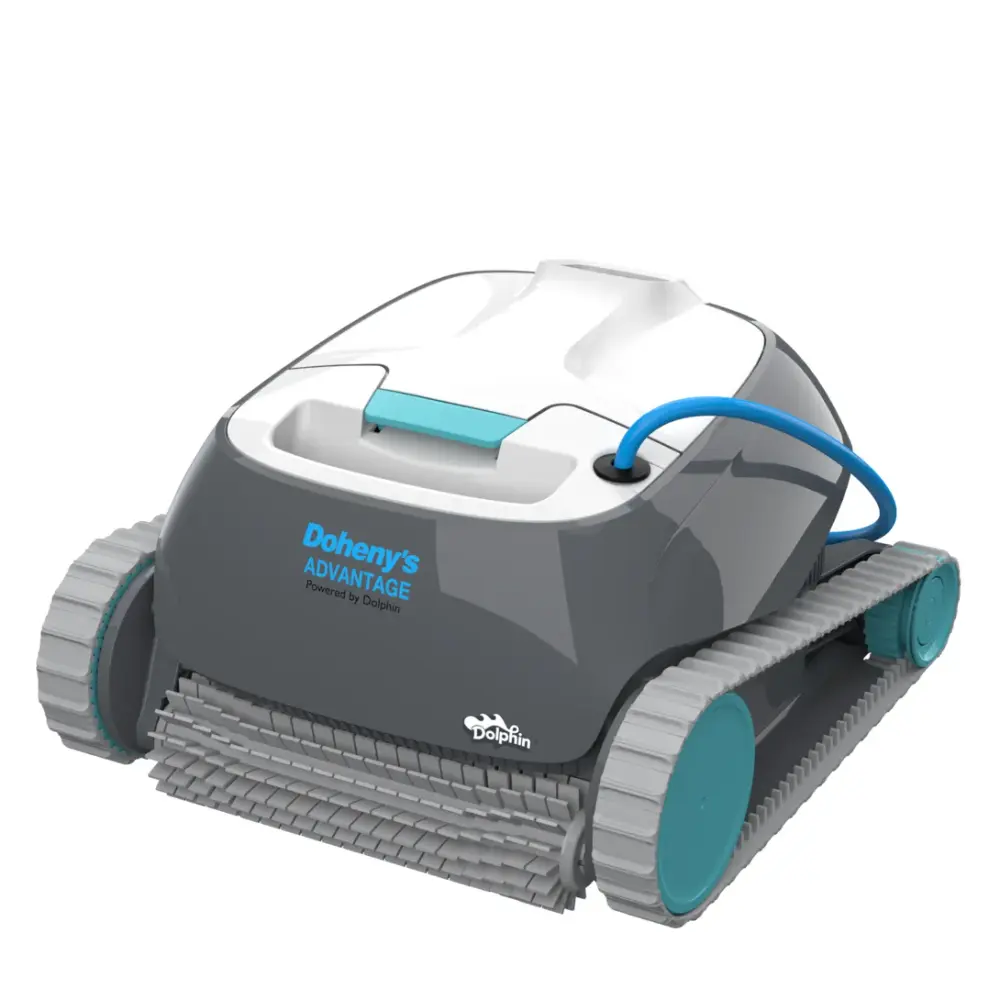
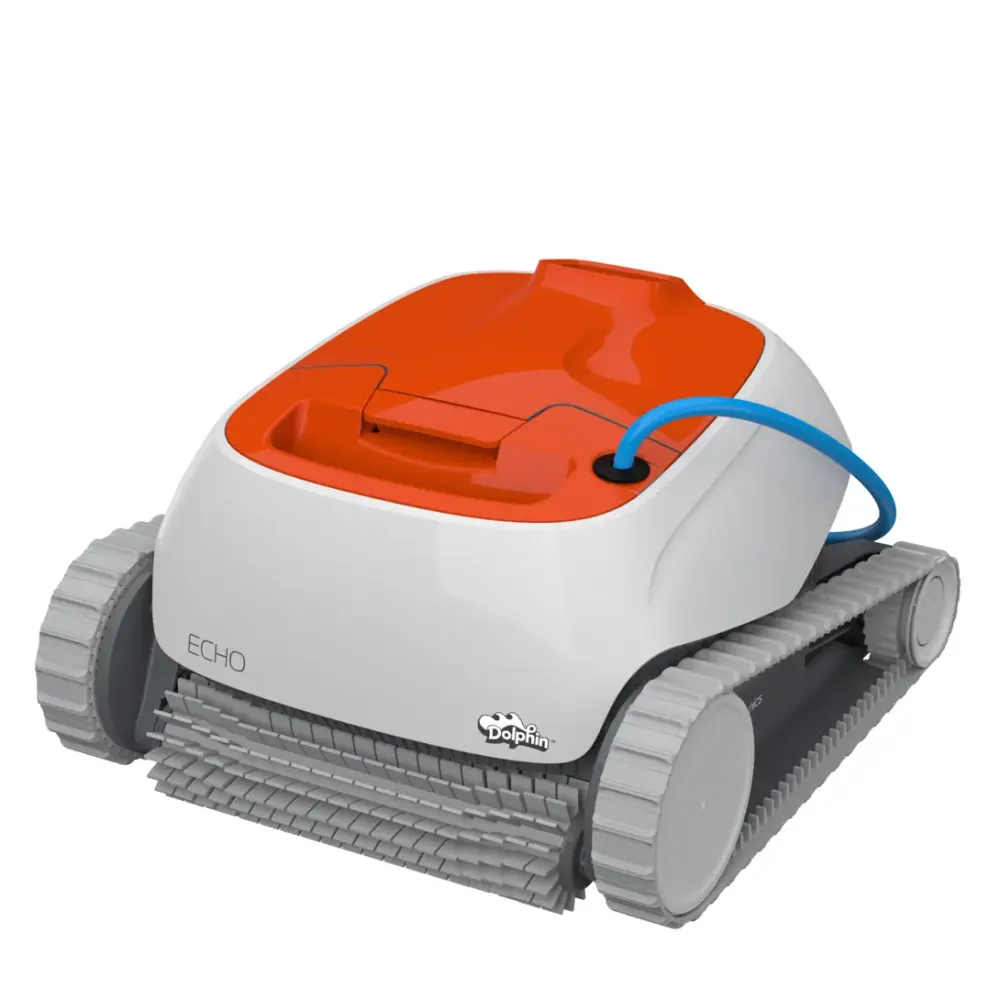
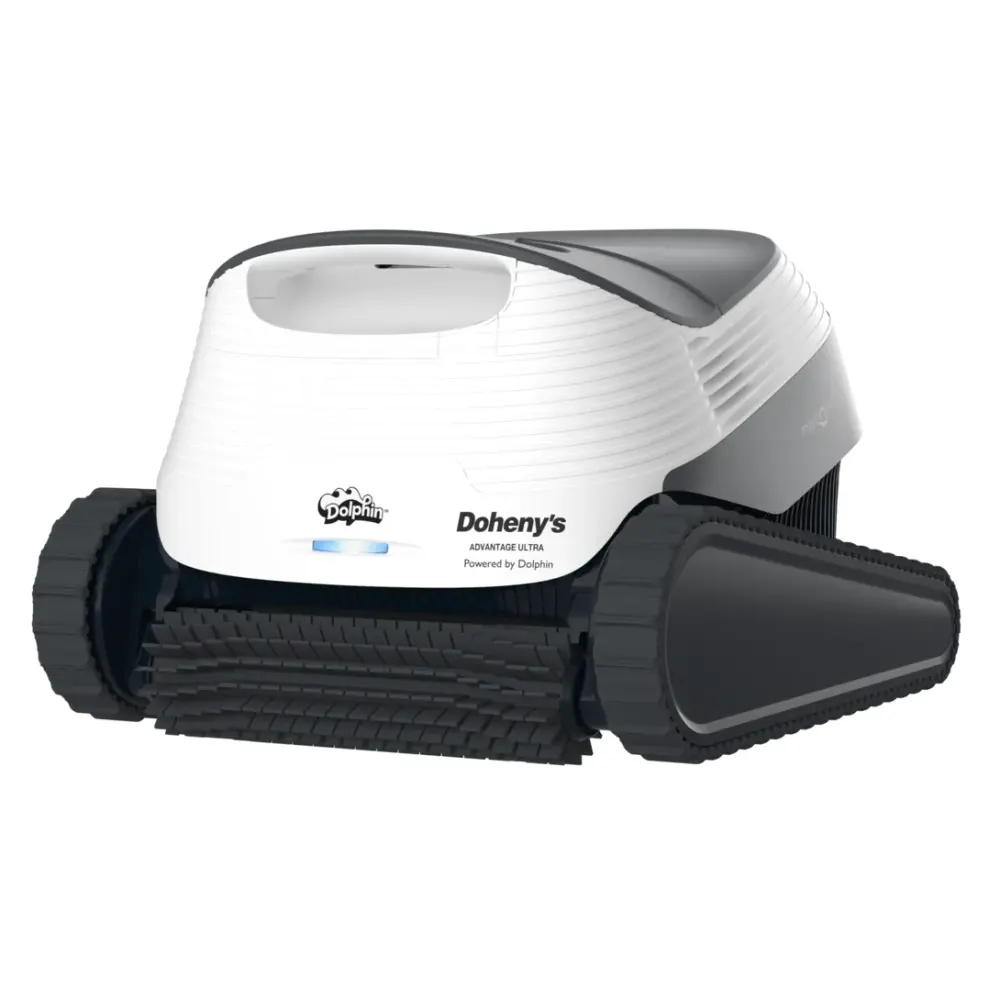
Looking for a Advantage PRO?
Maytronics sells this model through local dealers. Compare it with the Dolphins we ship free, or find a dealer near you.