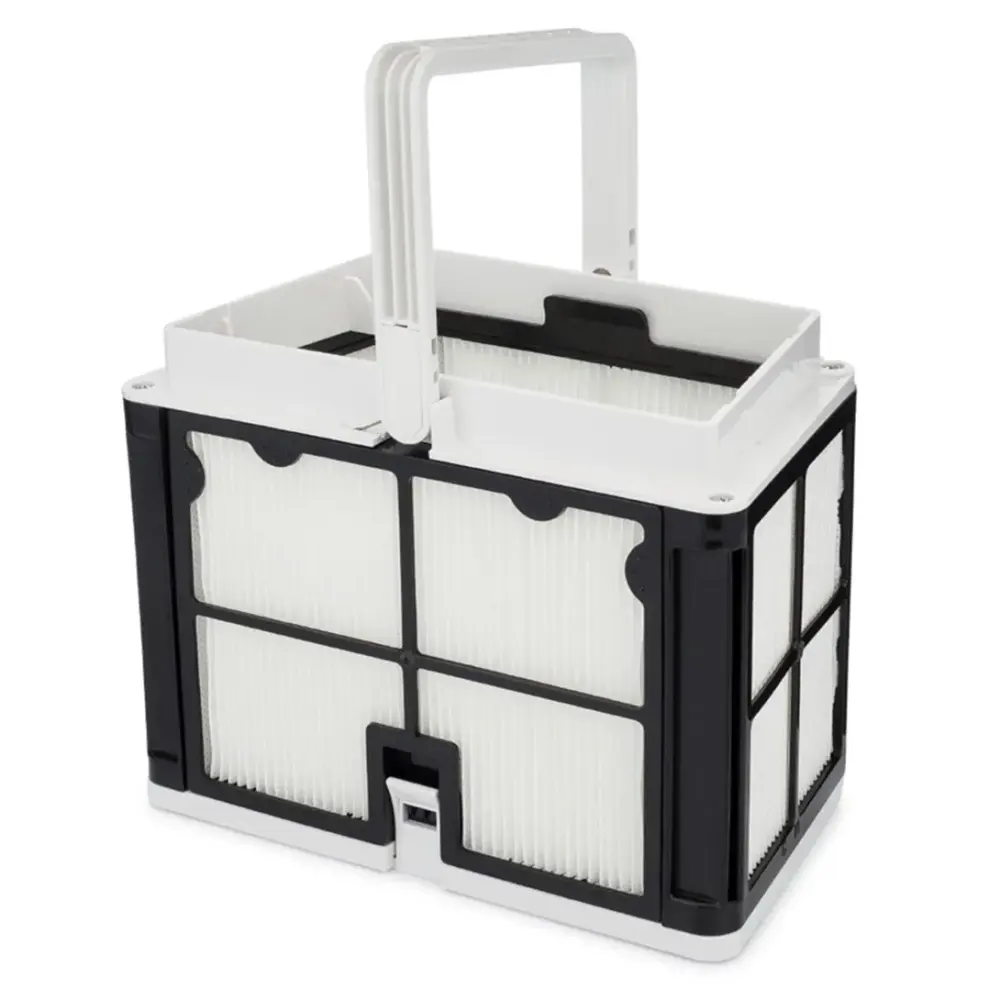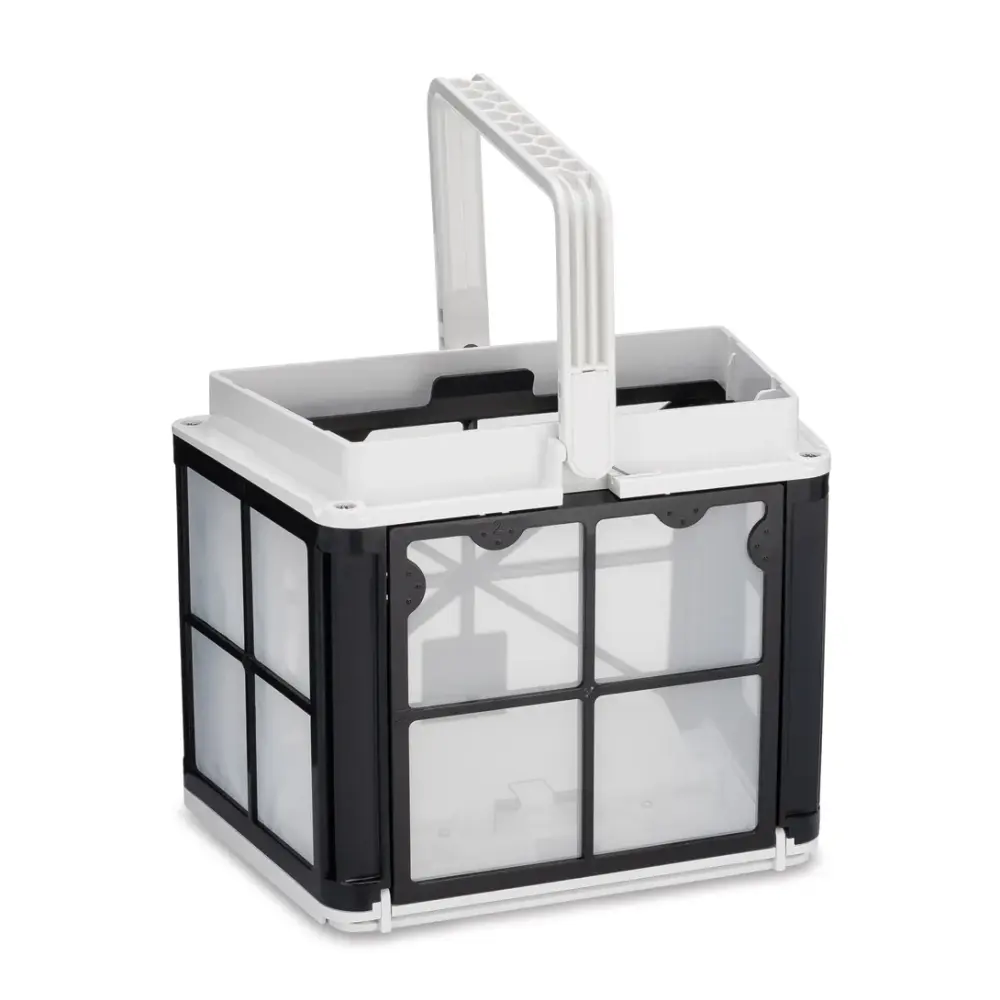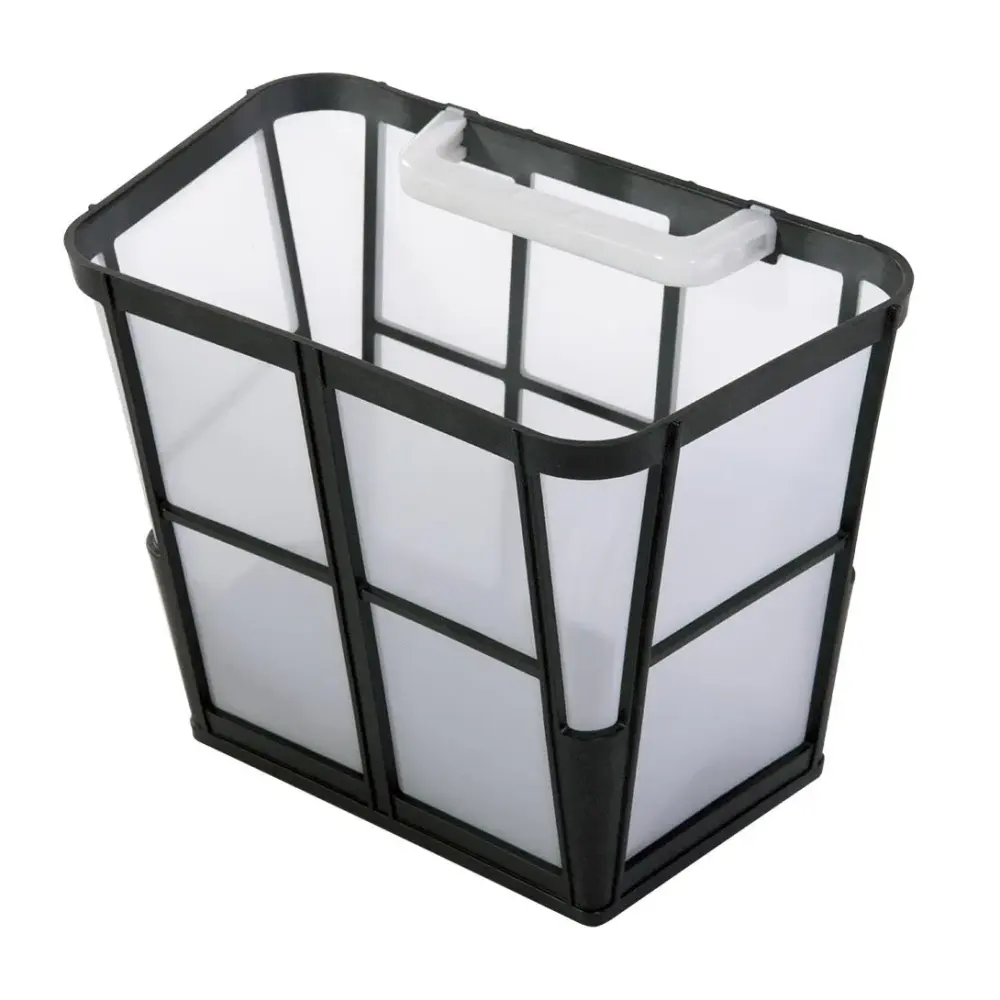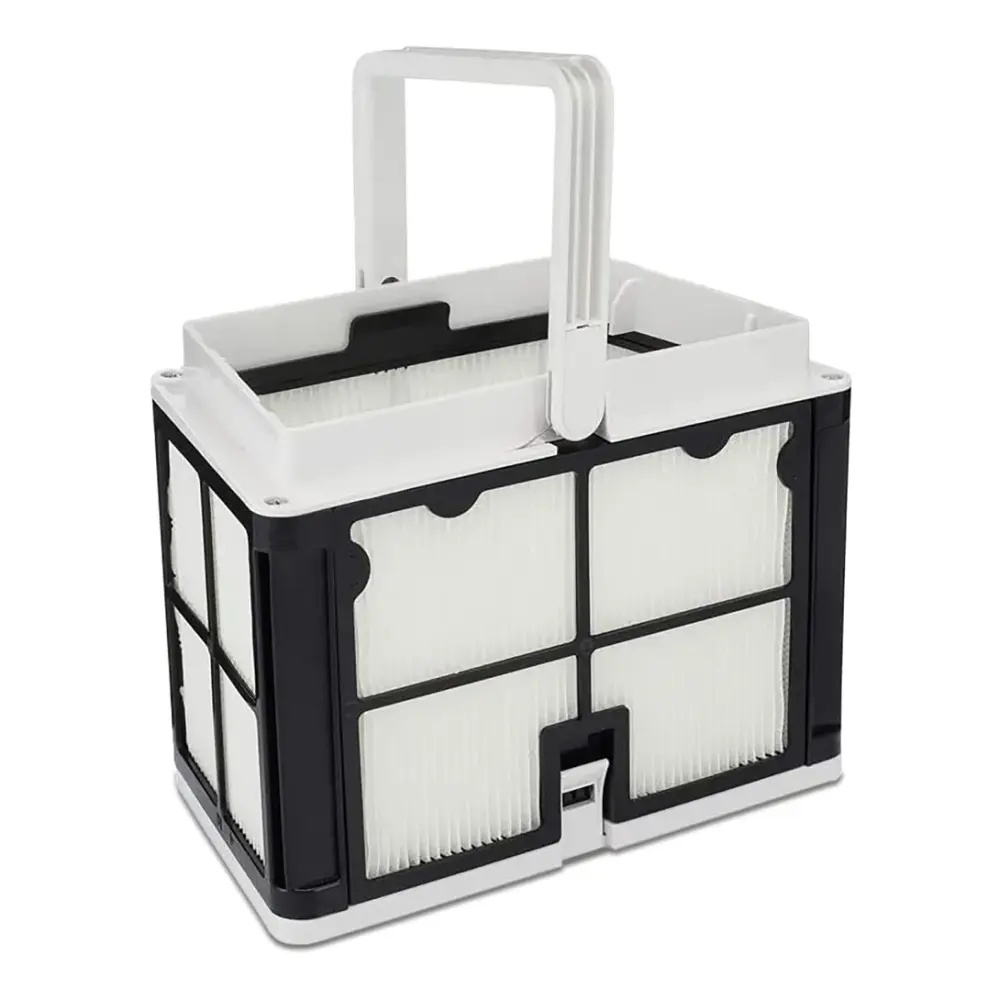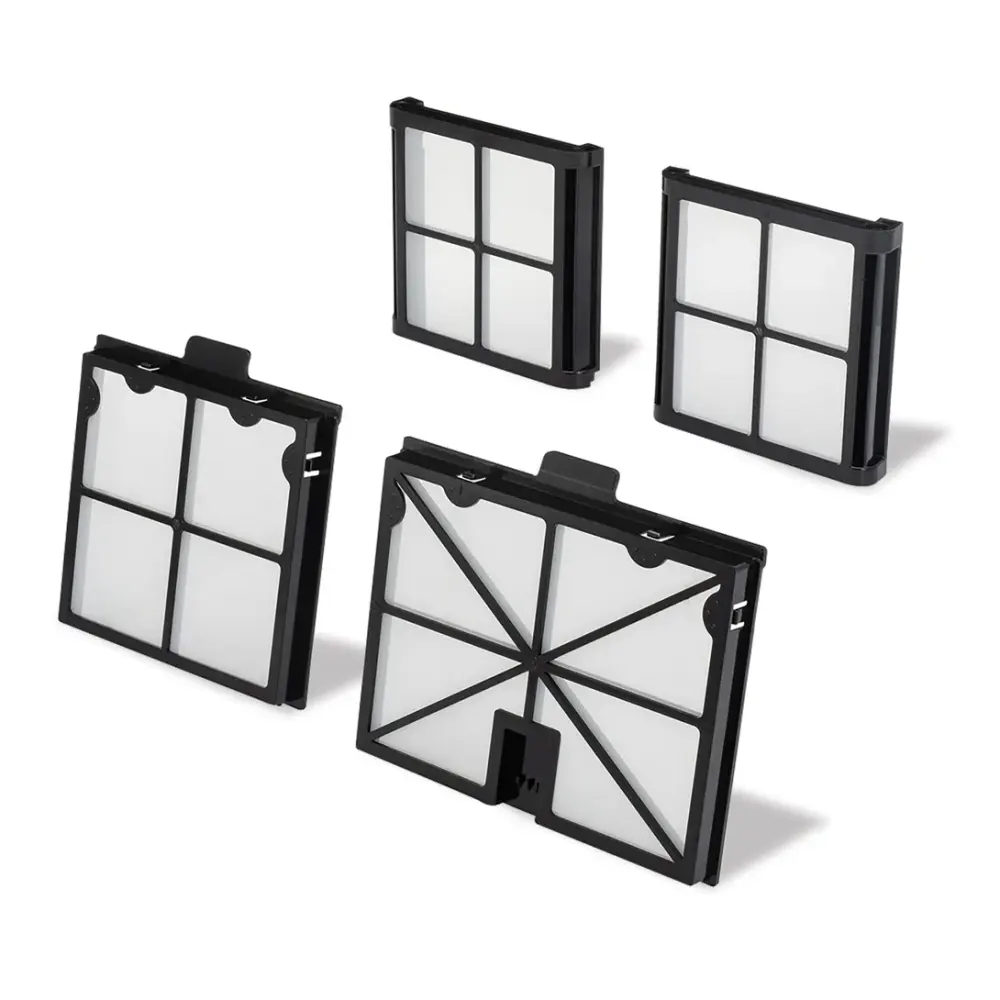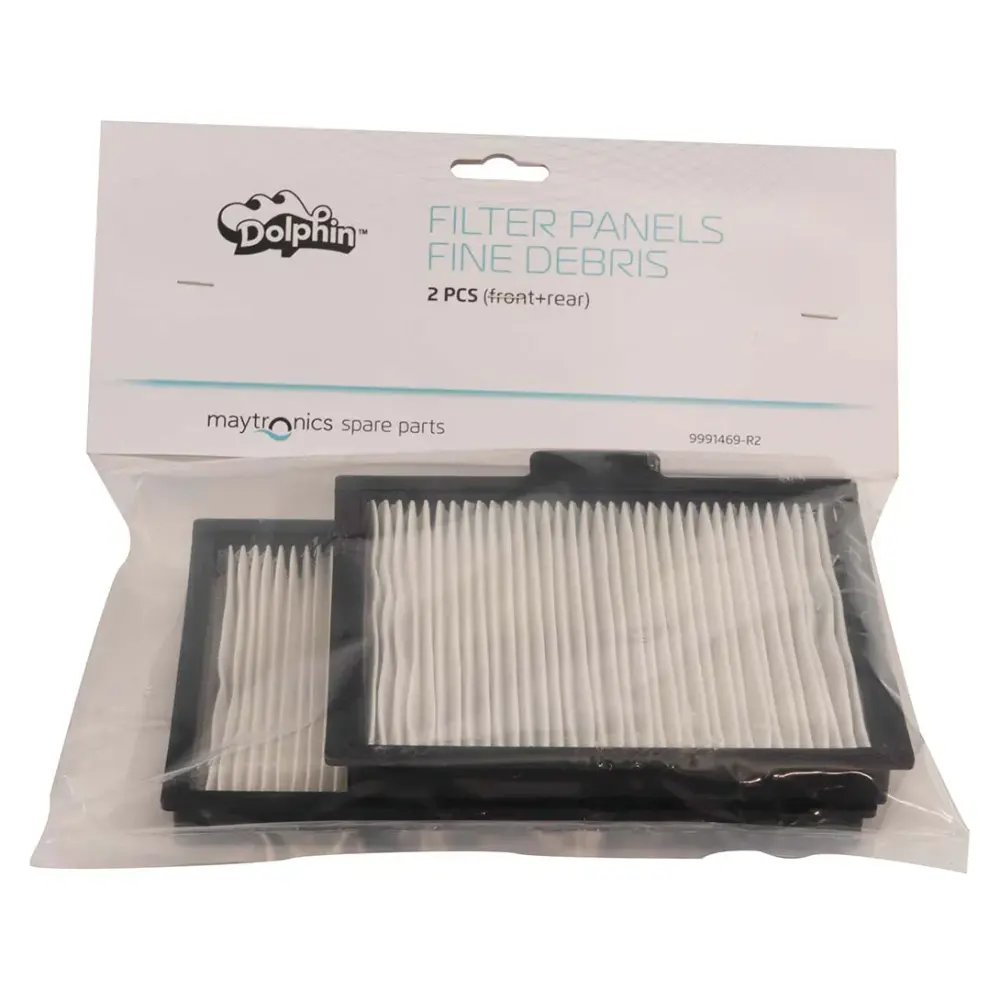
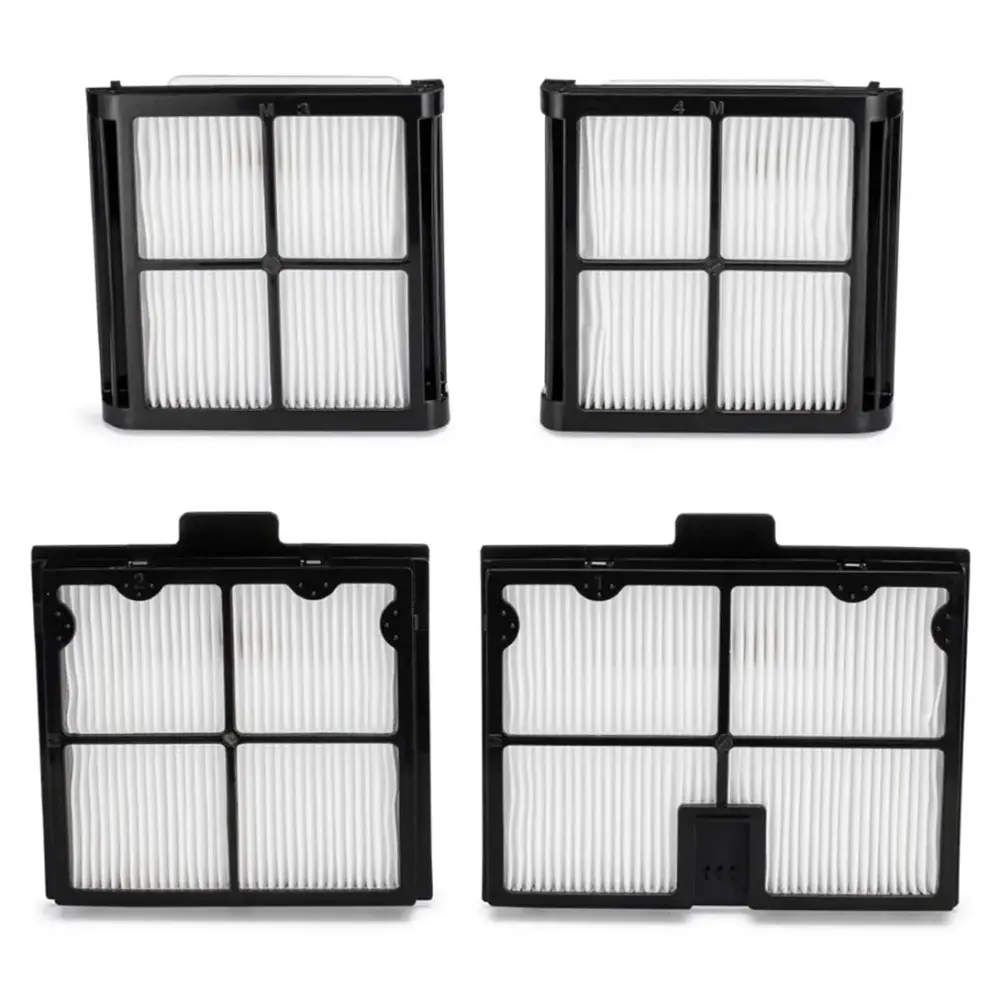
Ultra-Fine Debris Filter Panels
Part number 9991466-R4 · UPC 810071221002 · 1-year warranty
$45.49 on Amazon
Maytronics list price $45.49
We do not stock this part in our own store yet, so the link goes to the genuine listing on Amazon. It is also sold by Maytronics. As an Amazon Associate we earn from qualifying purchases.
- Replacement Ultra-Fine Filter Panels (4 pk)
Fits these Dolphin robots.
Confirmed by Maytronics' compatibility checker and each robot's spare-parts list.
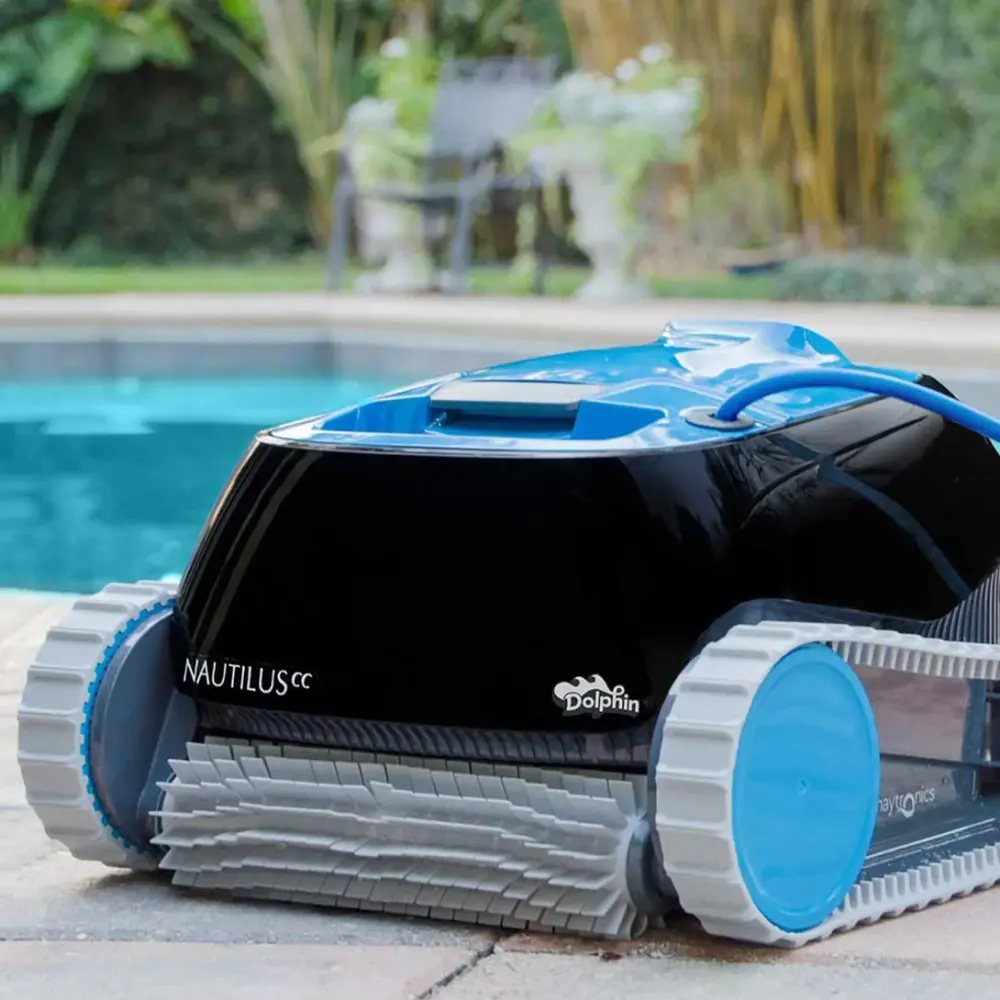
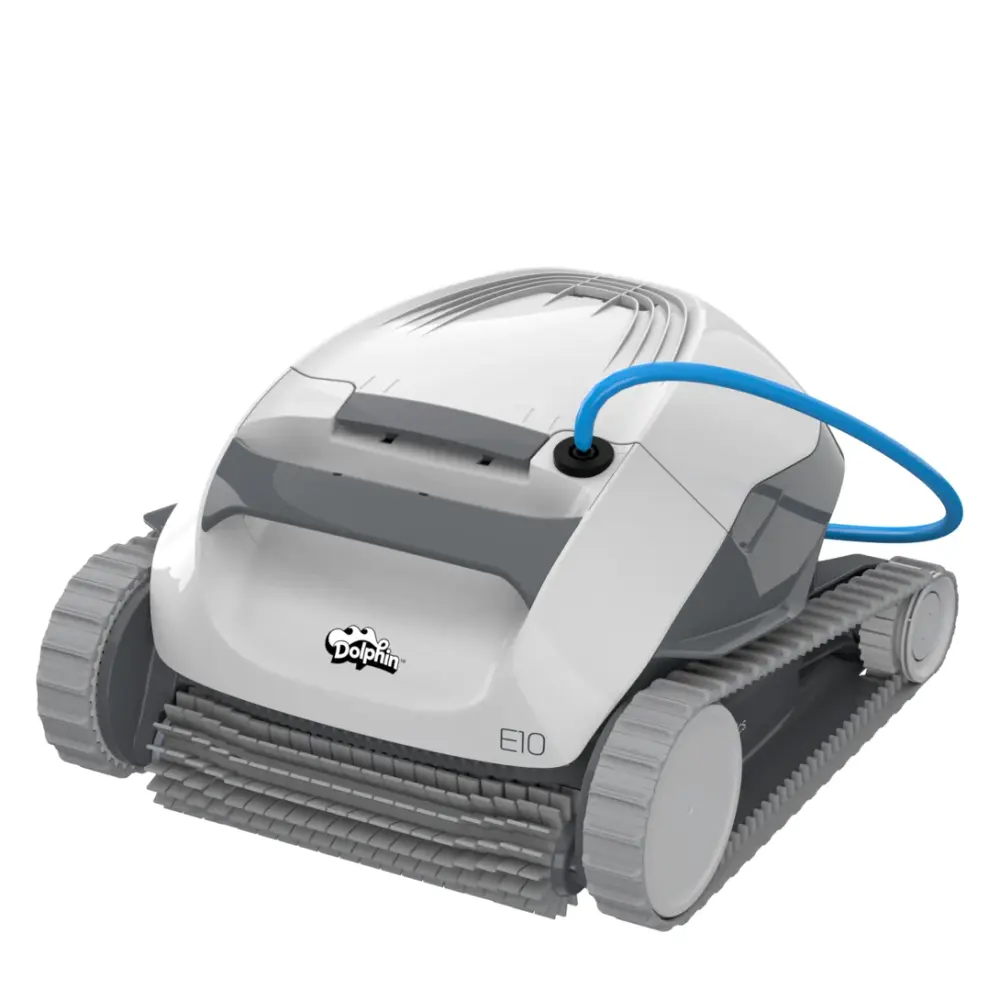
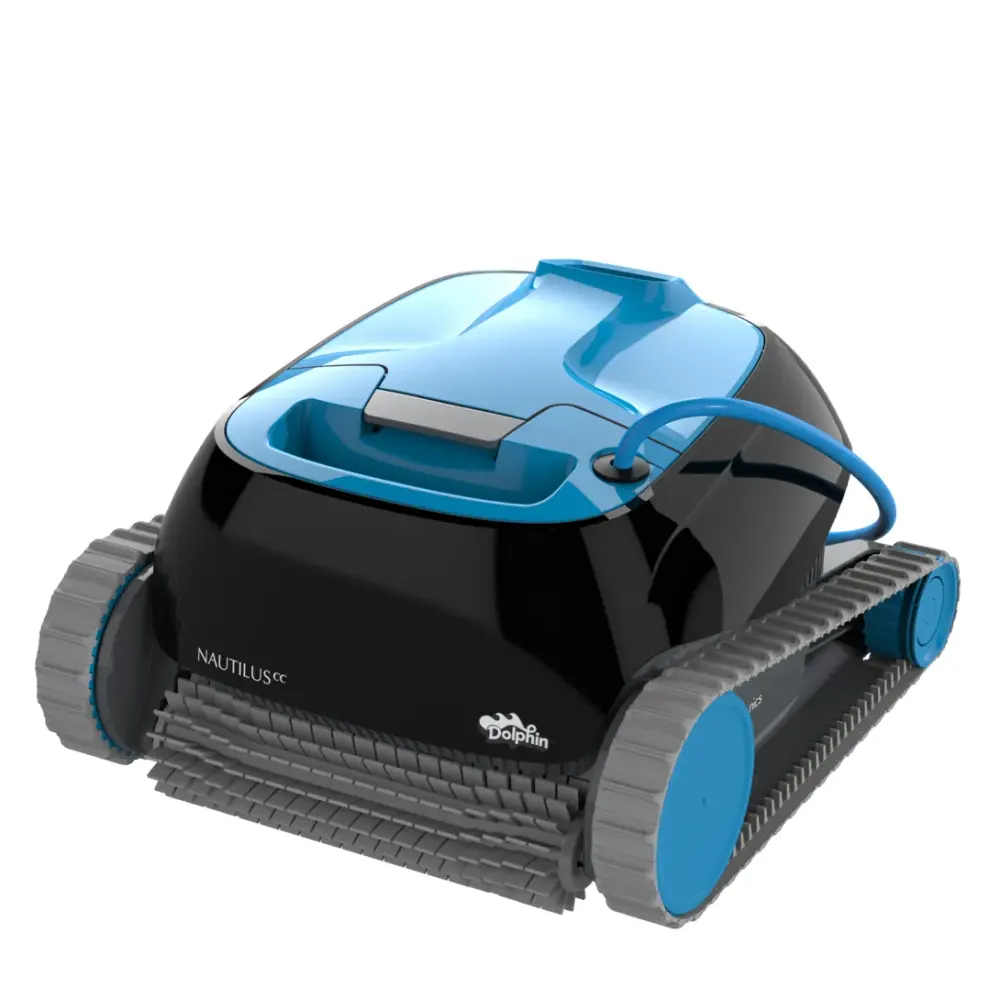
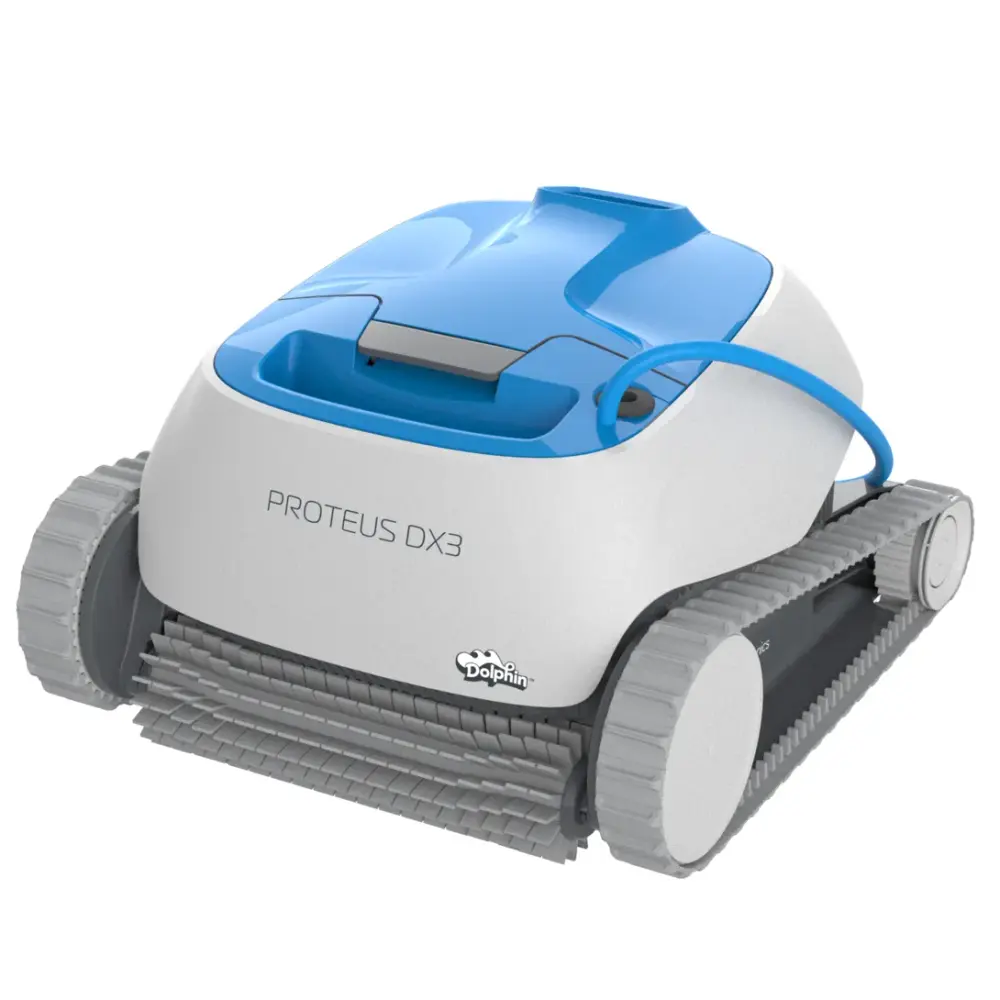
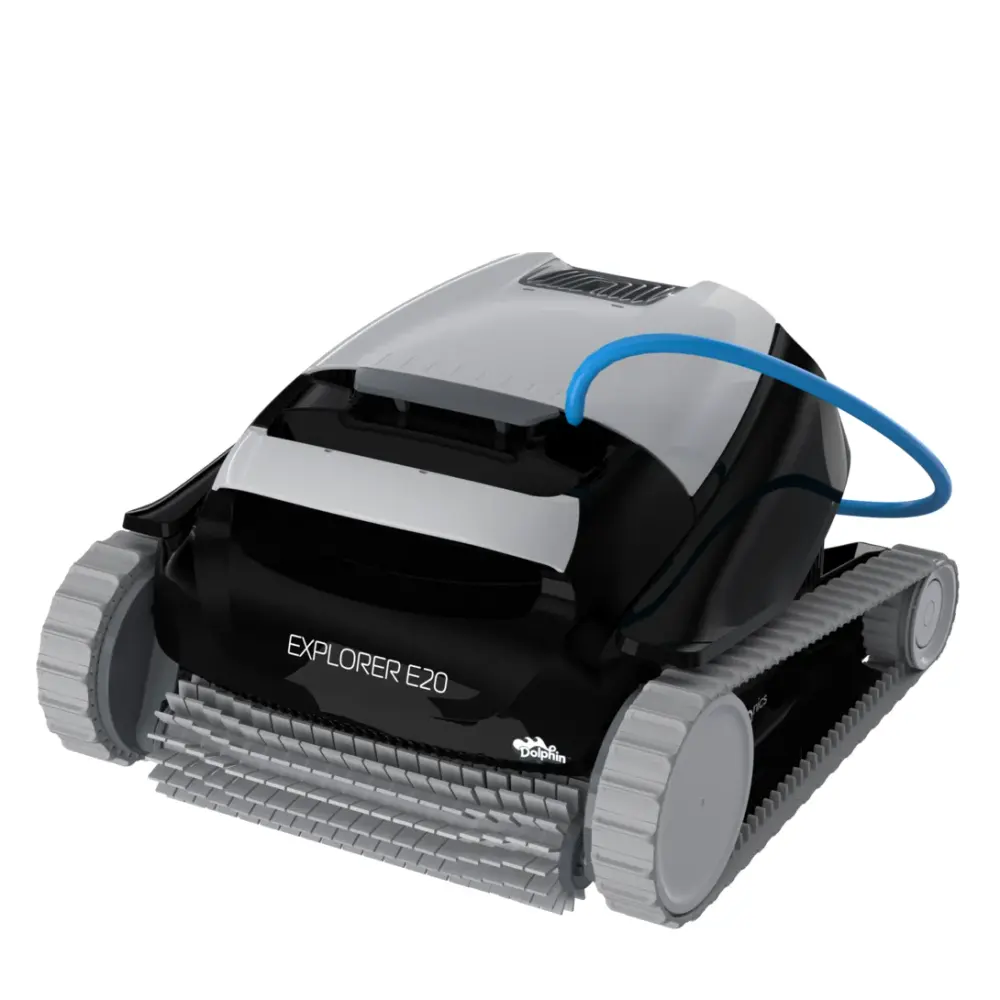
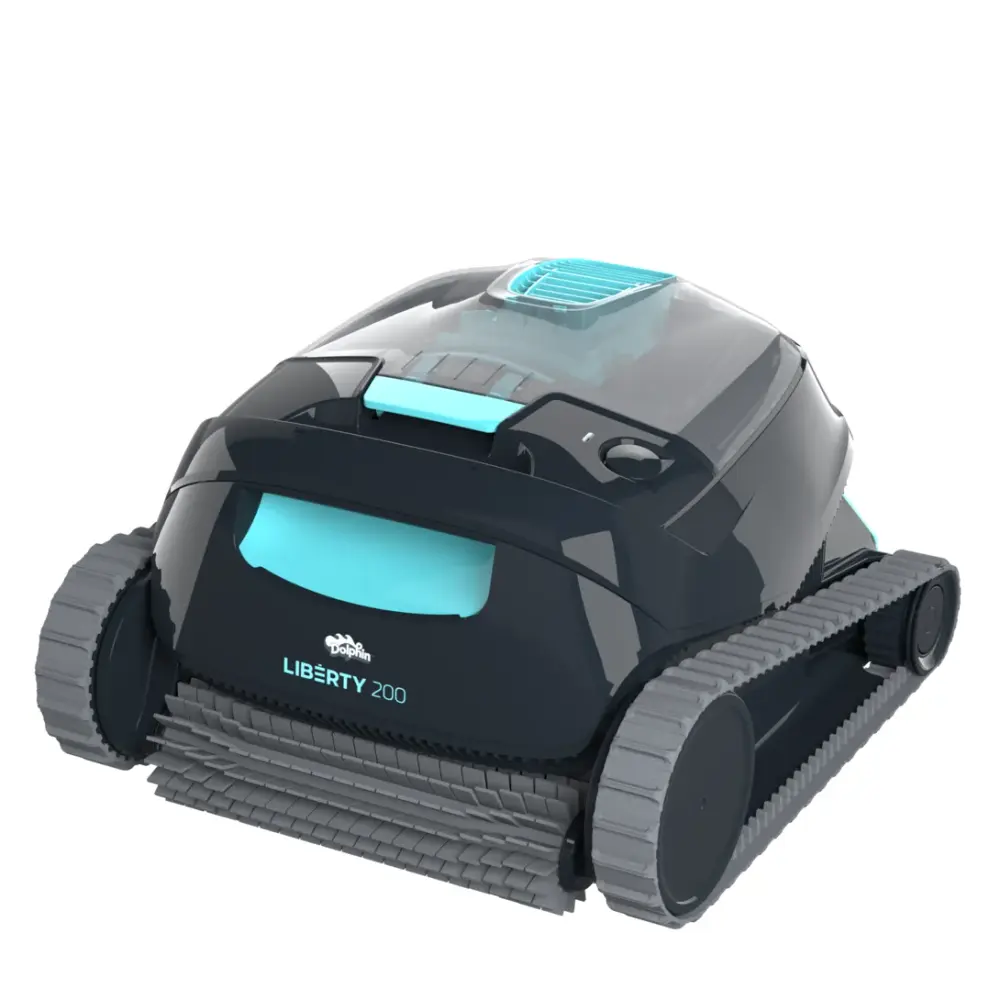
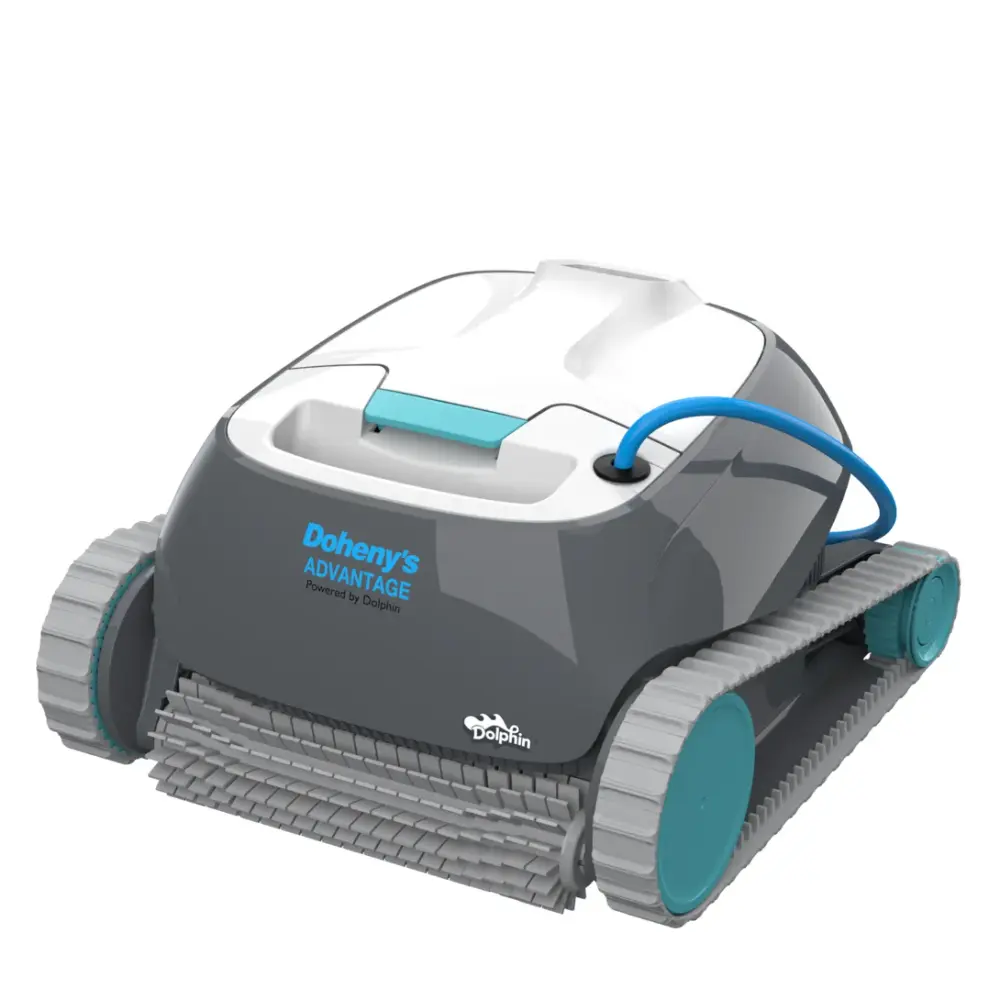
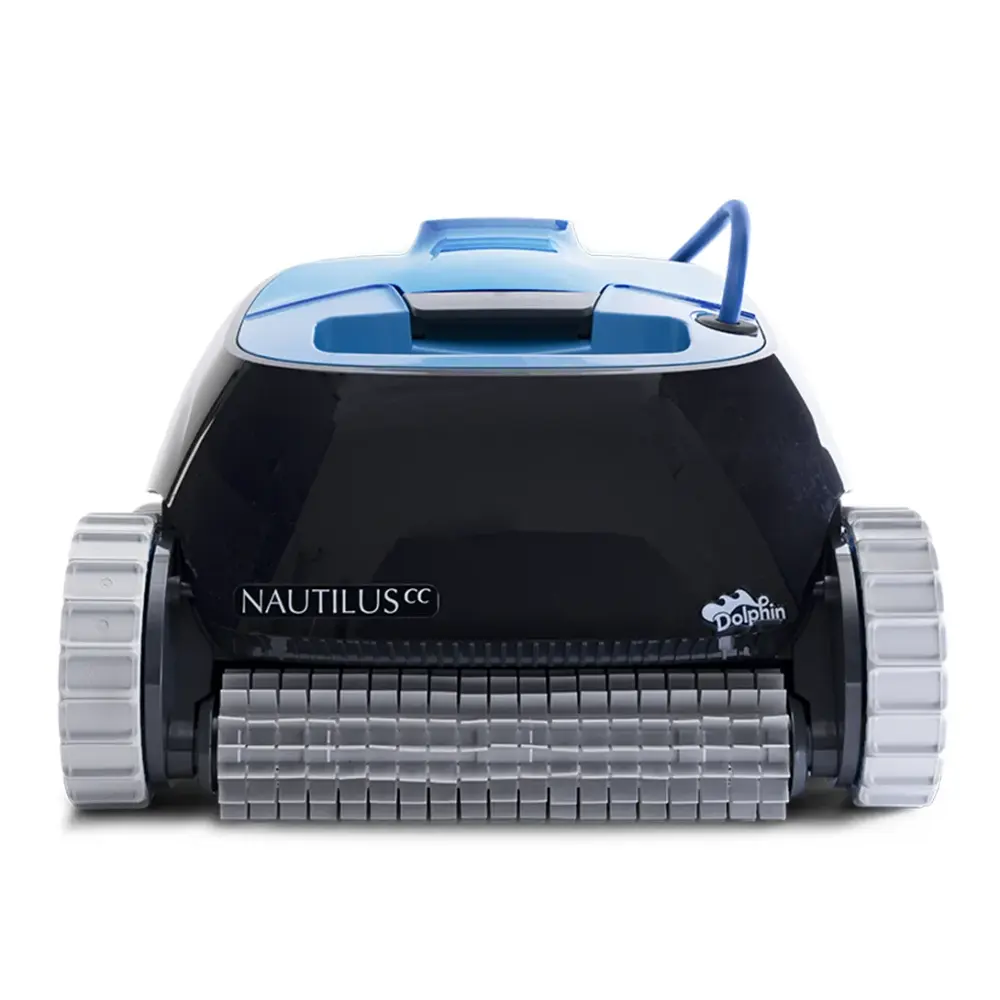
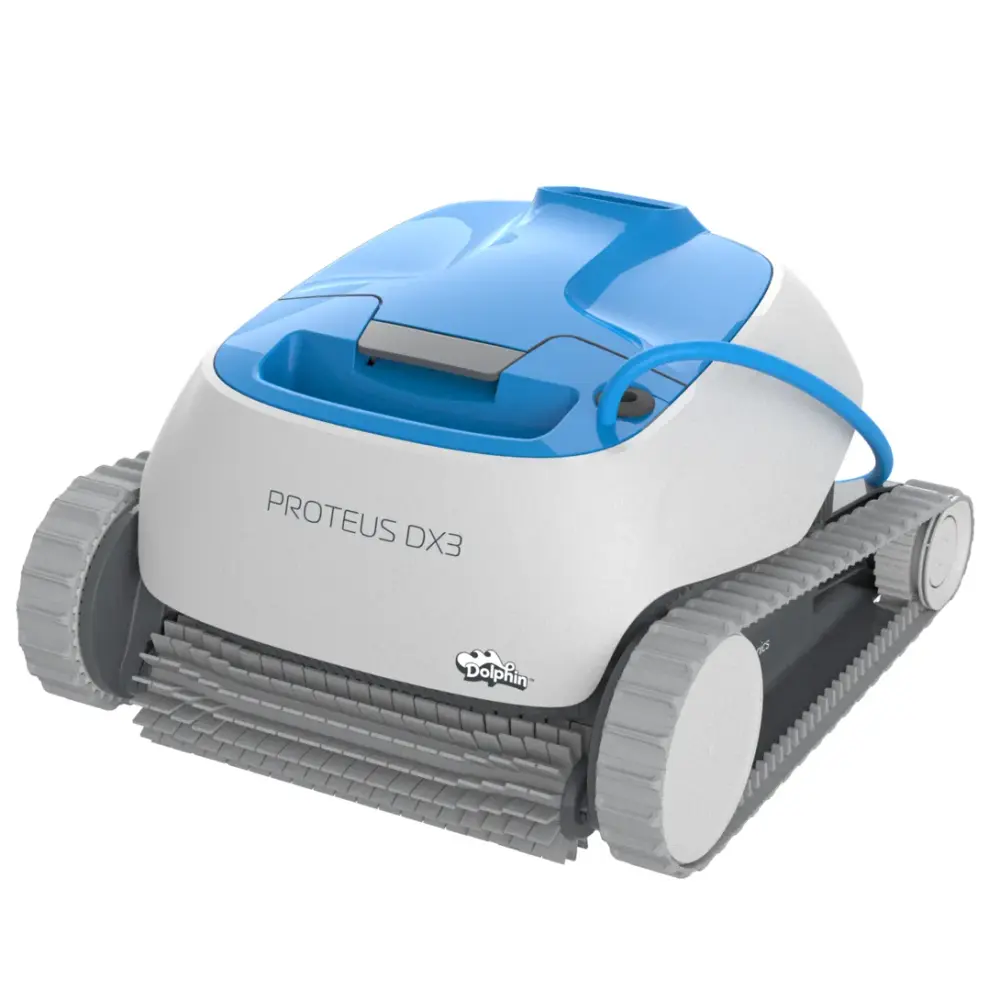
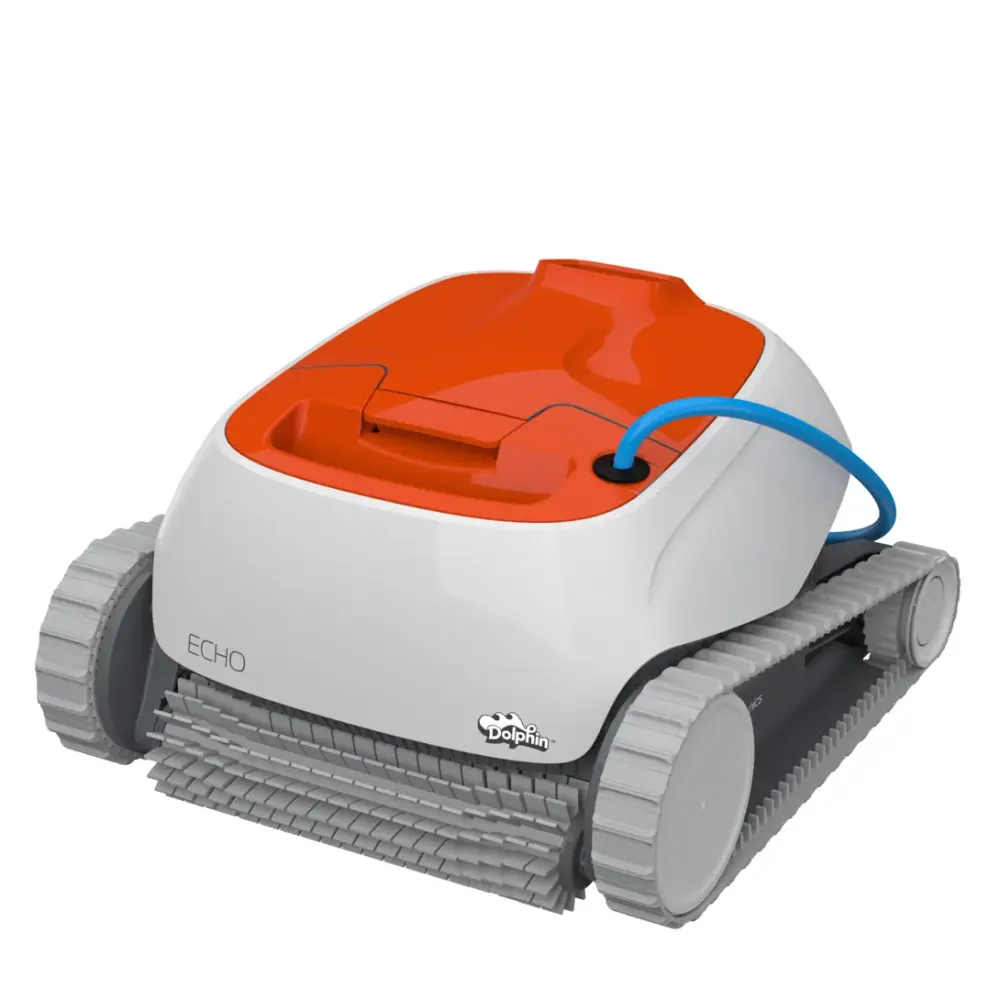
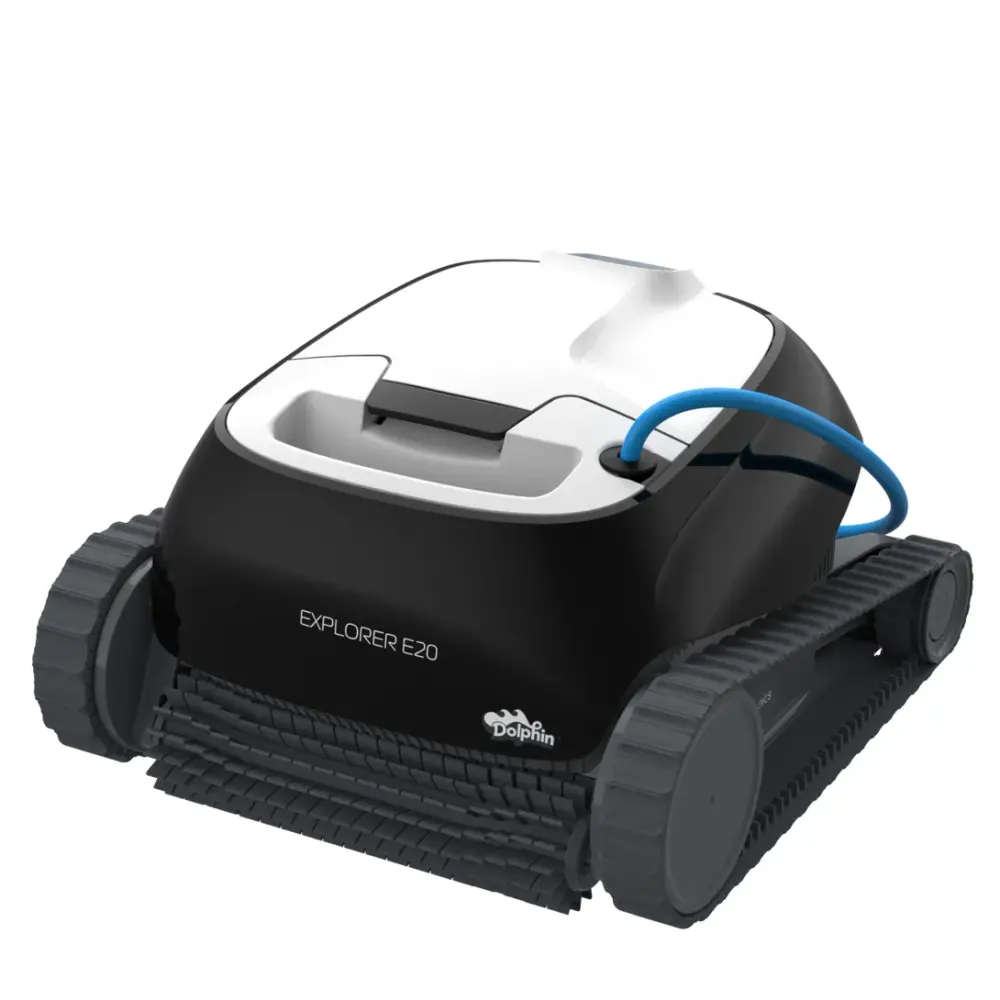
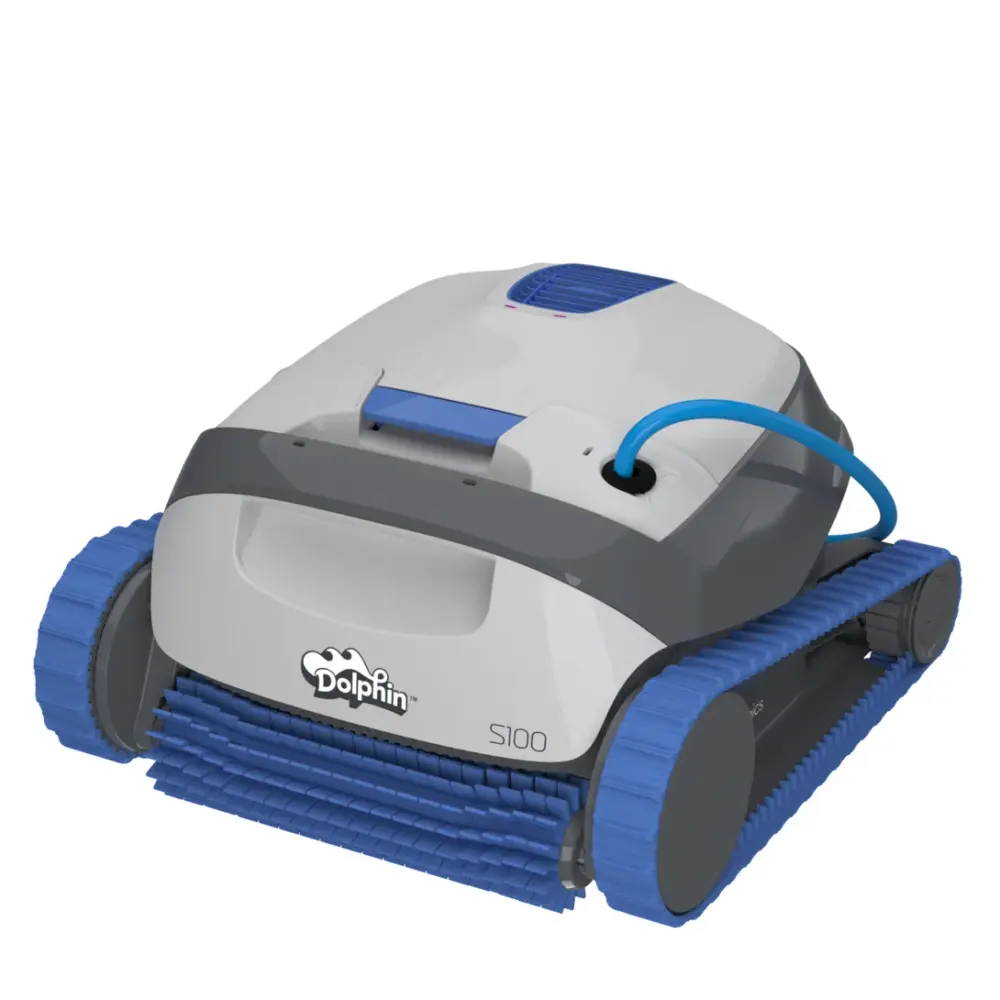
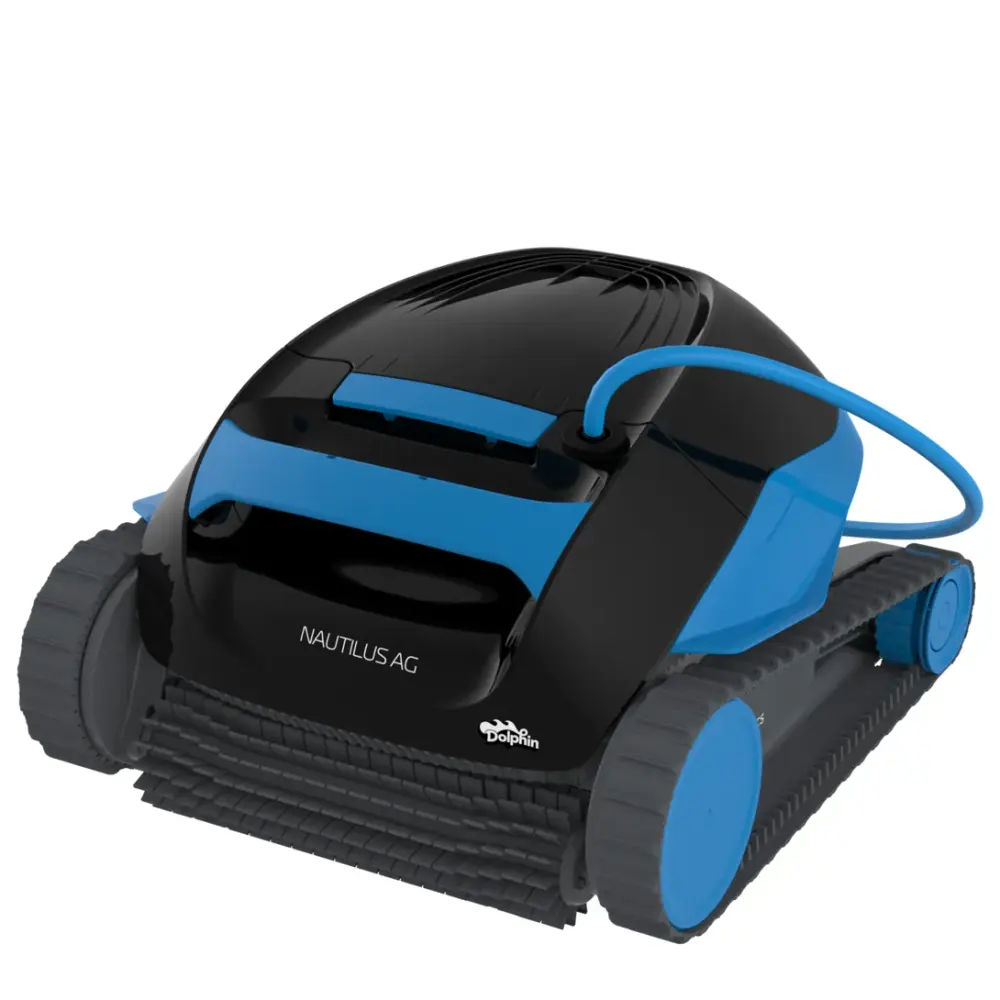
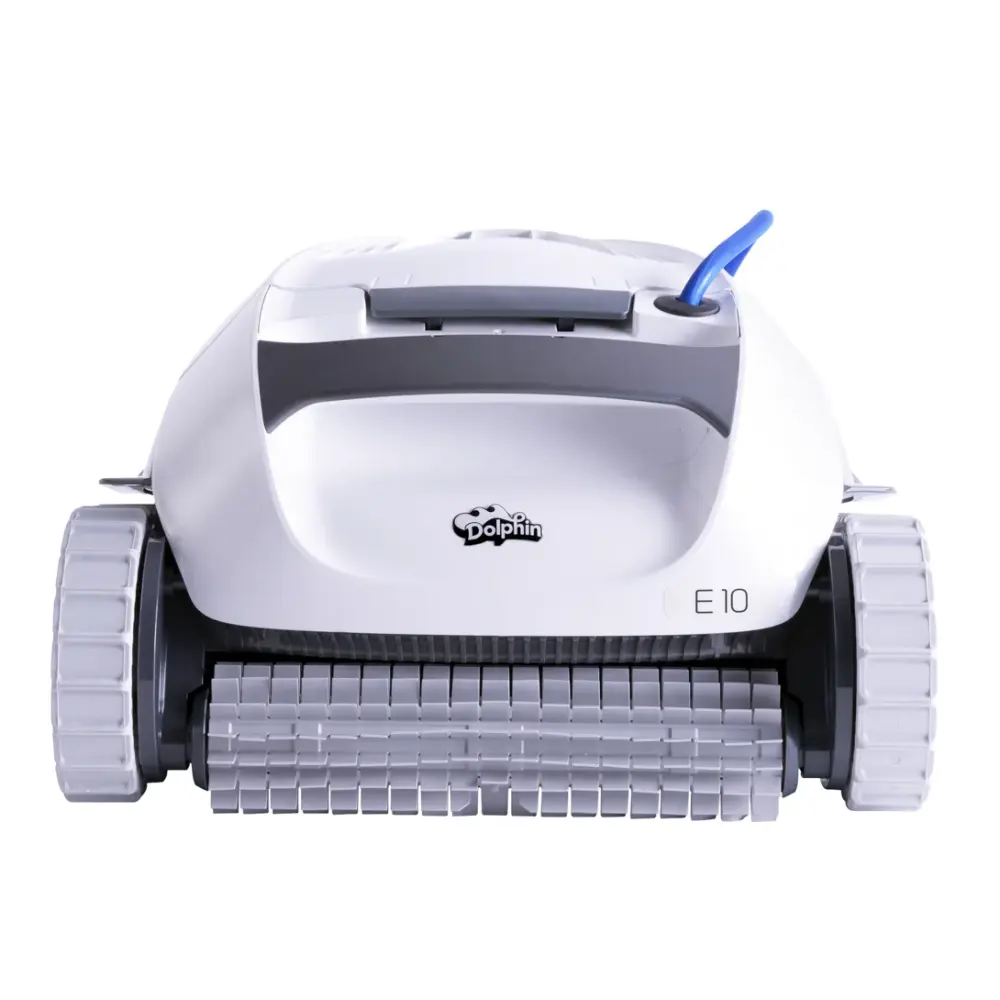
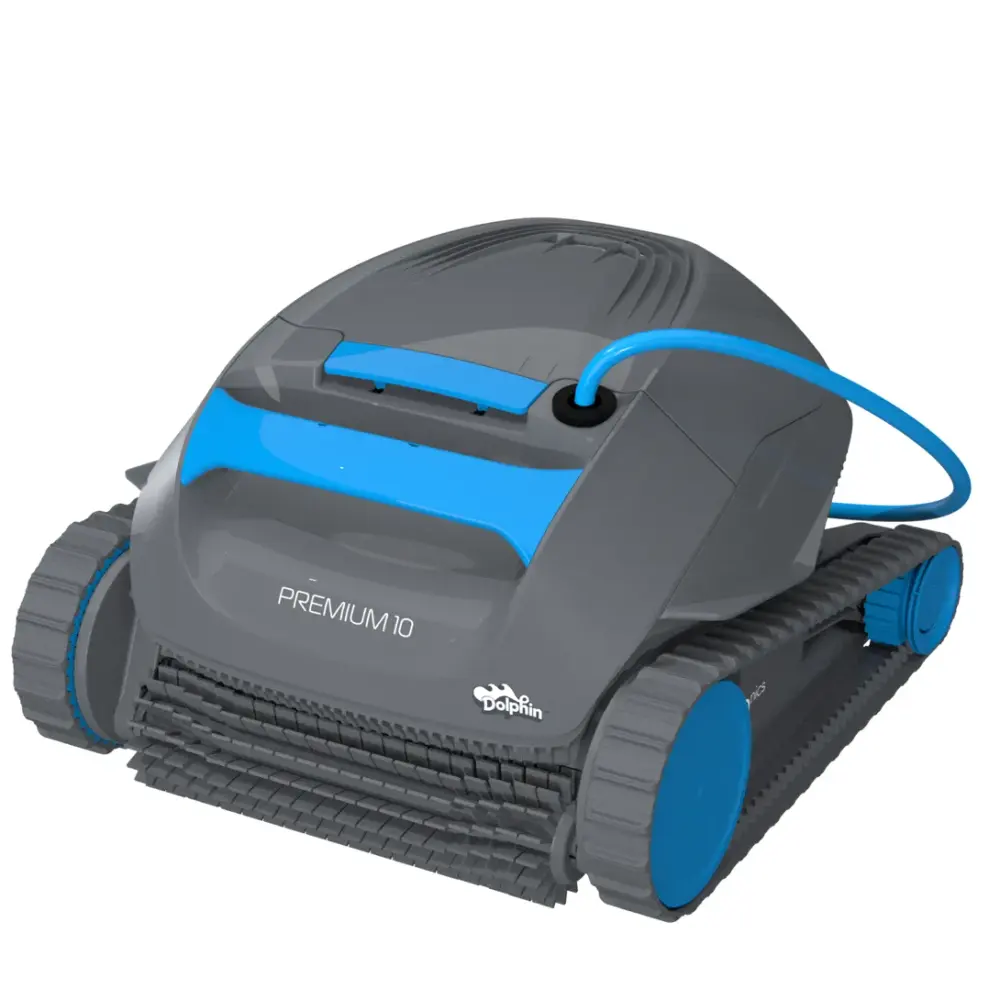
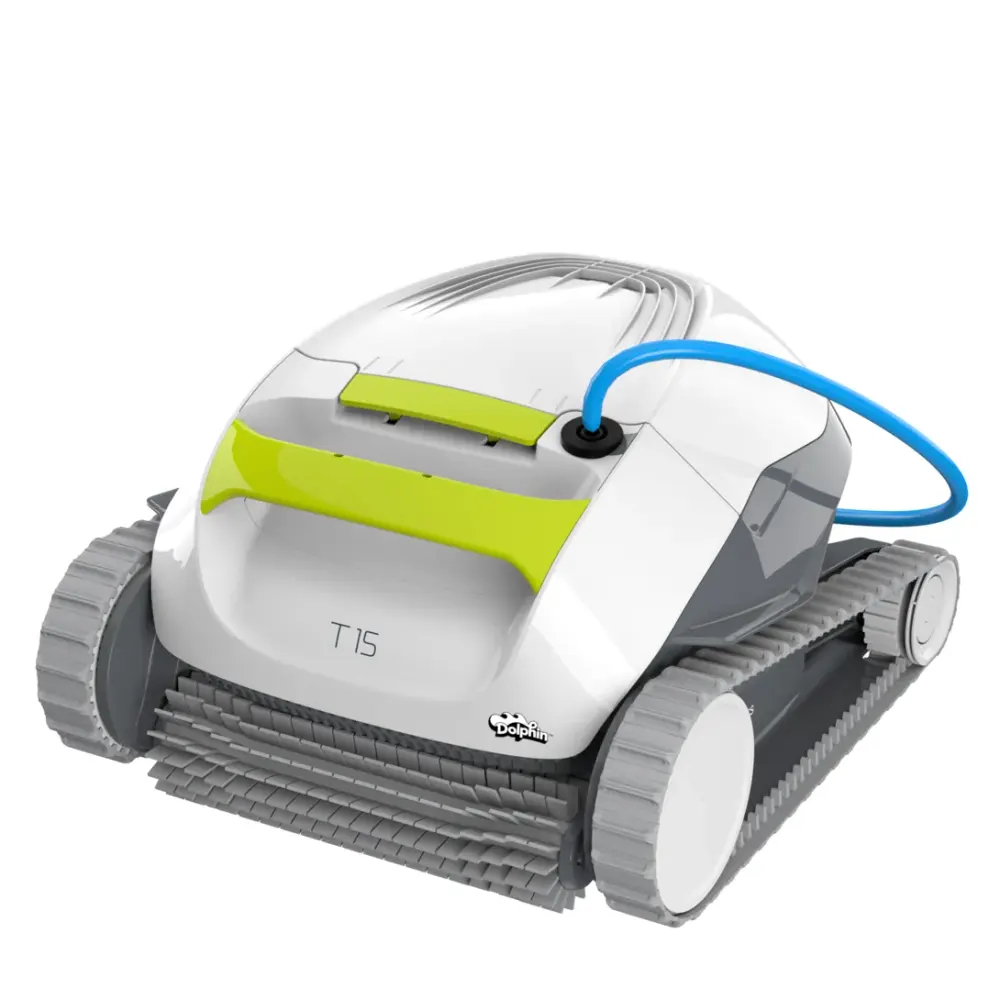
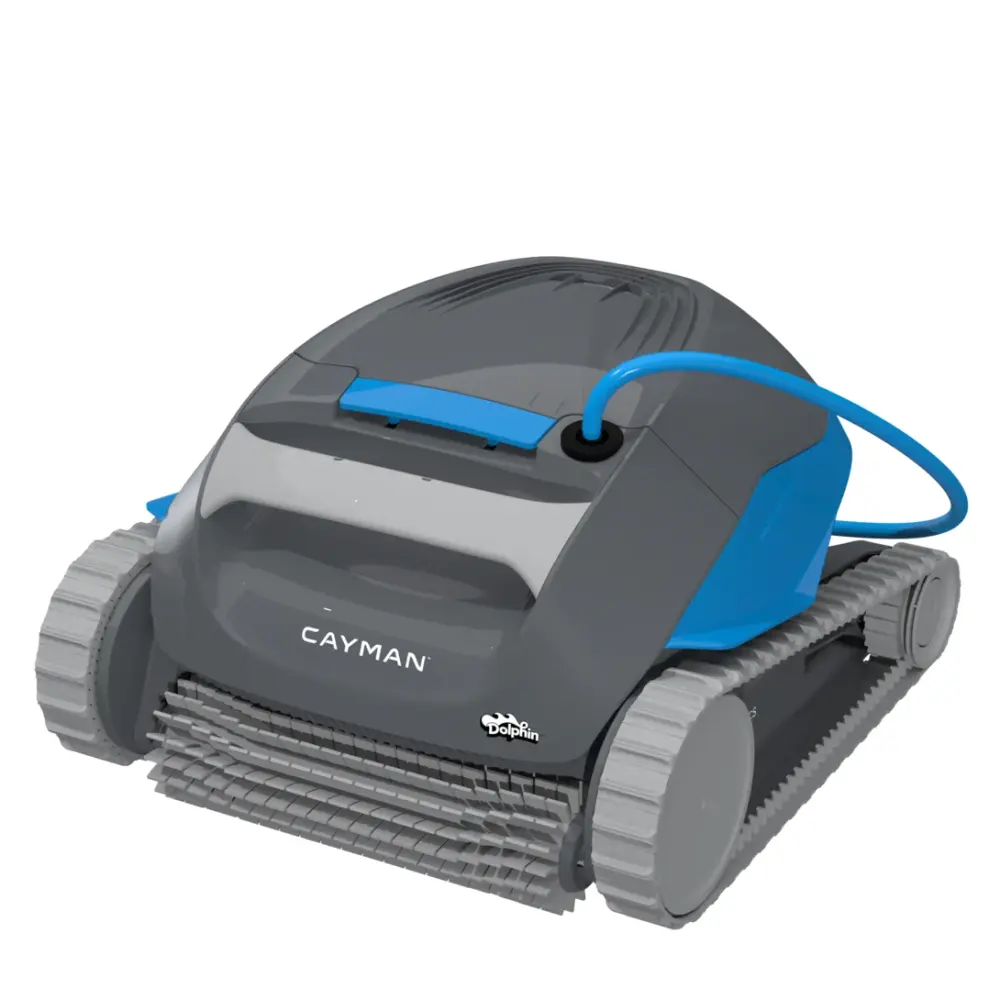
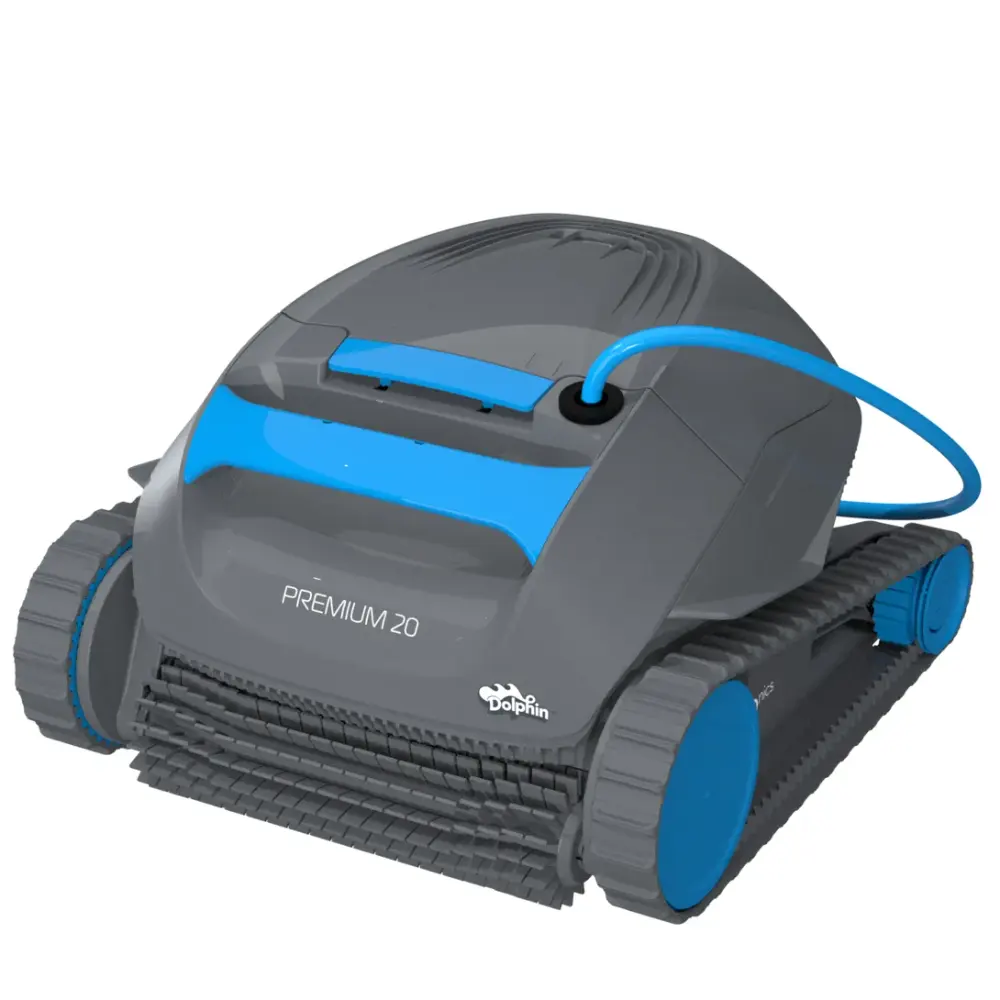
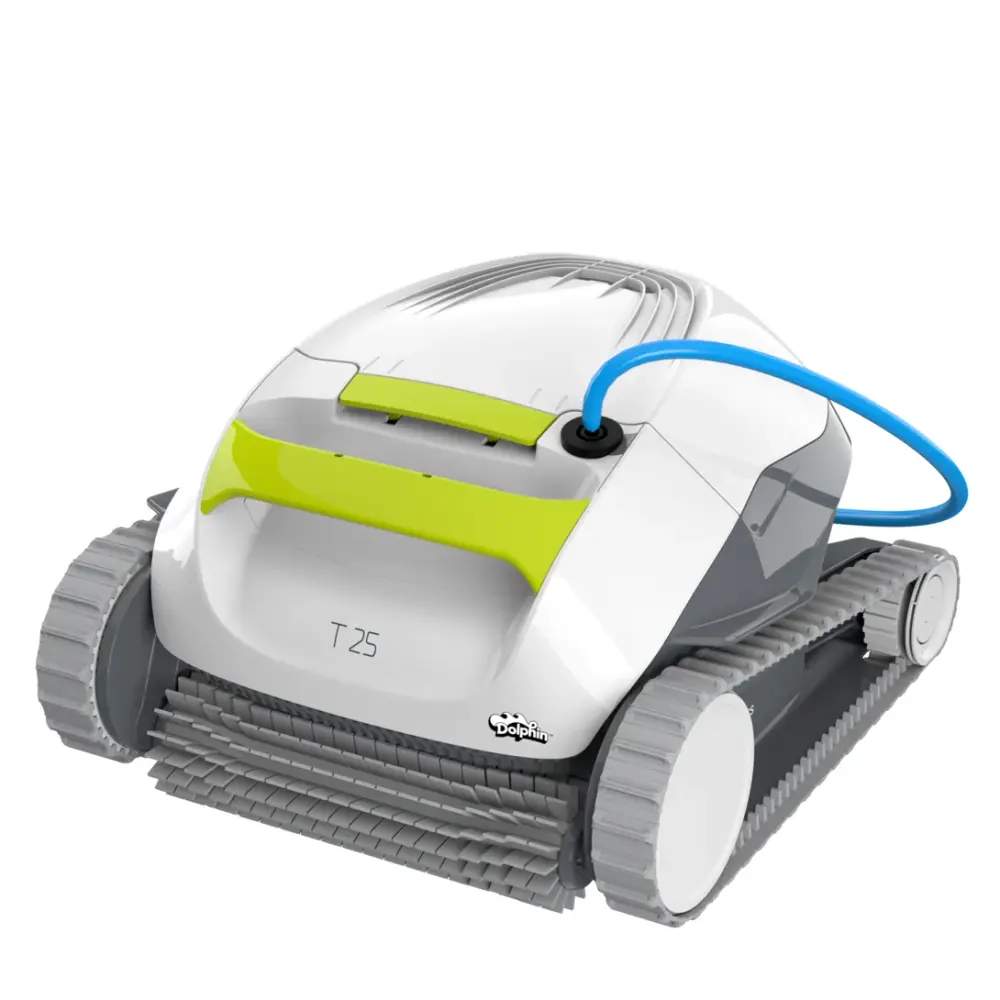
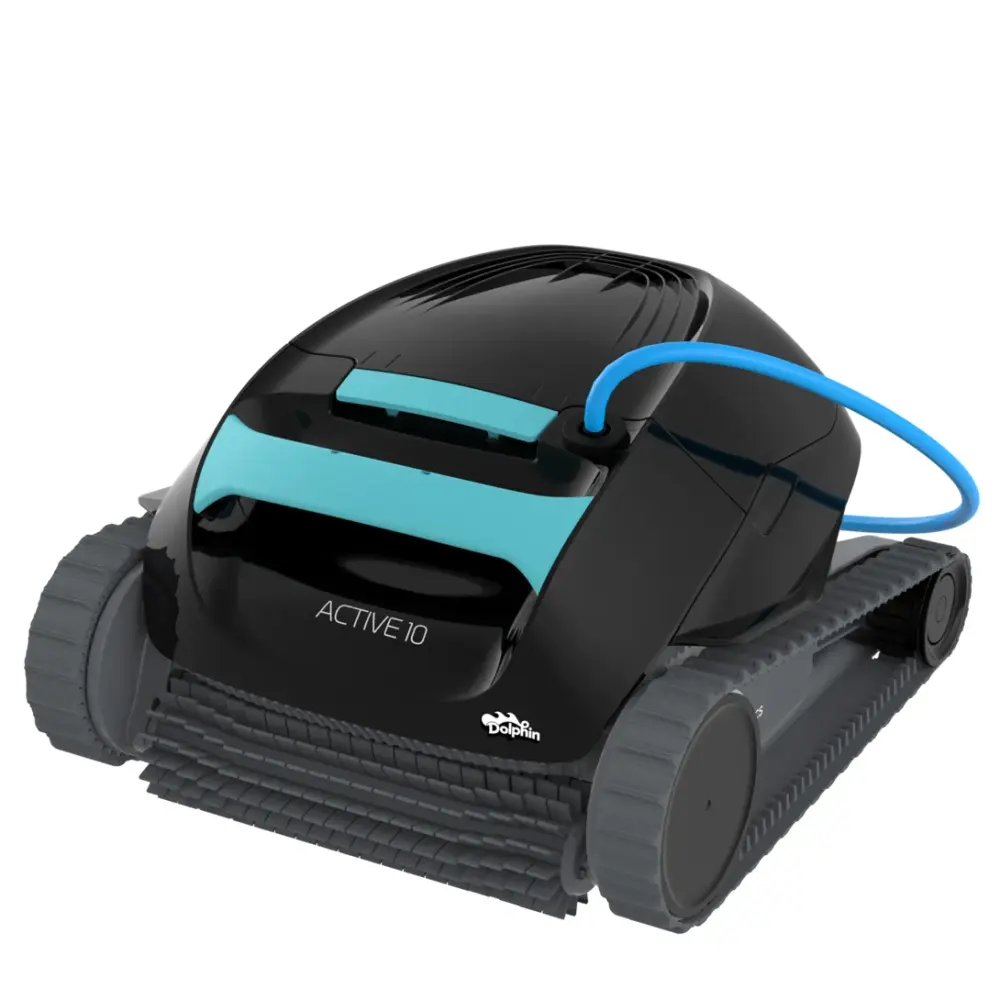
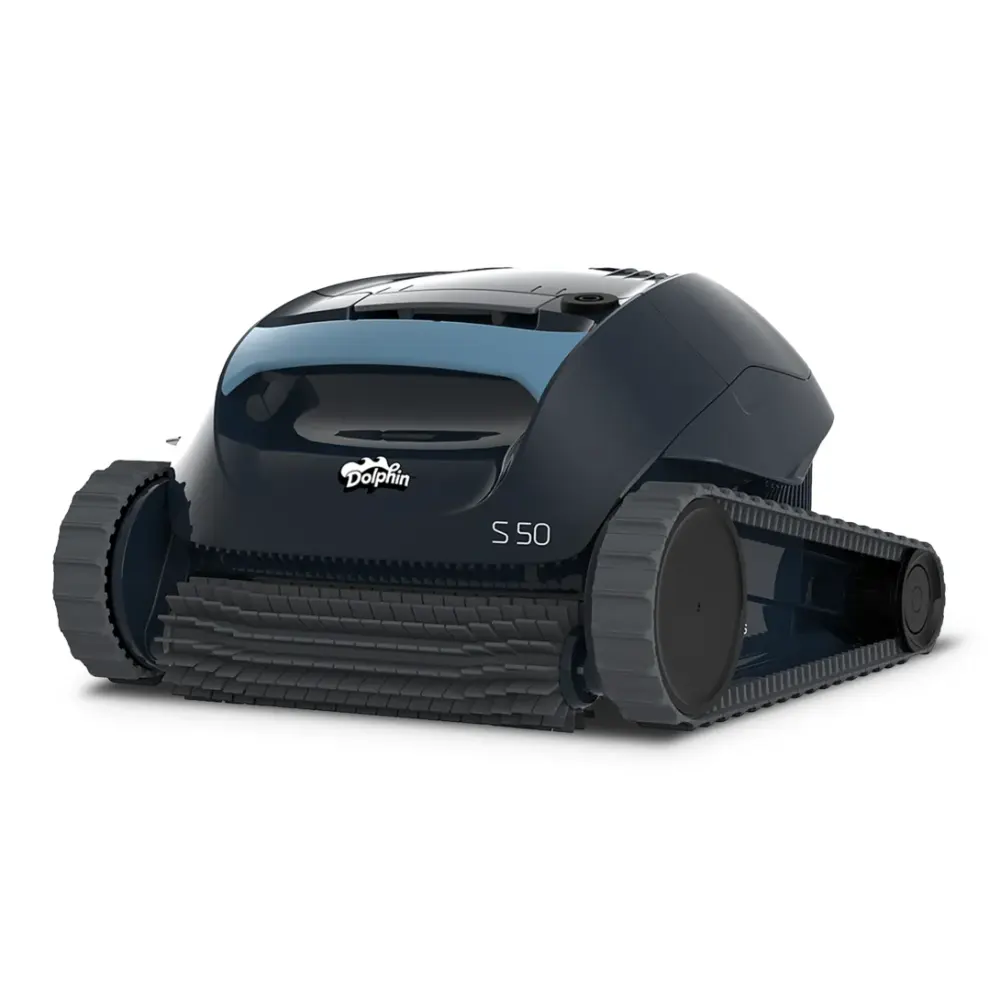
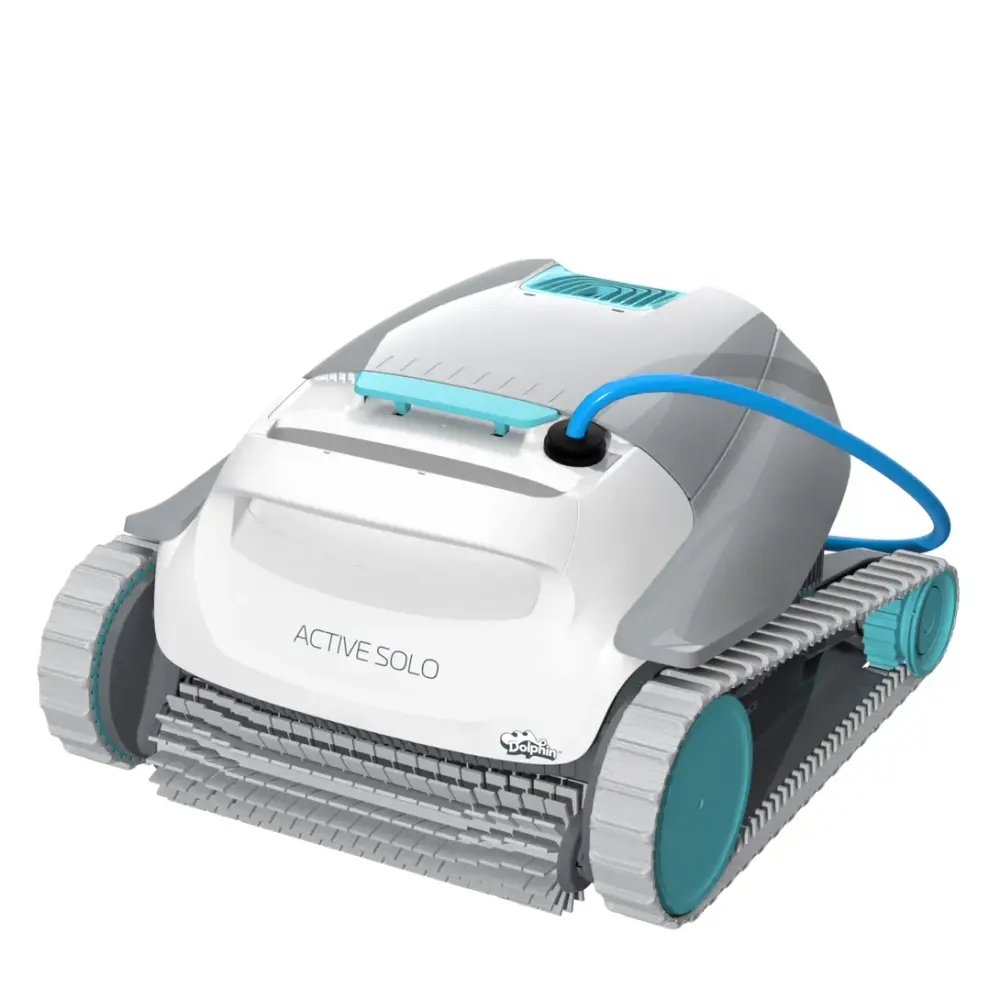
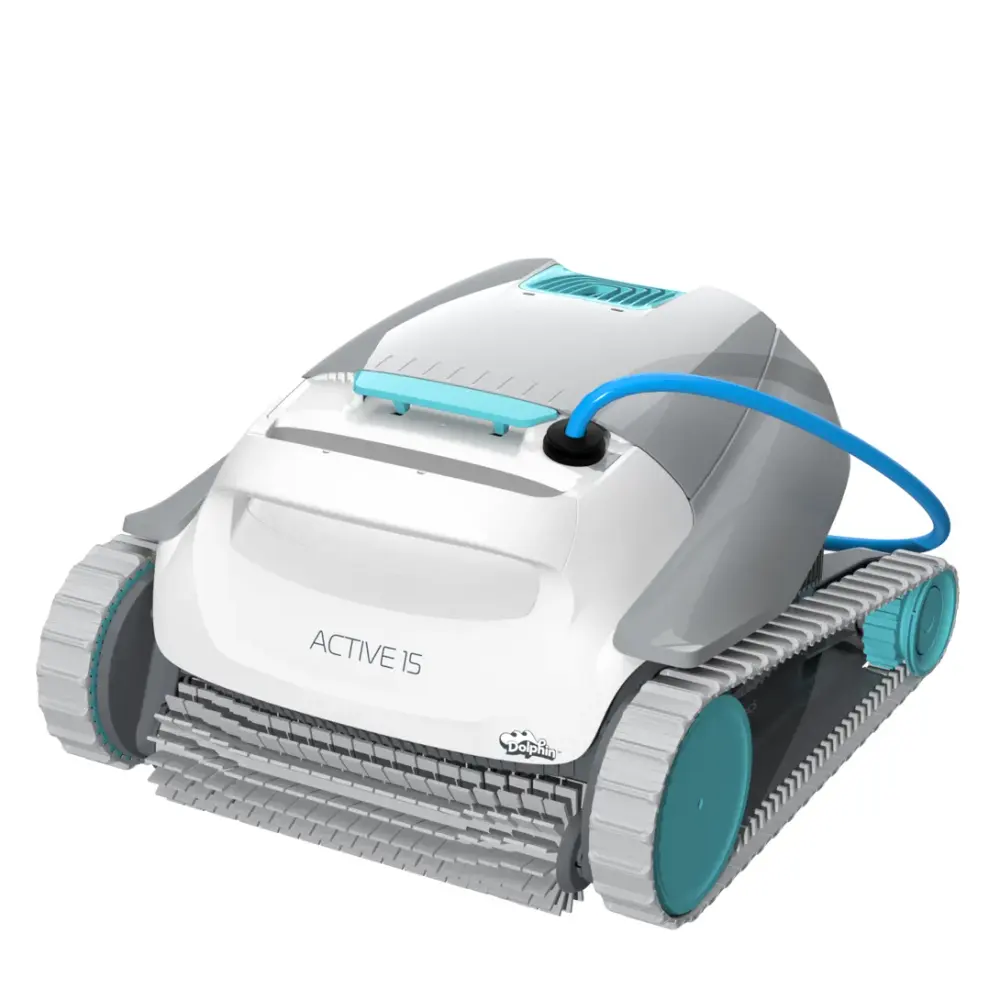
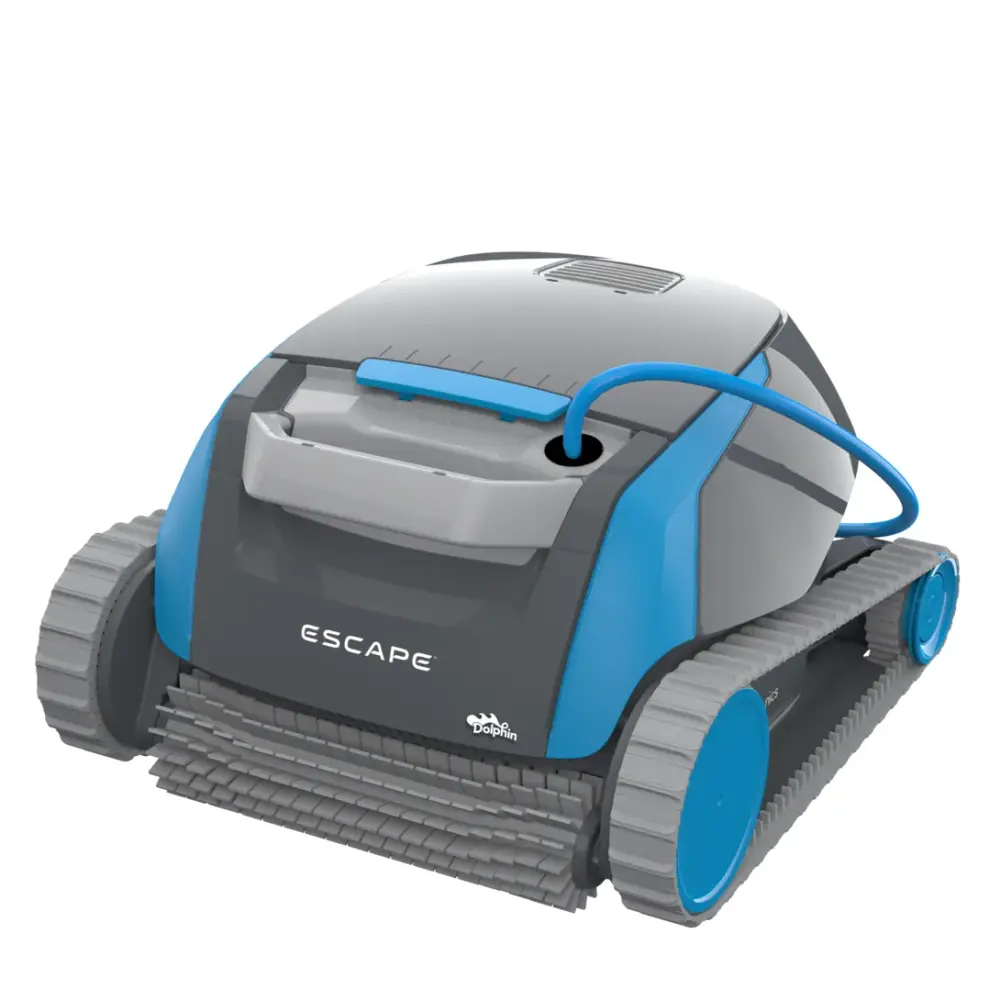
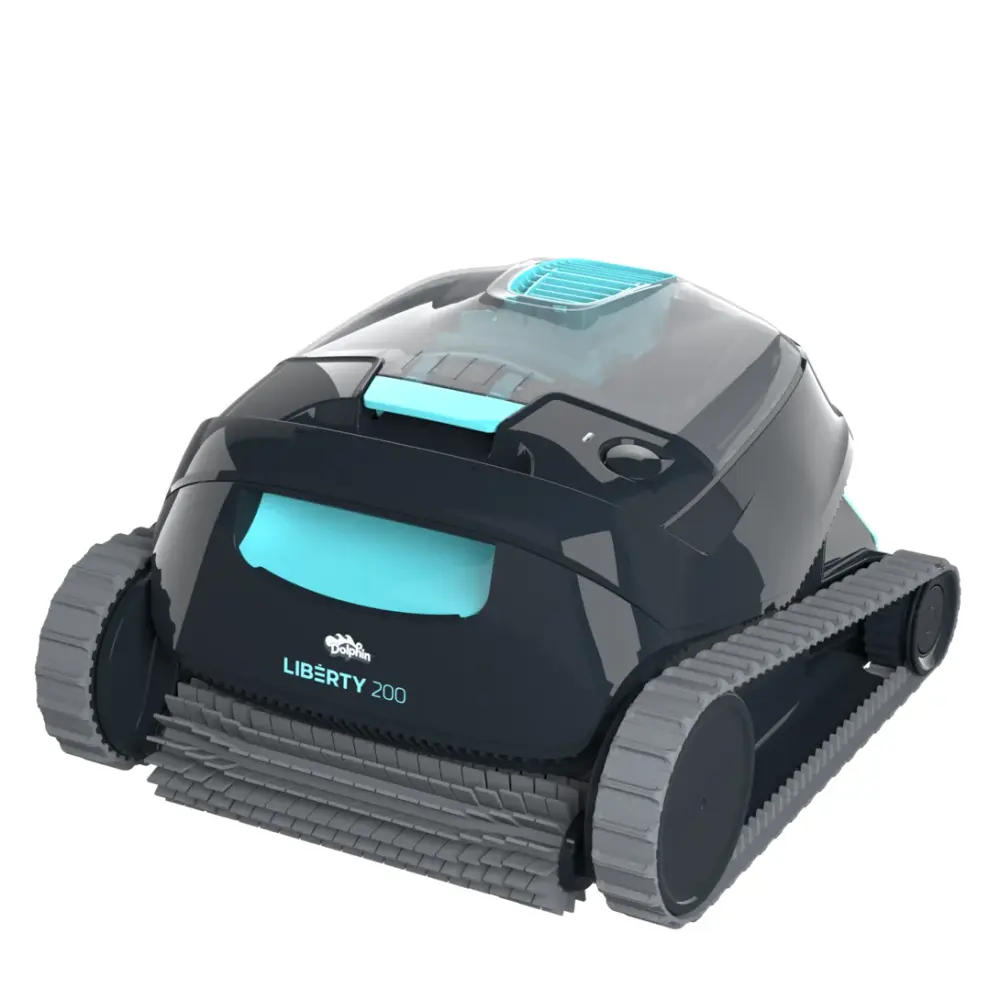
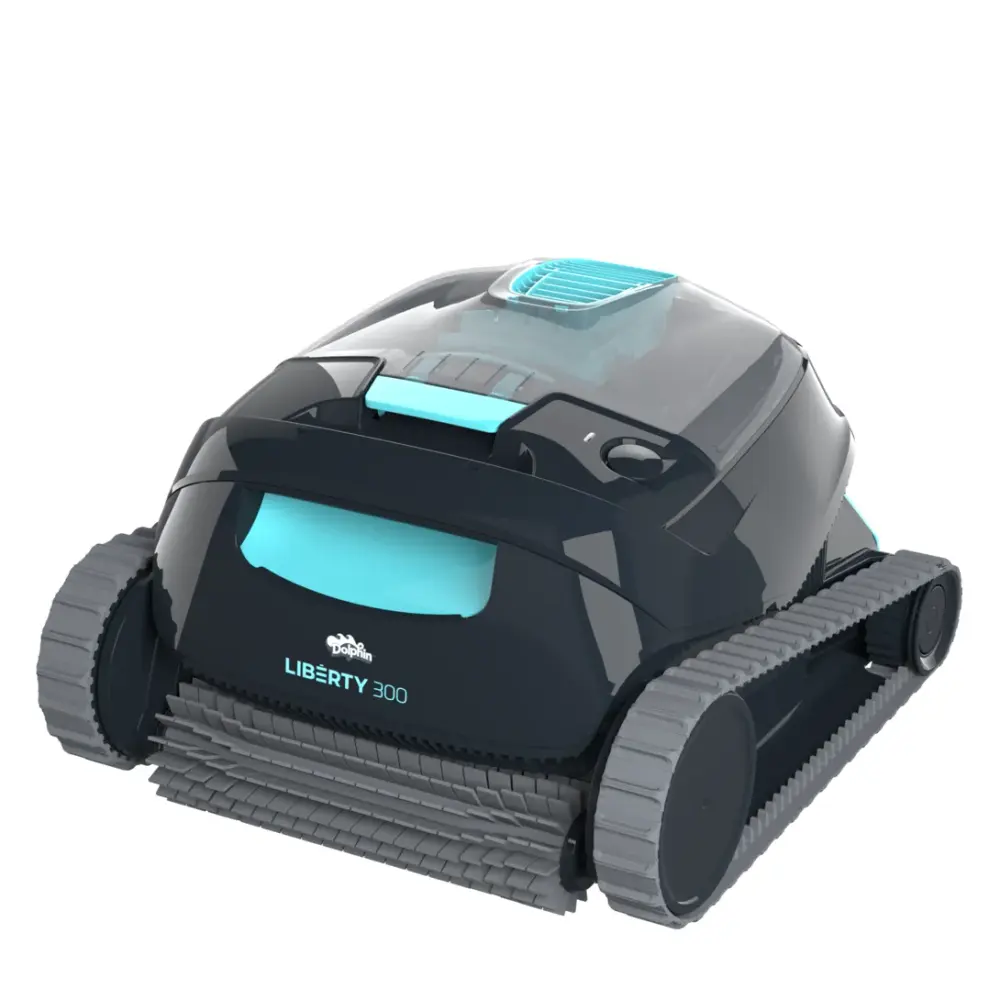
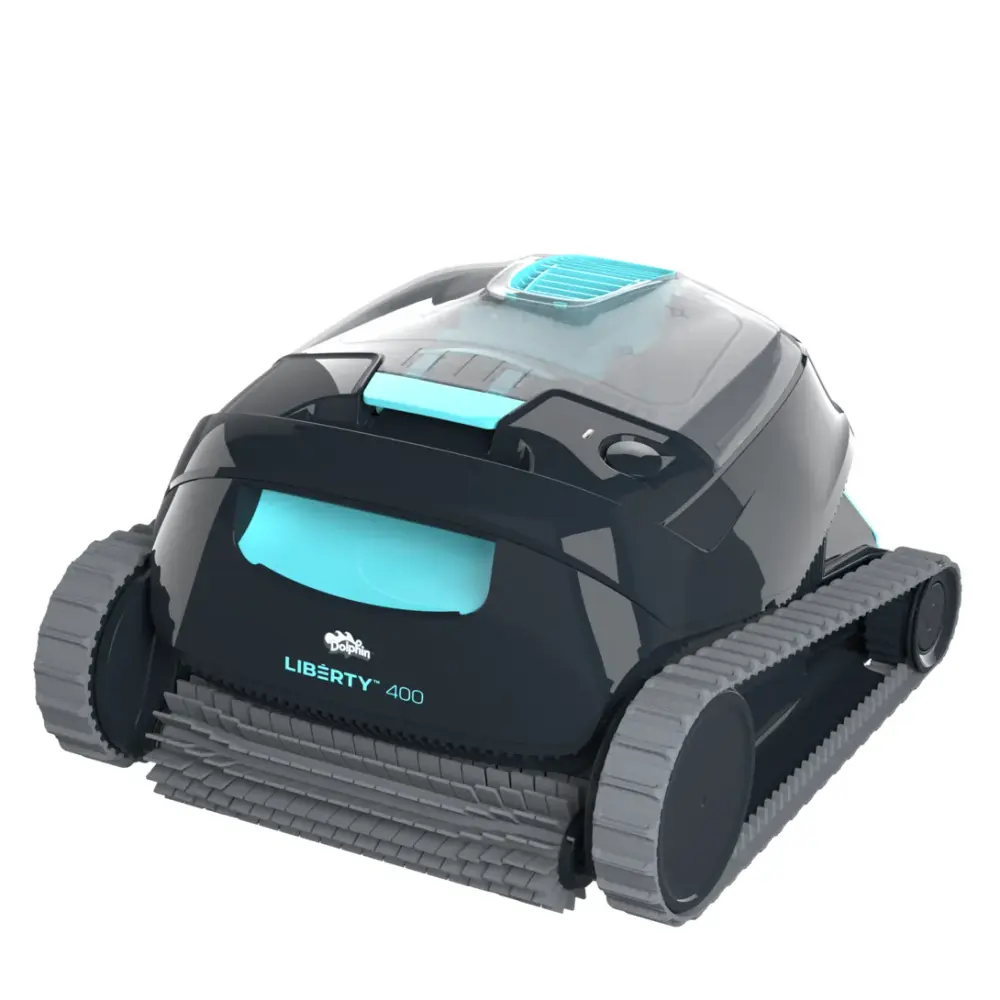
Also listed by Maytronics for: Dolphin ADVANTAGE, Dolphin Nautilus CC, Dolphin Proteus DX3, Dolphin Echo, Dolphin S100, Dolphin S50, Dolphin E10, Dolphin T15, Dolphin Cayman, Dolphin T25, Dolphin Active Solo, Dolphin Active 15, Dolphin Explorer E20, Dolphin Active 10, Dolphin Escape, Dolphin Encore, Dolphin PoolBot PB10, Dolphin Evolution 10, Dolphin Avalon 20, Dolphin IZZY CLIMB, Dolphin Cainan 1, Dolphin ENERGY C, Dolphin EX10, Dolphin FORMULA 20, Dolphin PoolBot PB20, Dolphin CLASSIC LIGHT, Dolphin PoolBot PB25, S50, S100, Dolphin Seamaster CL, E10, Dolphin RUN 10, Dolphin MR 20, ZFUN, Dolphin ZFUN, Dolphin Blue Maxi 10, Dolphin Blue Maxi 20, POOLSTYLE, Dolphin SM 10, Dolphin POOLSTYLE.
How to replace it at home.
Maytronics' own step-by-step answers and videos for this kind of part.
How to replace the filter panels on my Dolphin robot?Video
Click your robot model to see the video and instructions on how to replace the filter panels on your robot:
S50 (Cayman, T15, T25, Active 10, Escape, Encore, E20, E25) & S100 (Advantage, Proteus DX3, Saturn, Echo, Nautilus CC, Active 15, Escape, Liberty 200/300/400)
S50 (Cayman, T15, T25, Active 10, Escape, Encore, E20, E25)
S100 (Advantage, Proteus DX3, Saturn, Echo, Nautilus CC, Active 15, Escape, Liberty 200/300/400)
Take out the old filter panels
- Open the filter cover.
- Remove the filter basket from the robot.
- Click on the top plastic part on the wide side of the filter, and pull up the panel that pops out. The side (narrow) panels can be removed easily, and the front and back panels need to be released by unscrewing them with a Phillips-head screwdriver.
- Repeat on the other side panel of the filter.
Install the new filter panels
- Take the new filter panel and slide it into the filter basket.
- Press it up against the filter frame until you hear a click.
- Repeat the same action for the other side panel of the filter.
- When both of the panels are placed inside the filter bag, clip the bottom part of the filter back in place.
S200 (E30, Advantage Ultra, Active 20, Quantum, T30, Proteus DX4, Triton PS) / S300 (E35/E35i, Proteus DX5i, Active 30, T35/T45, Premium 40, Explorer E30, E40i, Active 30i, T55i) / S400 (E50i, Active 50, Explorer E50) / Liberty 600
S200 (E30, Advantage Ultra, Active 20, Quantum, T30, Proteus DX4, Triton PS)
S300 (E35/E35i, Proteus DX5i, Active 30, T35/T45, Premium 40, Explorer E30, E40i, Active 30i, T55i)
S400 (E50i, Active 50, Explorer E50)
Liberty 600
Take out the old filter panels
- Open the filter cover.
- Remove the filter basket from the robot.
- Click on the top plastic part on the side of the filter, and pull up the panel that pops out.
- Repeat on the other panels of the filter- narrow and wide.
Install the new filter panels
- Take the new filter panel and place it in the bottom rail of the filter.
- Push it into the frame until it clips back inside the filter.
- Press it up against the filter frame until you hear a click.
- Repeat on the other panels of the filter- narrow and wide.
Premier/Dx4 (Bag filter)
To set up the filter bag on your Dolphin Premier:
- Flip the robot upside down to access the filter area.
- Unlock the clips on the bottom of the filter assembly to remove it.
- Pull the filter assembly out
- Install the white filter screen with the two screws (if it is not already installed).
- Make sure the filter bag is sitting securely on the guard rails of the filter assembly.
- Reinstall the filter bag assembly as shown in the guide and video: https://www.youtube.com/watch?v=C7EnD81halc
To set up the filter cartridge assembly on your Dolphin Premier:
- Flip the robot upside down to access the filter area.
- Unlock the clips on the bottom of the filter assembly to remove it.
- Pull the filter assembly out.
- (The white filter screen should not be installed.)
- Reinstall the filter bag assembly as shown in the guide and video: https://www.youtube.com/watch?v=C7EnD81halc
- Lock the clips on the bottom of the filter assembly to lock it into place.
M250 (Dx3, Nautilus CC Plus)
Take out the old filter panels
- Open the filter covers and remove filter cartridges from the robot.
- Unclasp the clips on the top of the cartridge.
- Check the non-return flap for any debris.
- Make sure the frame is clean before installing the new panels.
Install the new filter panels
- Insert the locating tabs at the bottom of the filter panels into their grooves on the base frame.
M400/M500 (Sigma, Nautilus CC Supreme, Aquarius XL, Oasis)
Take out the old filter panels
- Open the filter covers and remove filter cartridges from the robot.
- Unclasp the clips on the top of the cartridge.
- Check the non-return flap for any debris.
- Make sure the frame is clean before installing the new panels.
Install the new filter panels
- Insert the locating tabs at the bottom of the filter panels into their grooves on the base frame.
M600/M700 (Active 60, E60i, Premium 60, Explorer E70)
Take out the old filter panels
- Open the filter cover.
- Remove the filter basket from the robot.
- Click on the top plastic part on the side of the filter, and pull up the panel that pops out.
- Repeat the same action for the other panels of the filter- narrow and wide.
Install the new filter panels
- Take the new filter panel and place it in the bottom rail of the filter.
- Push it into the frame until it clips back inside the filter.
- Press it up against the filter frame until you hear a click.
- Repeat the same action for the other panels of the filter- narrow and wide.
If you are interested in purchasing replacement filter panels, please visit our Spare Parts page. Ensure that you have the correct part number of the filter panels that pair with your robot.
How to install the DebrisLock filter and configure the backwash?Video
To upgrade the EON 100 filtration, you can purchase our patented DebrisLock™ (14 micron) filter, which uses backwash technology. It is compatible with EON™ 100, allowing you to benefit from our filtration technology.
To upgrade to the DebrisLock™ filter, you need to activate the backwash technology via the MaytronicsOne app.
- Navigate to Settings (three dots in the top-right corner), select Filter Type.
- Enable the backwash by toggling the Activate Backwash switch. It will turn blue when activated.
To switch to a non-DebrisLock™ filter, you need to deactivate the backwash technology via the MaytronicsOne app.
- Navigate to Settings (three dots in the top-right corner), select Filter Type.
- Disable the backwash by toggling the Activate Backwash switch. It should be gray.
- Click Change to Non-DebrisLock filter, then Confirm.
Specifications
Size & Dimension
- Package Dimensions
- 13.8x9.9x2.8 inch
- Gross Weight
- 0.871 lb
General Info
- Warranty (years)
- 1
- UPC
- 810071221002