
How do I connect to the MyDolphin Skimmi app?
What to know.
The app is compatible with the following smart devices:
Apple (iOS) – Version 10 and up – iPhone, iPad
Android – Version 5 and up operating system
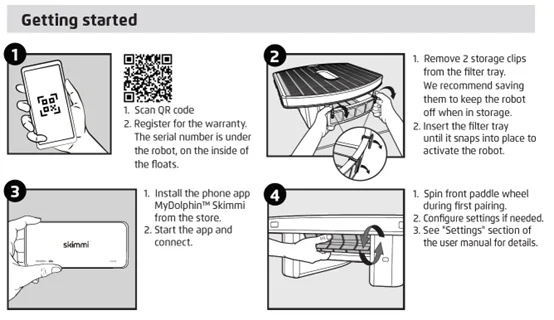
Here are the steps to get connected!
-
Agree to Maytronics Terms of Service and Privacy Policy. Tap to read them. Once you agree to the Terms & Conditions, the app will start searching for the device.
-
Ensure Bluetooth® is active on your smartphone. The Skimmi connects via Bluetooth only.
-
Once the device has been found, choose the device. Tap the pencil icon to name your skimmer.
-
Select your newly named Skimmi.
-
Rotate the front wheel of the skimmer to pair it with the phone. This initiates the pairing process between the robot and your smartphone.
-
Tap "Start Clean" on the app home screen. The default settings will start cleaning your pool, will optimize energy usage for nighttime operation and ensure maximum battery efficiency.
-
To stop cleaning, simply tap "Stop Clean" on the app.
Source: Maytronics support. Rewritten for clarity with the same steps; the videos and illustrations are Maytronics' own.
This answer on your robot.
Maytronics tags this answer for the 1 model below.