ProLine™
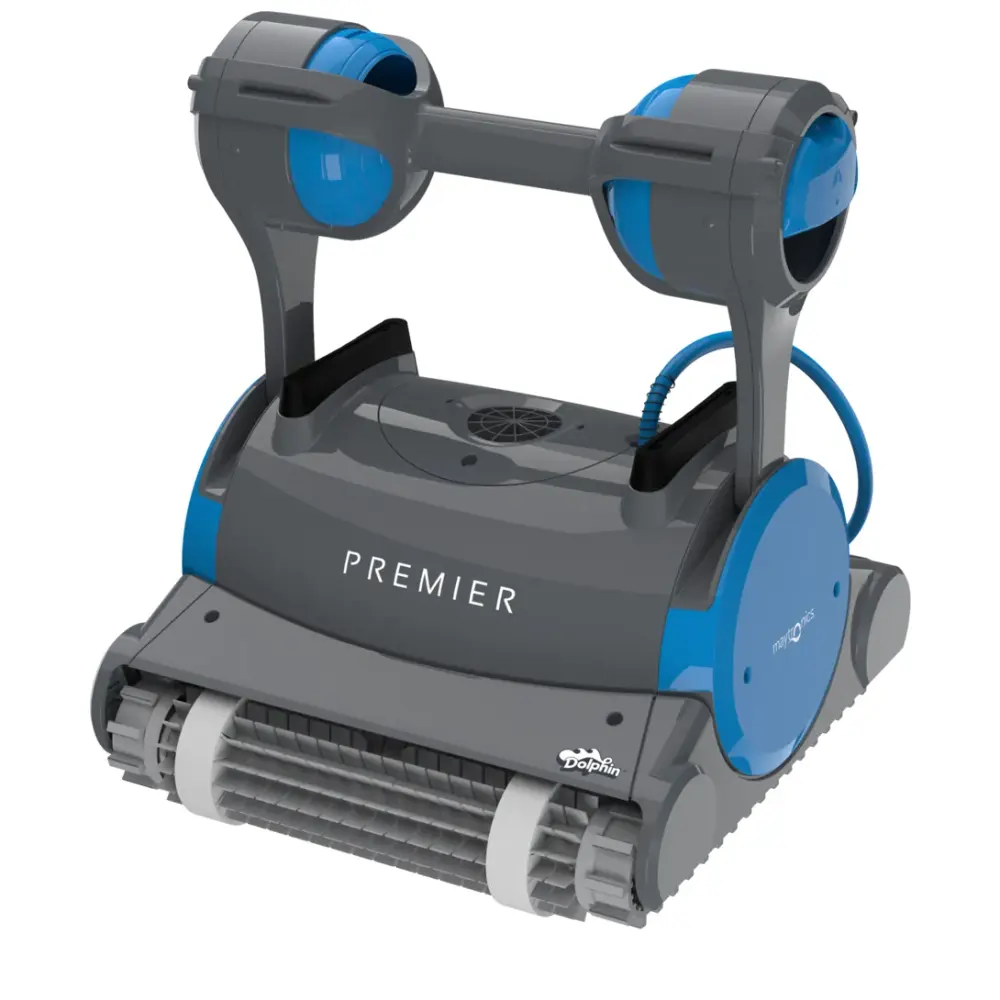
Dolphin Premier
3-year warrantyMultiMedia™ filtration with NanoFilters™ and an oversized leaf bag in the box. Pools to 50 ft.

Your Cart
Free shipping on every order.
Your bag is empty.
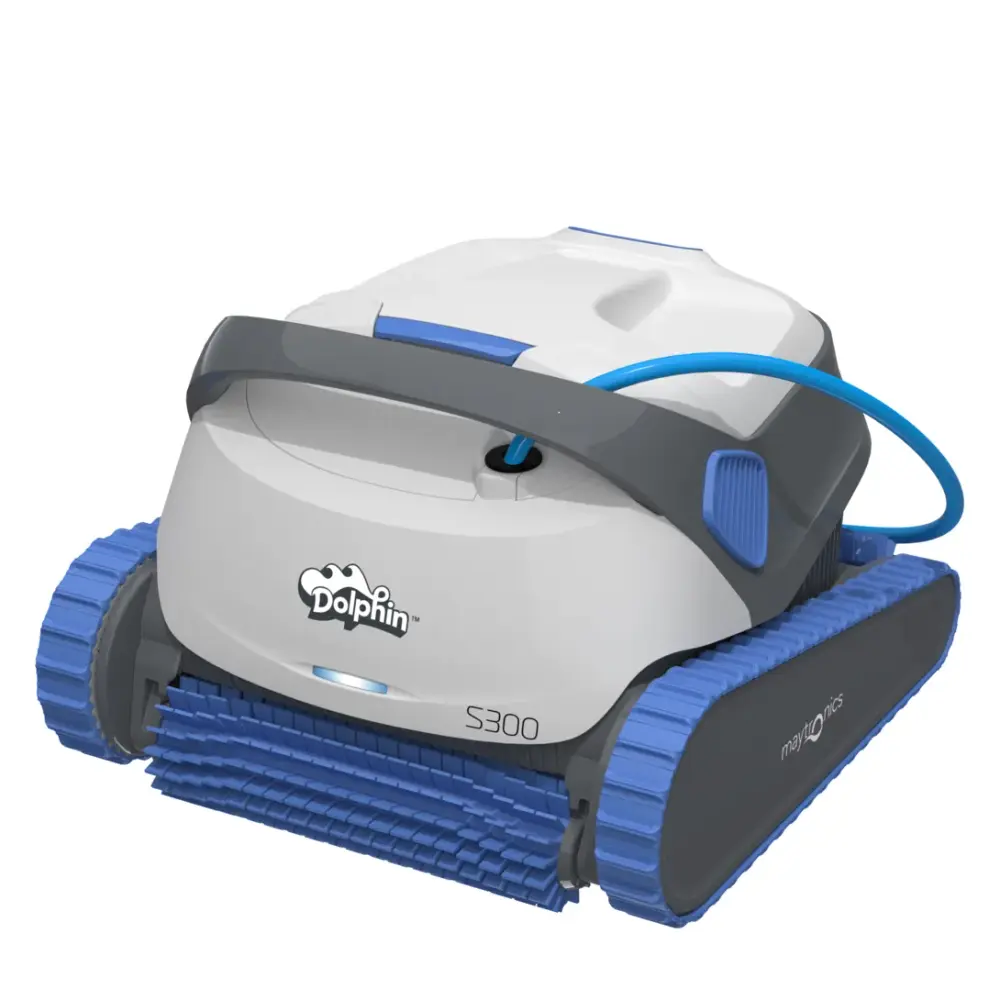
The Dolphin S300 carries a 2-year limited manufacturer warranty from Maytronics. Here is what the warranty covers, how to register, where the serial number is and how a claim works.
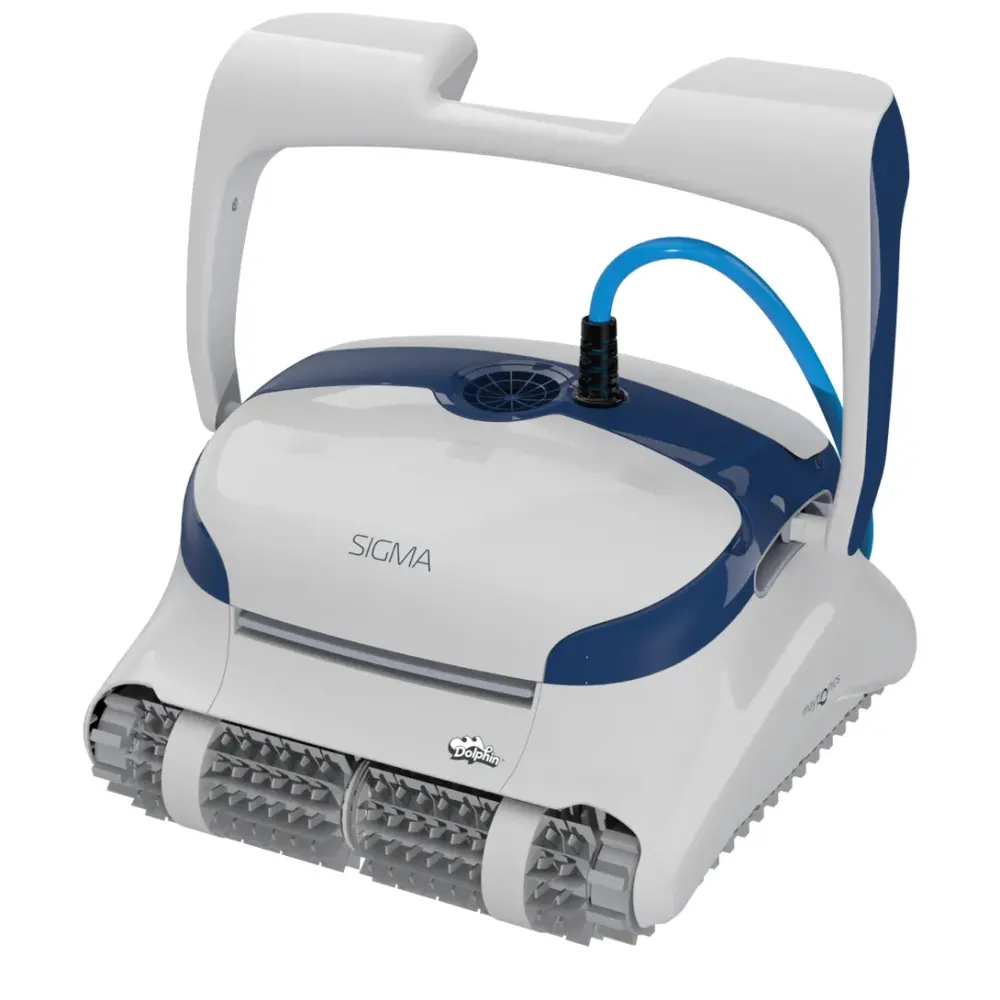
The ProLine™ Premier and Sigma carry Maytronics' longest warranty, 3 years, not prorated and not limited by cycles. Each one ships free from our store with a 30-day trial and the full manufacturer warranty, and each has a warranty page, parts list and troubleshooting guide of its own.
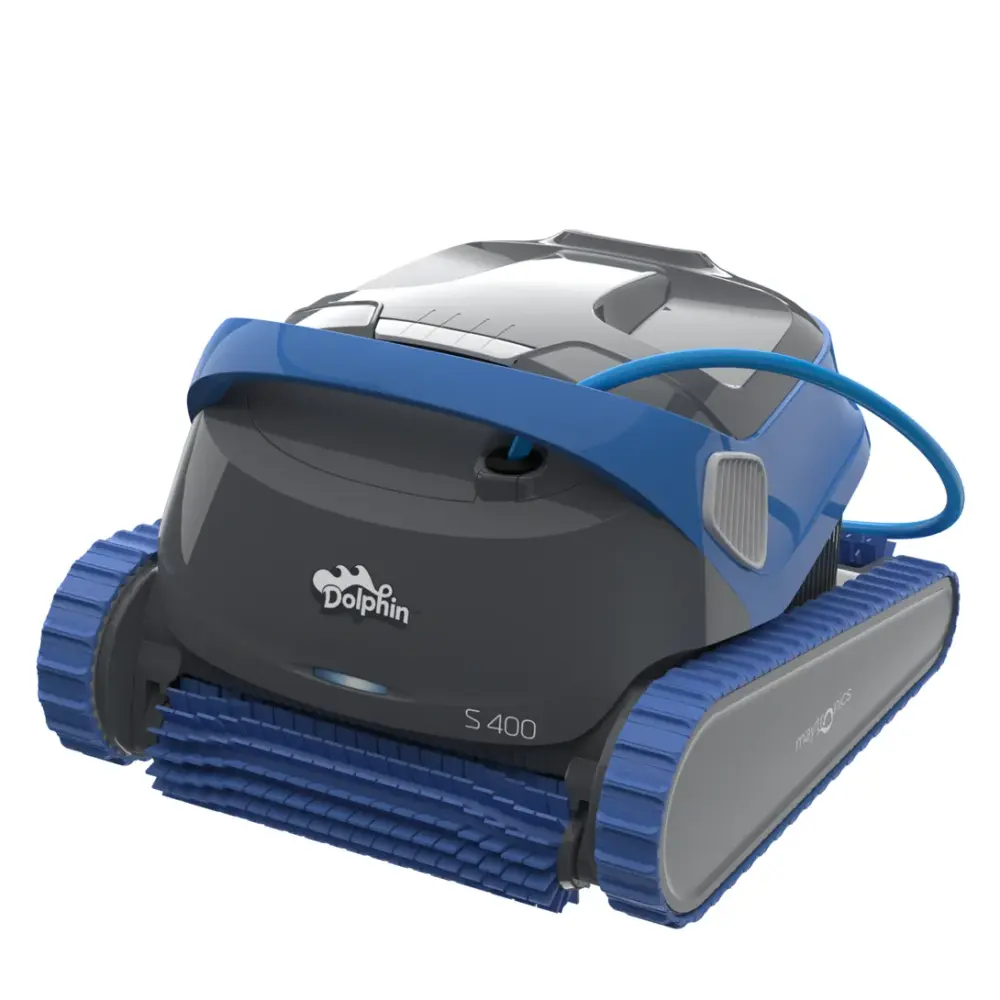
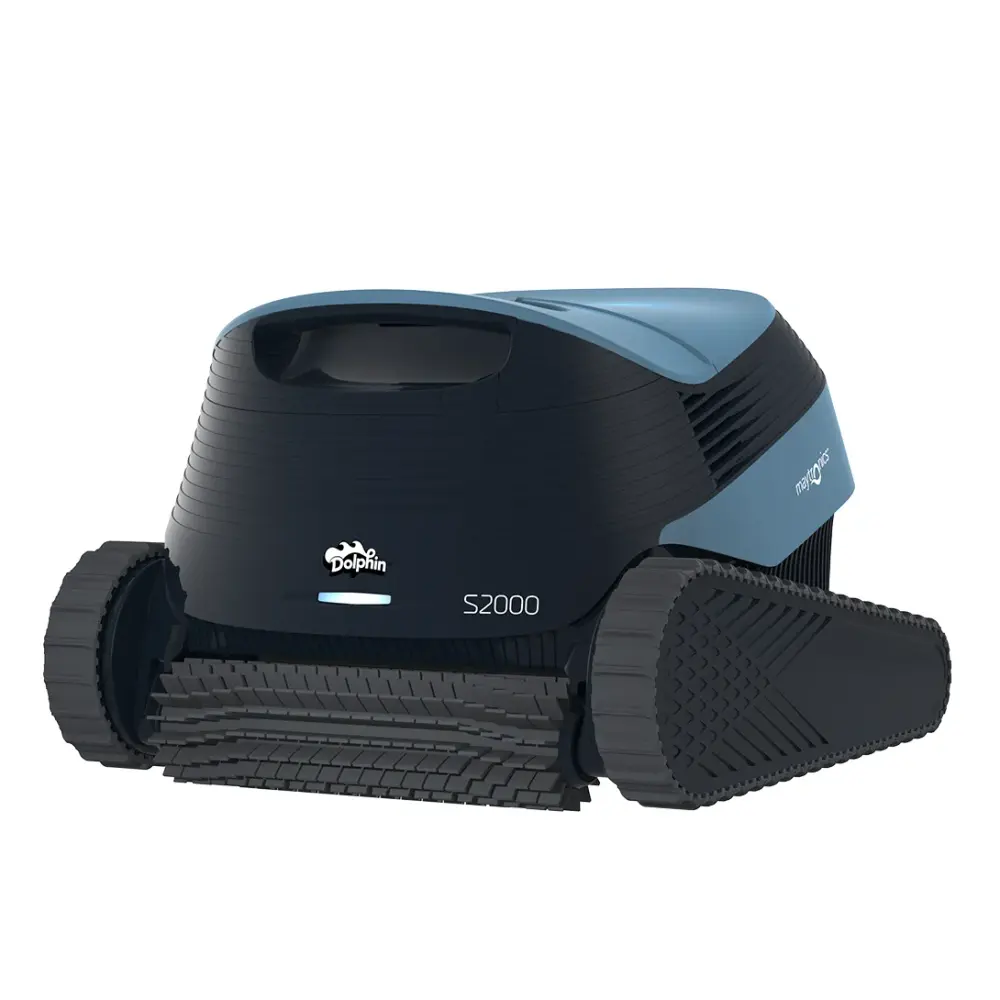
MultiMedia™ filtration with NanoFilters™ and an oversized leaf bag in the box. Pools to 50 ft.
Gyroscope navigation, app control, dual active brushes and NanoFilters™ in the box. Pools to 50 ft.
Keeping the S300? Its 25 genuine replacement parts are listed with how to fit each one, and the S300 troubleshooting guide covers the fixes to try before a claim.
A Maytronics manufacturer warranty covers defects in materials and workmanship on the robot and its power supply for the term printed on the warranty card (2 years for the S300). The full conditions are in the user manual (download it here); the points below are the ones owners ask about.
Registration is free at Maytronics' portal and puts the robot's details on file, so a warranty claim is verified in minutes and the registration doubles as proof of ownership.
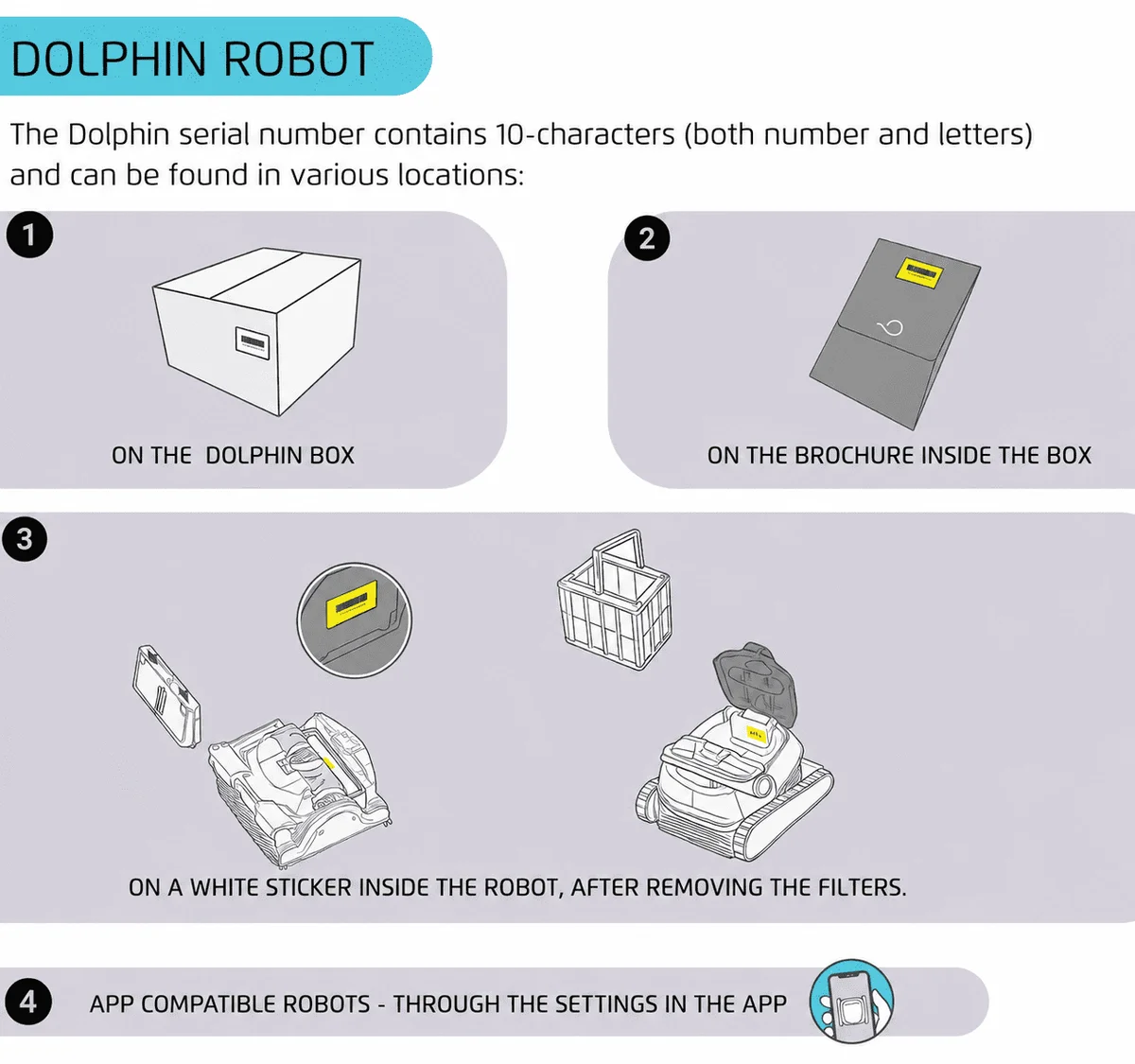
The 10-character serial number is printed on the white label on the outside of the box, on the warranty card, and on the white barcode label inside the robot's casing.
Proof of purchase from an authorized dealer sets the warranty start date. A photo of the receipt is fine.
Go to registration.maytronics.com, enter the serial number and your details, and upload the receipt if a rebate is also being claimed.
Maytronics asks every owner to troubleshoot before a repair, because most calls are a clogged filter, a blocked impeller or the power supply. Then the path depends on where the robot was bought.
Work through the S300 troubleshooting guide: power supply first, then impeller, tracks and filters.
If the supply will not stay on with the blue cable disconnected, Maytronics replaces the supply under warranty through its self-service claim, with no need to ship the robot.
Contact that dealer first; many service Dolphins in store. Find a dealer if you need another one nearby.
Use Maytronics' self-service tool to open a repair request (RMA). Robots go to one of the regional Master Service Centers in Georgia, Arizona, California, Pennsylvania, Illinois or Canada.
Bought the S300 from us? Chat with a specialist and we will walk you through the claim.
The warranty length for Dolphin robots varies depending on the model, typically ranging between 12 to 36 months. To verify the exact warranty period for your specific robot model, please visit the product page of your Dolphin robot.
We encourage you to register your robot on our Registration Website to receive exact information about the warranty applicable to your model.
Registering your Dolphin robotic pool cleaner is a simple step that ensures you get the best possible service and support. By registering your robot, you’ll enjoy the following benefits:
Taking a few minutes to register your Dolphin today ensures you’re covered and ready for worry-free pool cleaning. Register your Dolphin’s warranty now!
You can complete your product registration and rebate submission through our online portal at https://registration.maytronics.com/.
Before you get started, make sure you have your robot’s serial number and your proof of purchase available.
You can find your Dolphin’s 10-character serial number located in these three places:
Follow the steps below to register your product:
Go to the registration portal: https://registration.maytronics.com/.
Enter your robot’s serial number: Type the serial number into the first field. If you need help locating it, click the “i” icon next to “Where do I find my robot’s serial number?”.
Select your previous pool-cleaning method, then click Continue.
Enter your personal information:
Preferred: Original receipt or original invoice (must show purchase date, product, and price).
If the original receipt cannot be located:
Agree to the Terms & Conditions, then click Continue.
Review your information and click Submit to complete the registration.
To check your Dolphin’s warranty length, visit your model’s product page every Dolphin model. (Warranty lengths vary per model and region.)
Does your Dolphin need to be repaired? run the power supply checks to use our self-service tool to complete a warranty claim (RMA/Return Merchandise Authorization) to repair your Dolphin or to replace the power supply.
The serial number of the Dolphin robot is a 10-digit number that can be found inside the robot on a white sticker.
If your filter opening is on the bottom of the robot:
- Turn your Dolphin upside down and remove the filter(s).
- Look for a white label (sticker). This label has your robot's serial number on it.
If your filter opening is on the top of the robot:
- Open the top lid and remove the filter(s).
- Look for a white label (sticker). This label has your robot's serial number on it.
If the serial number is not accepted during the registration process, verify that the characters are entered correctly.
Do you have a Skimmi™? Where do I find my Skimmi serial number?
Maytronics has regional Master Service Centers across North America to provide repair services. These centers are located in Georgia, Arizona, California, Pennsylvania, Illinois, and Canada.
Before proceeding with a repair, we recommend using our troubleshooting tool to diagnose the issue. run the power supply checks to troubleshoot and to complete a warranty claim (RMA/Return Merchandise Authorization) to repair your Dolphin or to replace the power supply.
You sure can!
You can order parts from our website here, or at an authorized Maytronics dealer online or in your area. A local dealer near you
You will need the serial number of your Dolphin robot to identify the parts compatible with your model.
Visit our DIY Repairs section, for step-by-step instructions on replacing parts.
Please note that if your robot is under warranty, attempting to replace some of the parts yourself can void the warranty and is not recommended.
If your power supply is no longer working and you are under warranty, run the power supply checks to submit a warranty claim (RMA) for a replacement power supply through our easy-to-use self-service form!