
How do I set the cleaning modes on the EON 100/120d?
What to know.
The cleaning modes can be set through the MaytronicsOne app or through the robot interface.
How to Set the Cleaning Modes on the Robot Interface:
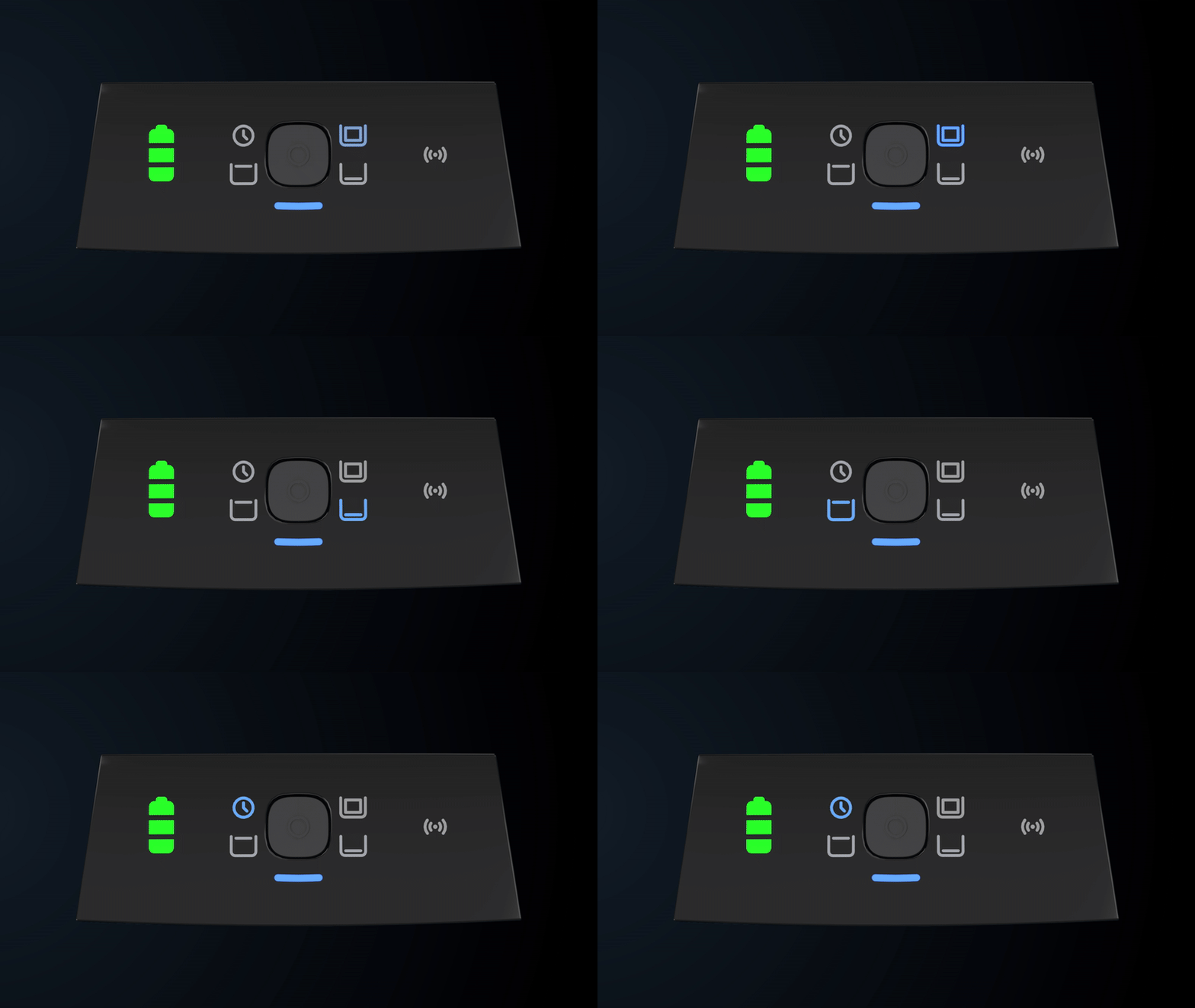
- Turn the robot on and make sure it is not connected to the charger.
- Press the power button repeatedly to cycle through the cleaning modes until you reach the desired one.
- The Status LED will be solid blue, indicating the mode is selected.
- Place the robot in the water.
- The Status LED will flash blue once the cleaning cycle begins.
The default cleaning mode is Full Coverage (floor + walls + waterline + steps), but it can be changed to Floor Only, Waterline, or UltraRun™. The chosen cleaning mode will be saved for the next cleaning cycle.
How to Set the Cleaning Modes via the MaytronicsOne App:
The cleaning modes can also be set through the MaytronicsOne app.
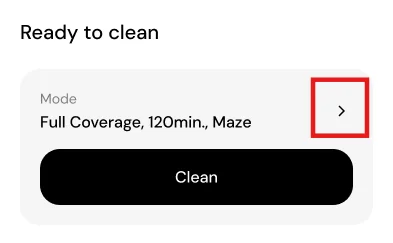
- Make sure the robot is connected to Wi-Fi, removed from the water, and not connected to the charger.
- Click the arrow next to the cleaning mode on the home screen.
- Select a cleaning mode. You can choose a Scan Pattern and Duration for Full Coverage, UltraRun™, and Floor Only.
The last chosen cleaning mode will be saved, except for the UltraRun™ mode.
Source: Maytronics support. Rewritten for clarity with the same steps; the videos and illustrations are Maytronics' own.
Parts that fix this.
This answer comes down to filters. The exact part depends on the model: choose your robot and we open its parts list, or browse the category for every model.
Browse by category:Filters All genuine Dolphin parts →
This answer on your robot.
Maytronics tags this answer for the 1 model below.