
How do I set UltraRun on the EON 100/120d?
What to know.
We recommend starting UltraRun™ mode on a full battery. You can activate UltraRun™ either directly on the robot interface or through the MaytronicsOne App.
How to Set UltraRun™ via the MaytronicsOne App:
- Make sure the robot is connected to Wi-Fi, removed from the water, and not connected to the charger.
- Click the arrow next to the cleaning mode on the home screen.
- In the UltraRun option, choose your preferred cycle plan and scan pattern.
How to Set UltraRun™ on the Robot Interface:
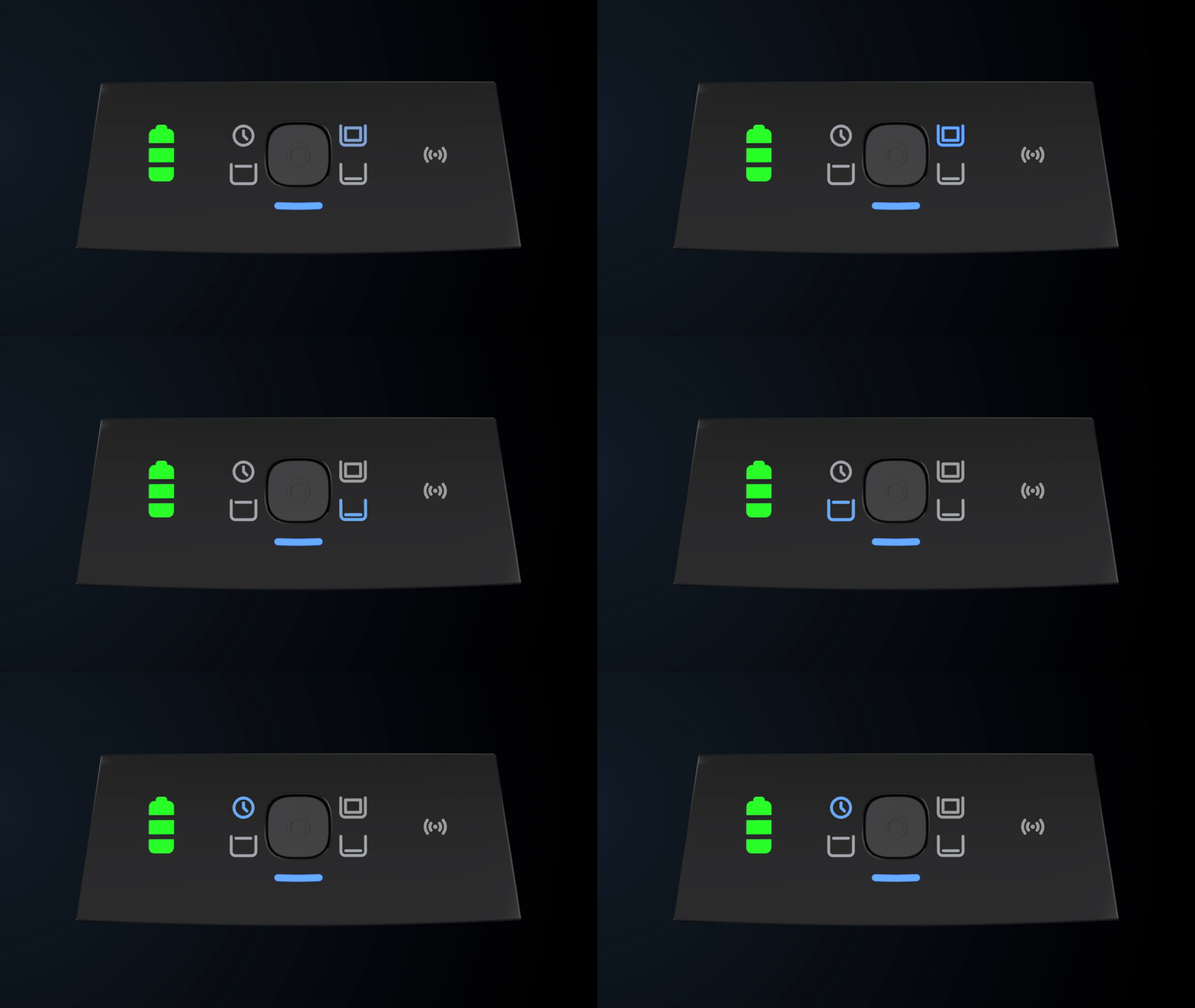
-
Turn the robot ON and make sure it is not plugged into the charger.
-
Press the power button until the LED lights up on the UltraRun™ mode icon
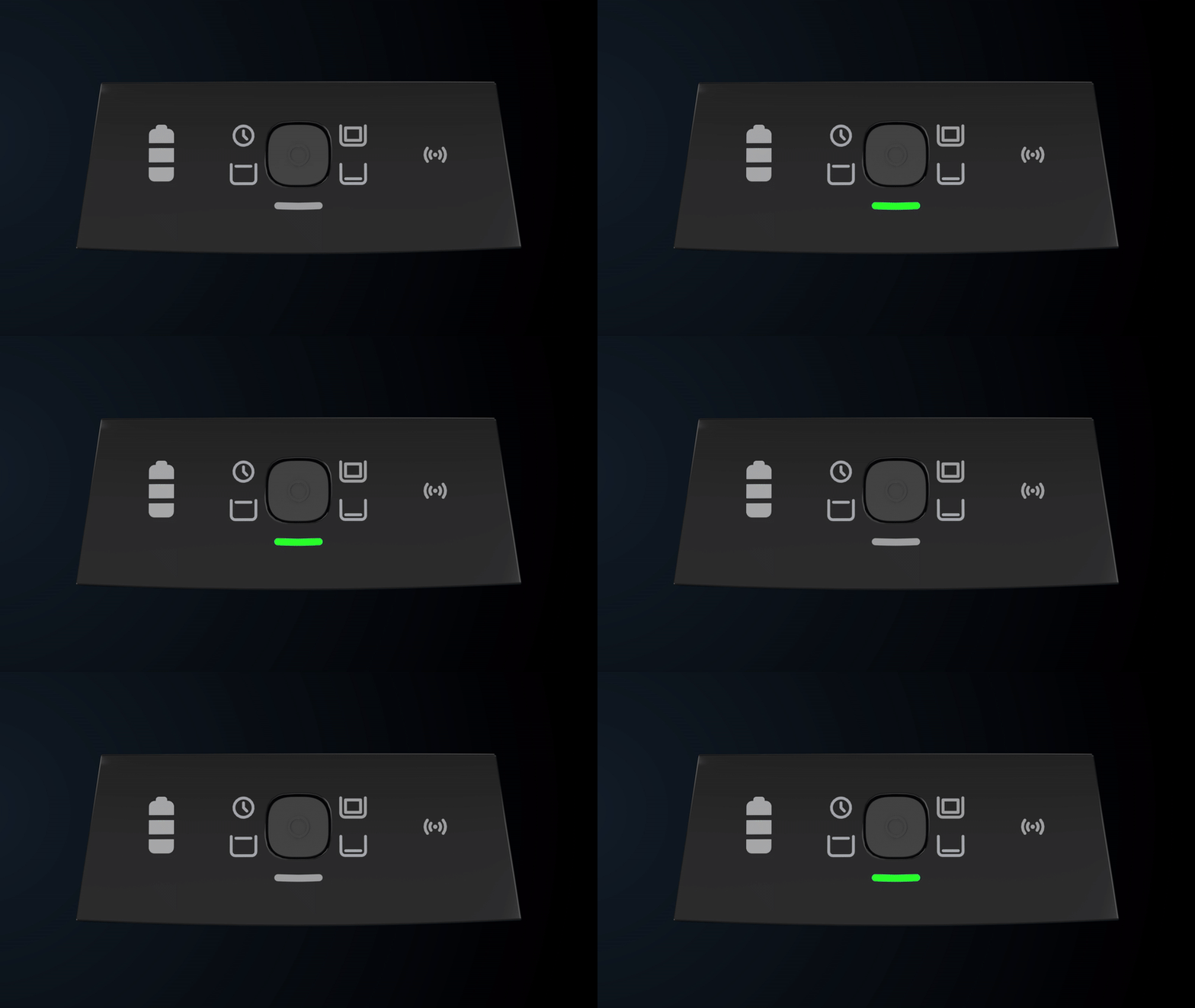
While the robot is in standby mode between UltraRun™ cleaning cycles, the power button LED flashes green:
EON™ 100 UltraRun™ Cycle Options:
| Length | Cleaning Mode | Number of Cycles | Cycle Length |
|---|---|---|---|
| 1/2 Week | Full Coverage | 2 (Every 48 hrs) | 60 Min |
| 1 Week (Default) | Full Coverage | 3 (Every 48 hrs) | 45 Min |
| 1 Week | Floor Only | 3 (every 48 hrs) | 45 Min |
EON™ 120d UltraRun™ Cycle Options:
| Length | Cleaning Mode | Number of Cycles | Cycle Length |
|---|---|---|---|
| 1.5 Weeks | Full Coverage | 4 (Every 48 hrs) | 60 Min |
| 2.5 Weeks | Full Coverage | 6 (Every 72 hrs) | 40 Min |
| 2.5 Weeks | Floor Only | 6 (every 72 hrs) | 40 Min |
After an UltraRun cleaning session is complete and the robot has finished charging, the UltraRun schedule will need to be reprogrammed. Note that the UltraRun cannot be set while the robot is plugged in and charging.
If the Homing feature is set between UltraRun™ cycles, the robot will wait at the selected wall at the end of the cleaning cycle.
Using the Clicker in UltraRun™ mode will cancel the upcoming scheduled cycles.
Source: Maytronics support. Rewritten for clarity with the same steps; the videos and illustrations are Maytronics' own.
This answer on your robot.
Maytronics tags this answer for the 1 model below.