8 fixes from Maytronics support and the Skimmi 300 user manual, sorted by what the robot is doing wrong, each with the genuine part that fixes it. Start with the checks at the top: they solve most calls before anything is replaced.
The Skimmi is in a sunny location, but it isn't chargingMost common
This can occur when the battery is full so that the skimmer runs on solar power instead of battery. When the sunlight becomes weaker, the battery will start to power the skimmer again and will continue charging.
Ensure the Skimmi is exposed to direct sunlight to let the battery recharge. Cold weather and cloudy skies may impact the charging ability.
If the SKIMMI won’t charge, please open the app and note the charging strength.
If the charging strength is below 5 Watts, please check for possible limescale residue accumulation on top of the solar panel. In such a case, please gently clean the residue off using diluted citric acid or vinegar.
If the charging strength is above 5 Watts, but the SKIMMI won't accumulate charge, it may indicate a faulty battery.
Important: The robot is a solar-powered model. Sufficient solar power and direct sunlight are required for proper charging and operation.
The paddlewheels on my Skimmi 300 are stuck — how do I clean them?Skimmi 300
Remove the Skimmi from the pool.
Turn the Skimmi upside down.
Make sure the filter tray is fully inserted and snaps into place.
Rotate the side and front wheels to check for debris. Check for hair, leaves, or any objects that may be stuck, and remove anything that could be blocking movement with tweezers or needle-nose pliers.
The front paddlewheel is jammed on my Skimmi - How do I clean it?Most common
Here are the steps to follow:
Make sure the Skimmi is turned off and remove it from the pool.
Remove any debris from the paddlewheel.
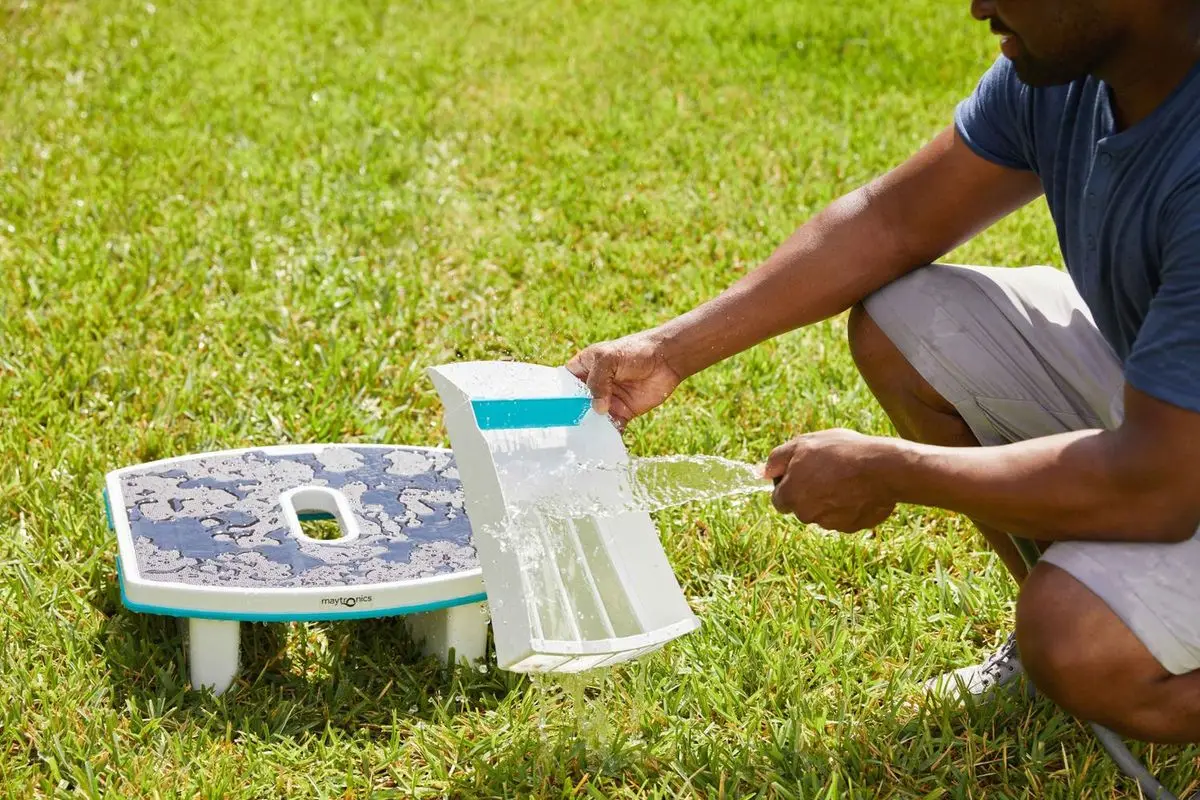
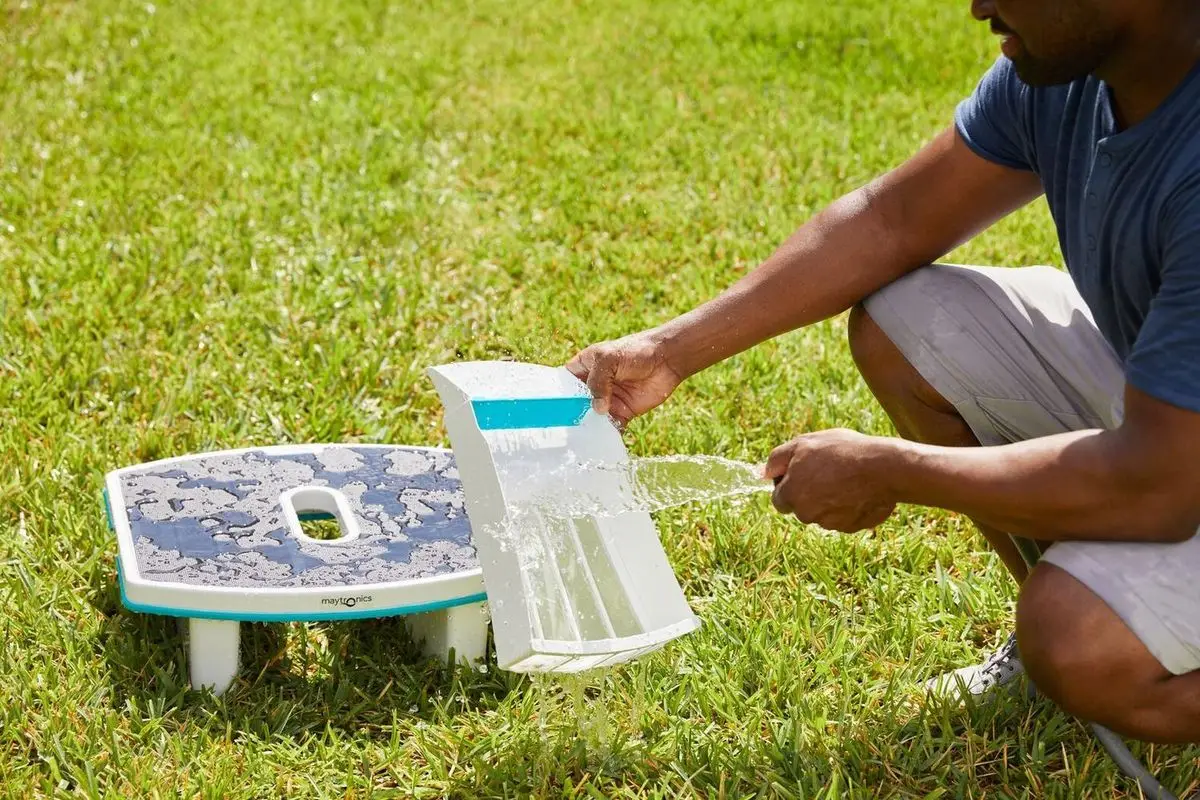
Empty the filter tray and rinse it thoroughly to remove any remaining debris.
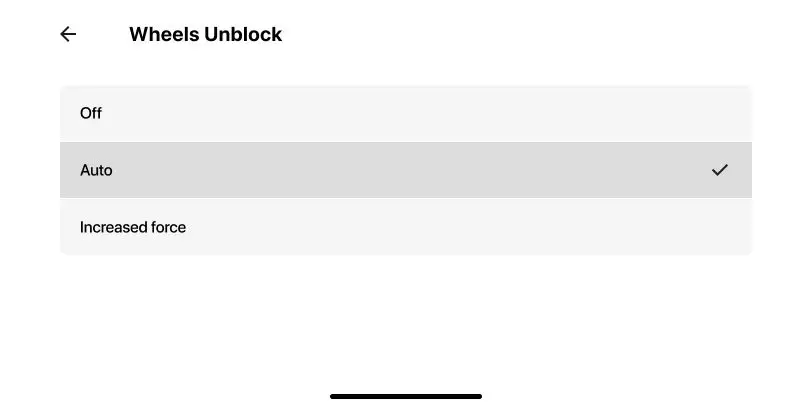
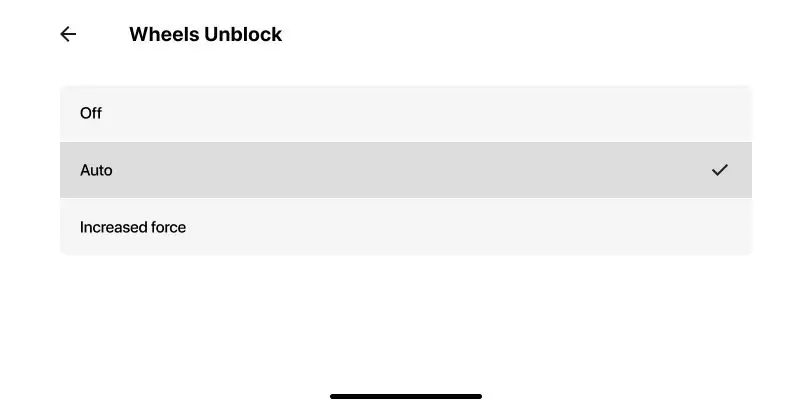
If this continues to happen even after completing the troubleshooting steps, open the app and set 'Wheels Unblock' to 'Forced'.
Please note that this option increases the skimmer's power consumption, which can potentially reduce the overall cleaning time. However, it ensures the wheels can move freely. Once there is less debris in the pool, change the setting back to Auto.
How do I replace the front paddlewheel on the Skimmi 300?Skimmi 300
Make sure the Skimmi is turned off.
Turn the Skimmi upside down.
Remove the filter tray.
Rotate the front wheel to the correct angle and pull it out.
If needed, replace the connectors by removing the larger connector and the smaller connector, then install the new connectors.
Insert the front wheel by first aligning the wheel with the smaller connector, then pressing the other side into the larger connector until it clicks into place and rotates smoothly.
If the Skimmi is beeping and the LED is flashing red, it could mean one of the following:
Flashing Red 3x - Stuck
If the Skimmi red LED is flashing three times (every 2 sec.) then there is an obstacle stuck in the wheels.
Try the following troubleshooting steps:
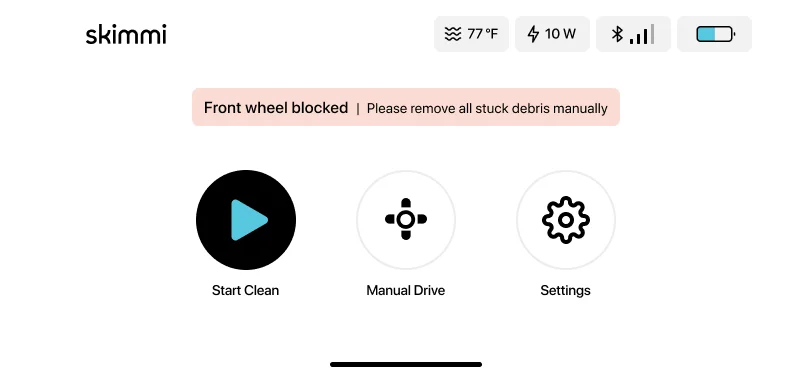
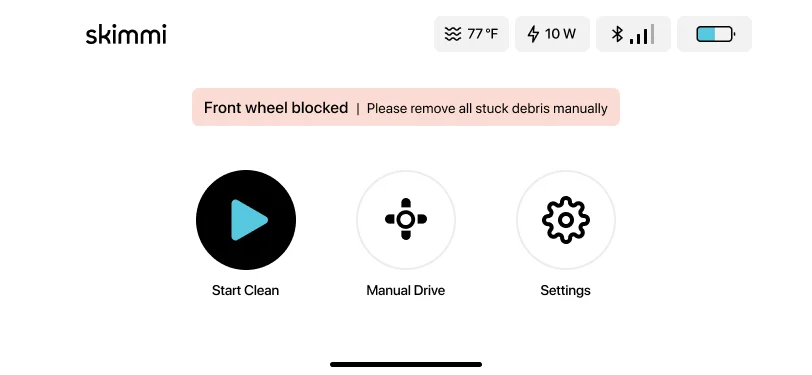
Open the app to read the error message to find out which wheel is stuck. Remove the object or hair.
Empty the filter tray and rinse it.
You can also open the app and set "Wheels Unblock" to "Increased Force" (please note that this setting will increase the Skimmi's power consumption and will reduce the overall cleaning time).
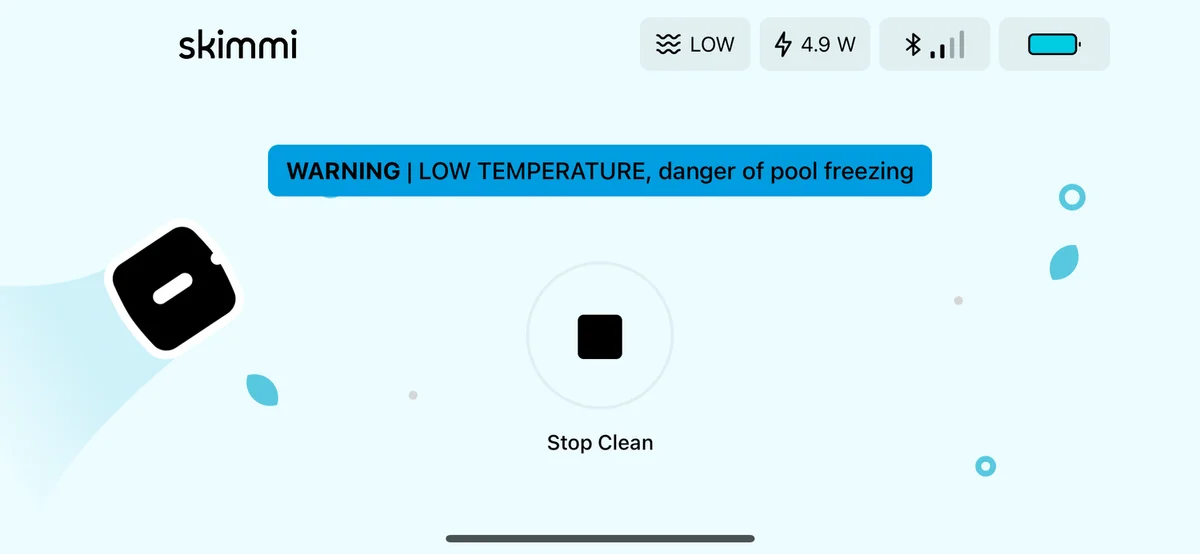
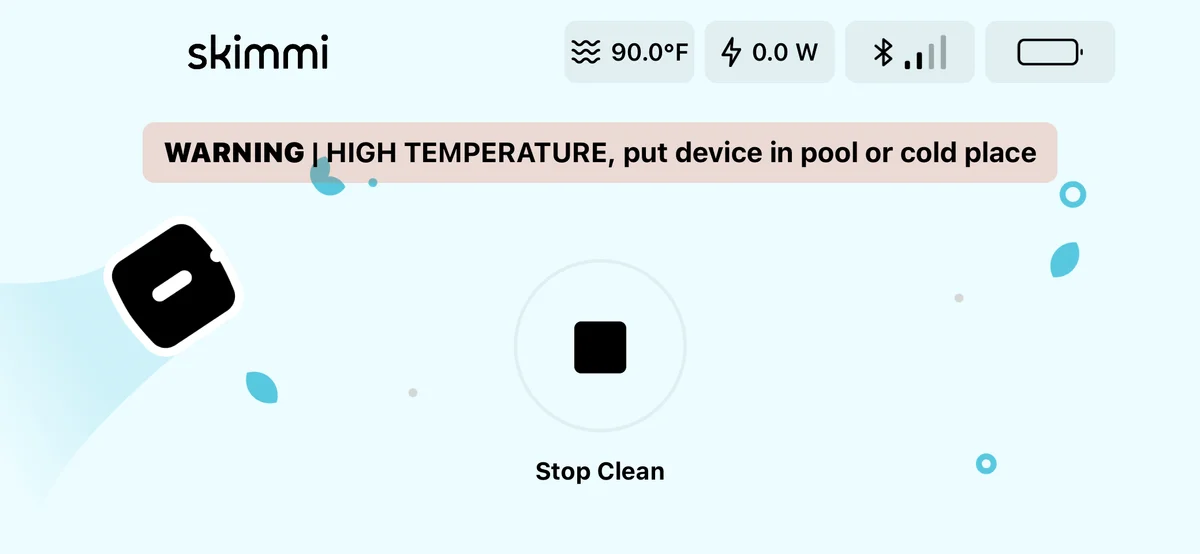
Flashing Red 1x/2x - Overheated or Danger of Freezing
If the Skimmi is overheated or too cold, the Skimmi will start beeping and an error message will appear on the app. This does not mean that the skimmer is malfunctioning. This is a failsafe mechanism that stops the battery from charging while it is overheated until the internal temperature cools down.
Flashing once (every 2 sec.) - the pool/outdoor temperature is below 39°F OR above 131°F (charging will stop)
Flashing twice (every 2 sec.) - the battery temperature is below 39°F OR above 131°F (charging will stop)
Try the following troubleshooting steps:
If the Skimmi is too cold, bring the skimmer to a sunny/warmer location, and make sure the pool temperature is between 39-131°F before returning the skimmer to the pool.
If the Skimmi is overheated, place the Skimmi for 1-2 hours inside the pool and slightly splash some water on the solar panel.
On the MyDolphin Skimmi app, set the 'Day Cleaning' (cleaning duration) to 20-30 minutes and the 'Day Pause' (pause intervals) to 1 Hour during the day. This will help preserve the Skimmi battery.
If you prefer to turn the beeping off, you can change the setting in the app under 'Device Setting', then turn the 'Alert Sound' off. The setting can be changed again when the weather cools down.
The troubleshooting table printed in the Skimmi 300 manual, one card per symptom.
Robot can't be switched ON. Green pause LED is not lit or blinking
Likely cause
Battery is not charged.
What to do
Charge the robot - Plug the charger into the port under the robot or place the robot in direct sunlight.
Robot doesn't start cleaning. Battery indication is low or OFF. App says battery is low.
Likely cause
Battery is too low.
What to do
Plug the external charger into the port under the robot or place the robot in direct sunlight and let the battery recharge.
Robot does not move.
Likely cause
Cleaning has not started (green indication LED constantly ON).
Robot is on a pause between cleanings (green pause LED single-blinks every 6 seconds).
Battery is low (green LED blinks.
New app update failed (green pause LED is constantly blinking).
What to do
Open the app and tap the Start button.
Wait until the next cleaning cycle starts if the status bar in the app shows that it is in a recharge pause.
Connect the cable to the port under the robot or wait for the battery to charge in the sun.
Open the app and complete the robot’s software update.
Robot has stopped moving, it gives a red error signal .
Likely cause
There is an object stuck in one of the wheels of the robot.
What to do
Remove the object or hair. If it's the front wheel, you can remove and clean it. If it still doesn't work, contact Customer Care: Maytronics customer care
Robot often stands still, the cleaning time has been significantly reduced.
Likely cause
Cloudy skies, low sunny intensity for a long time.
Decreased battery capacity.
What to do
Tap the cleaning mode box in the app home screen, select the short sessions option. Or, charge the robot with the cable.
Contact Customer Care to replace the battery: Maytronics customer care
Robot turns only in circles.
Likely cause
Sensor covers are dirty.
Salt in the pool is not perfectly dissolved, the water is polluted.
Water's gotten into the robot.
What to do
Wipe off dirt with a damp cloth.
Open the app and select a lower water quality in the "Smart Detect" function or turn the function OFF.
Contact Customer Care: Maytronics customer care
Robot does not collect debris in the filter tray, it pushes small objects in front of it.
Likely cause
Non-return flap is stuck or has been incorrectly installed.
Filter tray is full.
What to do
Check if the non-return flap of the filter tray is connected properly. See the illustration below.
Empty the filter tray and wash it with a stream of water.
A paddle wheel often jams when moving. Red alert indicator.
Likely cause
Hair or another object is wrapped around the shaft, reducing the strength of the wheel.
Filter tray is full.
Low strength of motors.
What to do
Remove unwanted hair or other object.
Empty the filter tray and rinse it.
When moving, the front of the robot dives more, the collection wheel makes a "slapping" sound.
Likely cause
Filter tray is full.
The robot is pulled by a strong stream of water from the filter pump, or a strong wind is blowing.
The non-return flap is stuck or has been incorrectly installed.
Water's gotten into the robot.
What to do
Empty the filter tray and rinse it.
Short-term instability. This will fix itself when the abnormal situation changes.
Check if the non-return flap of the filter tray is connected properly. See the illustration below.
Contact Customer Care: Maytronics customer care
APP cannot find or connect to the robot.
Likely cause
Robot is turned OFF.
Battery is not charged.
Large distance or obstacles between the smartphone and the robot.
Robot is currently connected to another smartphone.
What to do
Press the power button until the light turns on.
Connect to the external charger.
Move your smartphone closer to the robot.
Robot can only be connected to one smartphone at a time. Close the app of the other smartphone.
Solar panel is covered by plaque (limescale).
Likely cause
Your local water has a high level of calcium (hardwater). Calcium is deposited on surfaces and accumulates into plaque.
What to do
Clean gently with lemon juice or diluted citric acid or vinegar.
Prevent future buildup by rinsing less frequently or towel drying. Also, you can balance your pool’s pH with a water test strip and adding pool-grade acid accordingly.
If the checks above did not fix it, the robot may need a repair. Under warranty, Maytronics handles power supplies by replacement and robots through its repair centers; have the serial number from the label under the handle ready.