
EON · Troubleshooting guide

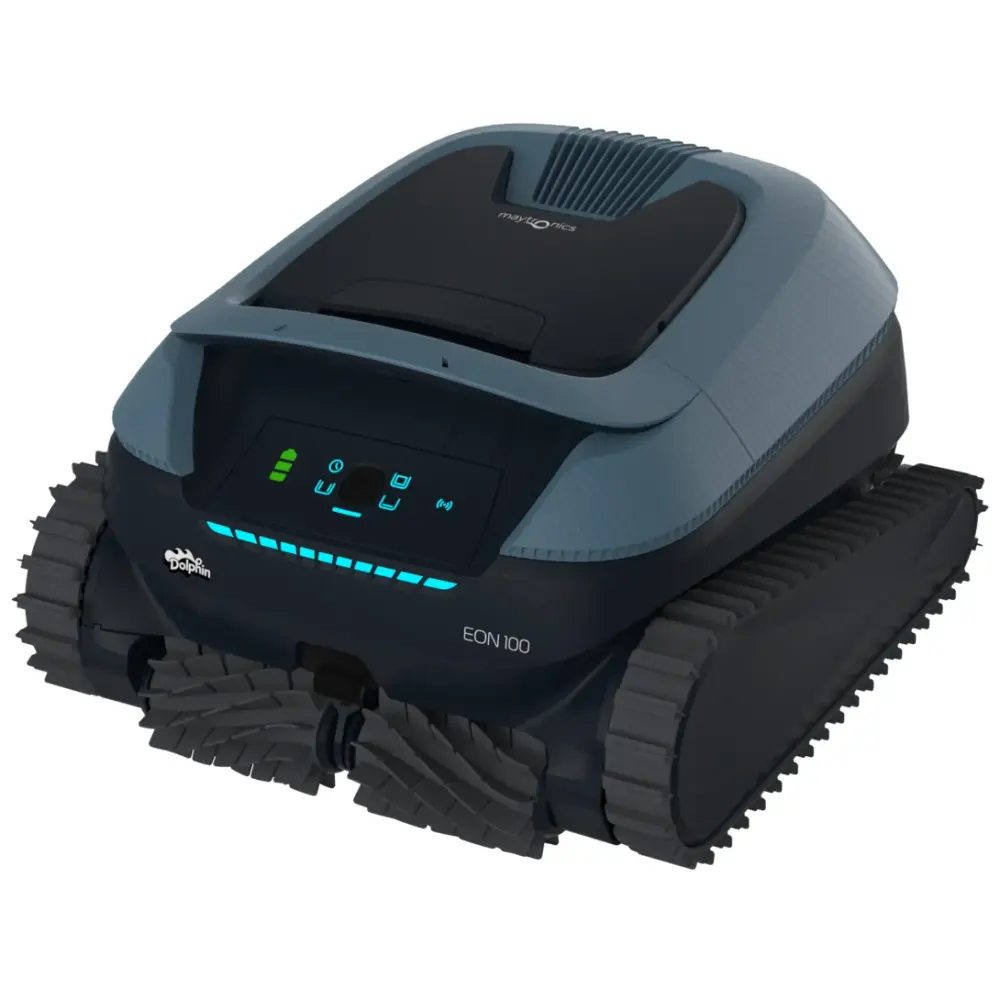
Dolphin EON 100 troubleshooting.

12 fixes from Maytronics support and the EON 100 user manual, sorted by what the robot is doing wrong, each with the genuine part that fixes it. Start with the checks at the top: they solve most calls before anything is replaced.

Dolphin EON 100
Start here

Five checks before you suspect the robot.

A cordless robot that will not start is almost always a charging problem. Rule that out first. Where a check ends in a worn part, the genuine replacement is linked under it.

  1. Charge to three green bars

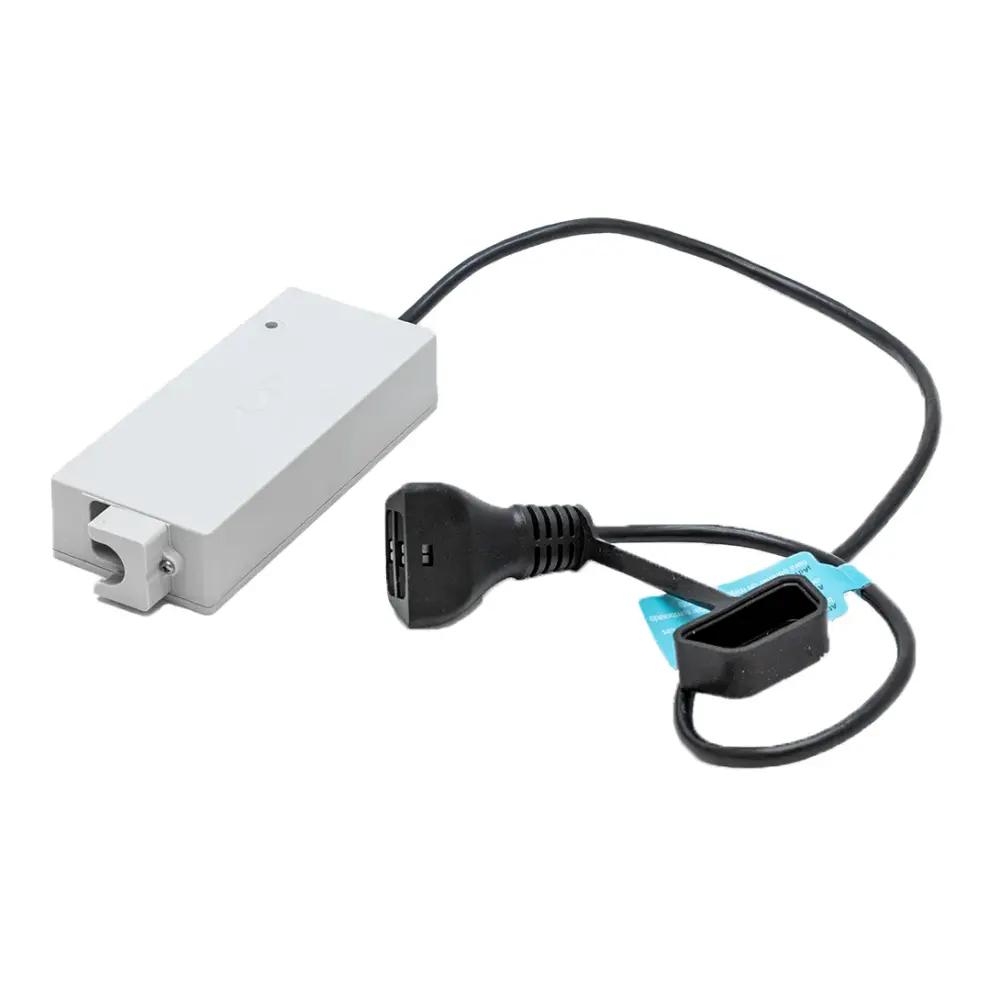
    Charging takes up to 4.5 hours. The charger shows a green LED when it has power from the wall.

  2. Check the app before the robot

    The Maytronics One app reports the error behind a red LED. Keep Bluetooth on, location on and the phone close to the robot while pairing.

  3. Use the 2.4 GHz network

    EON connects to 2.4 GHz Wi-Fi only. On a dual-band router, give the 2.4 GHz network its own name.

  4. Clear the impeller and tracks

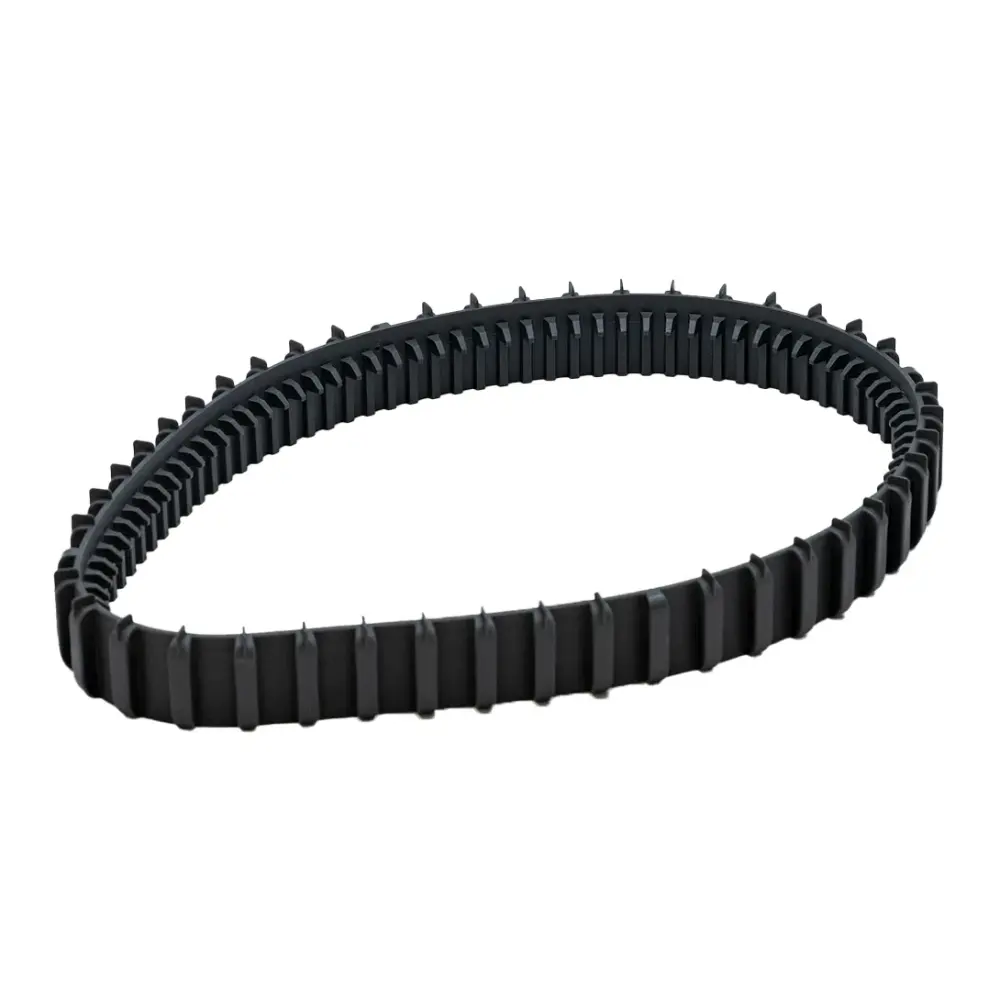
    Unplug nothing, there is no cable: just turn the robot over and check the impeller cover, tracks and wheels for debris.

  5. Rinse the filter basket

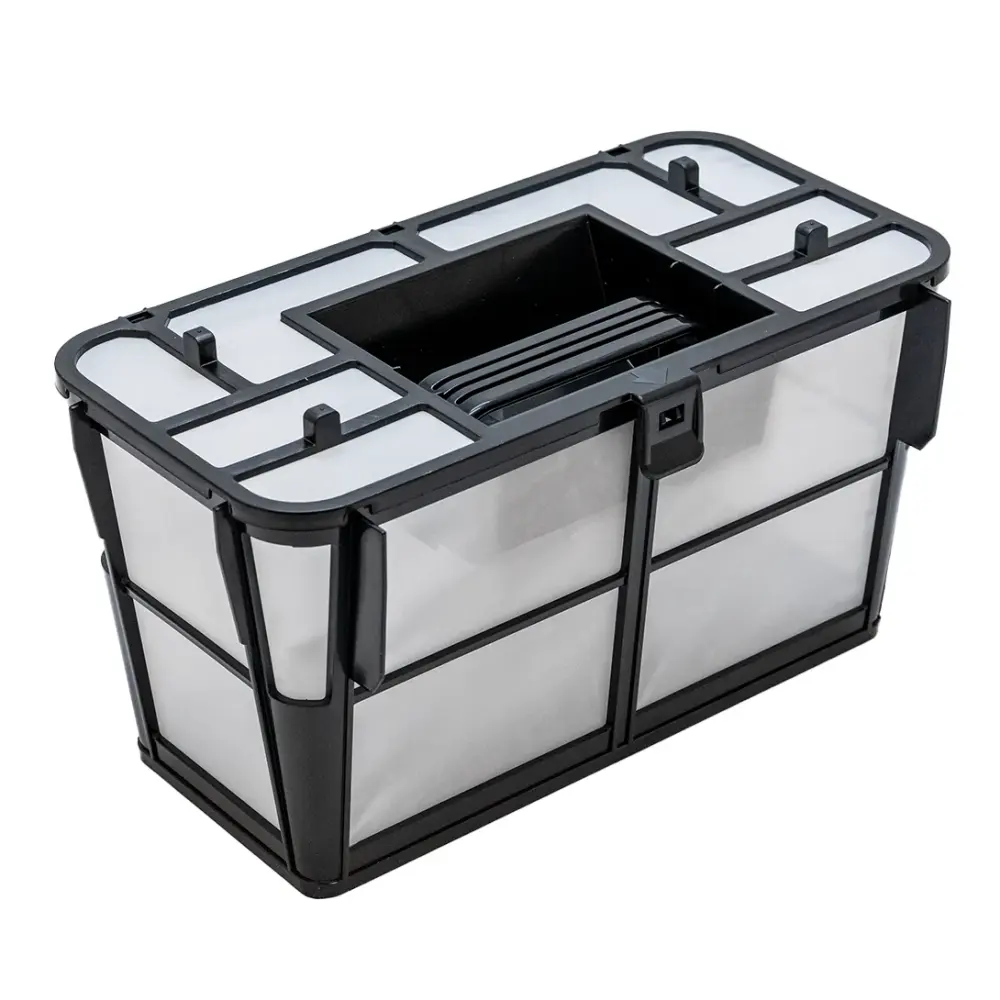
    Clean after every cycle. A basket that stays brown after rinsing is due for replacement.

Pick your problem

What is the EON 100 doing?

Problem 1 of 6 · 1 fix

Power supply & charging.

Why isn't my EON 100/120d charging?EON 1001 part

If your robot is not charging, follow these steps:

  1. Check the power outlet:
  • Confirm the wall outlet is working by testing it with another device.
  • The charger LED should turn green when it is receiving power.
  1. Inspect the charger connections:
  • Make sure the charger is securely connected to the robot.
  • Ensure the charging contacts on both the robot and charger are clean and free of debris.
  1. Charge in proper conditions:
  • Charge the robot indoors or in a shaded area.
  • In hot weather, try charging at night to avoid overheating. If the battery LEDs are blinking simultaneously, the battery or charger temperature is to high.
  1. Allow enough charging time:
  • A full charge can take up to 4.5 hours.
  • Make sure the robot remains connected for the entire charging period.

Open this fix on its own page →

Problem 2 of 6 · 1 fix

Movement, cycles & climbing.

The EON 100/120d isn't climbingEON 100

If your robot is not climbing the walls, try the following troubleshooting steps:

  1. Check the app settings
  • Make sure the Scanning pattern is set to Maze. In Maze, the robot starts climbing walls from the beginning of the cycle.
  • If set to Line-by-Line, the robot cleans the floor during the first two-thirds of the cycle and climbs walls only during the final third.
  • Run the robot in UltraClean mode with the Maze scanning pattern.

The robot will only climb when its front side is facing the wall. It will not climb if the rear side reaches the wall first.

  1. Clean the filter basket

A clogged filter basket can reduce suction and climbing performance.

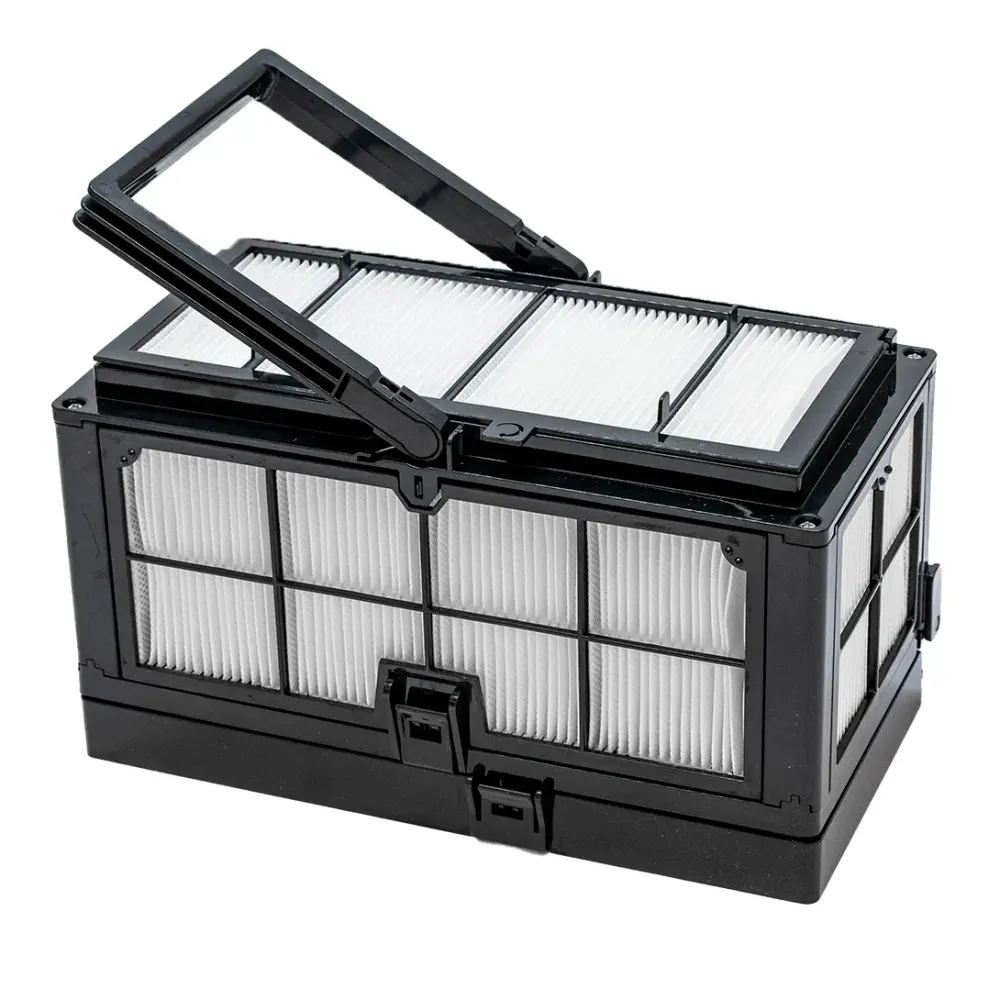
The monoblock net filter basket

  1. Check for Obstructions
  • Inspect the tracks and wheels and carefully remove any debris.
  • Check the impeller and impeller housing for hair, leaves, or debris, and clean as needed.
  1. Check for software and app updates
  • Make sure you are using the latest version of the Maytronics One app. Update the app if an update is available.
  • If the app prompts you to update the robot’s software, complete the update before running another cycle

Outdated software may affect navigation and climbing behavior.

  1. Verify Proper Water Conditions
  • Check your pool's chemistry levels, especially the pH.
  • Excess algae or improper water balance can affect movement and wall climbing. In these cases, we recommend consulting a pool professional for treatment.

Open this fix on its own page →

Problem 3 of 6 · 3 fixes

Cleaning performance & filters.

How do I clean the impeller on the EON 100/120d?EON 1003 parts

Follow the steps to clean the impeller:

  1. Remove the filter from the robot.
  1. Connect the charger to the robot and plug it in.
  1. As a safety measure, take a screwdriver and put it in the opening between the handle and the filter cover latch. (Do not skip this step!)
  1. Open the filter cover door to reach the impeller opening.
  1. Remove any debris that is stuck in the impeller.

Open this fix on its own page →

Why isn't my EON 100/120d not cleaning properly?EON 1003 parts

If your robot is not starting, is moving in circles, is not climbing walls, is moving in only one direction, or is not cleaning the pool effectively, try the following steps:

  1. Check for obstructions
  • Inspect the tracks and wheels and carefully remove any debris.
  • Check the impeller and impeller housing for hair, leaves, or debris and clean as needed. for instructions
  1. Clean the filter basket
  • Remove and rinse the filter basket thoroughly.
  • The filter should appear white when clean.
  • If it is brown or green, clean it with a hose.
  • For the EON 100, if you are using the monoblock filter basket, make sure the basket is installed correctly with the latch facing the impeller.
  1. Verify proper water conditions
  • Check pool chemistry levels, especially pH level. for more information.
  • Excess algae or improper water balance can prevent proper wall climbing and movement. In this case, consult a pool technician about pool treatment. Wait 24 hours after a chemical treatment before putting the robot in the water.
  1. Ensure the robot is used correctly
  • Start the robot and place it in the water within 30 seconds.
  • Make sure the robot is fully charged (3 green bars on battery LED)
  • If the pool contains a large amount of debris, you may need to run multiple shorter cleaning cycles and clean the filter between cycles to maintain cleaning efficiency.
  1. Check for error indicators
  • If the red error LED is on, open the app to check for error messages and follow the recommended steps.
  1. Confirm normal behavior
  • At the end of a cleaning cycle, the robot will wait on the pool floor near its Homing Wall.
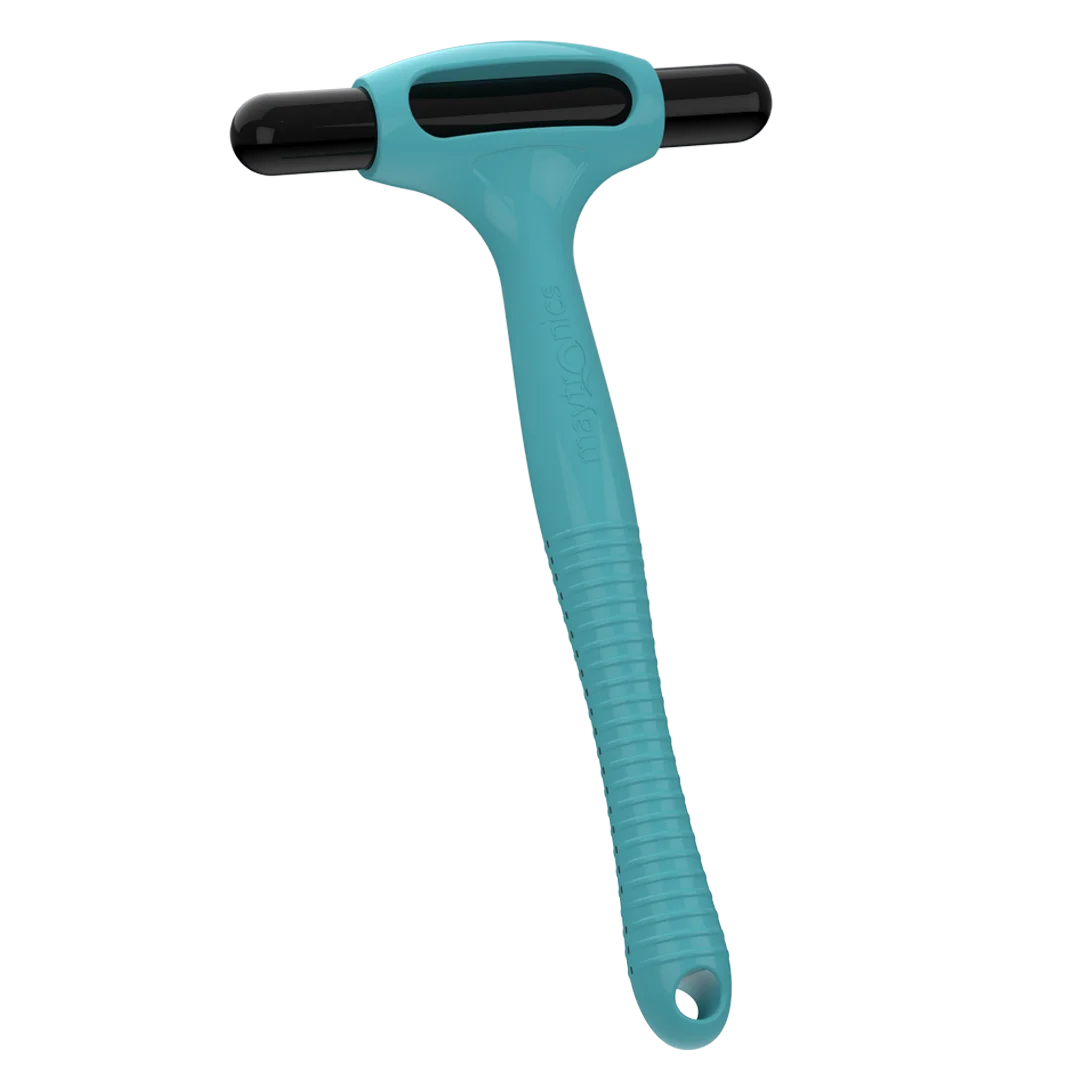
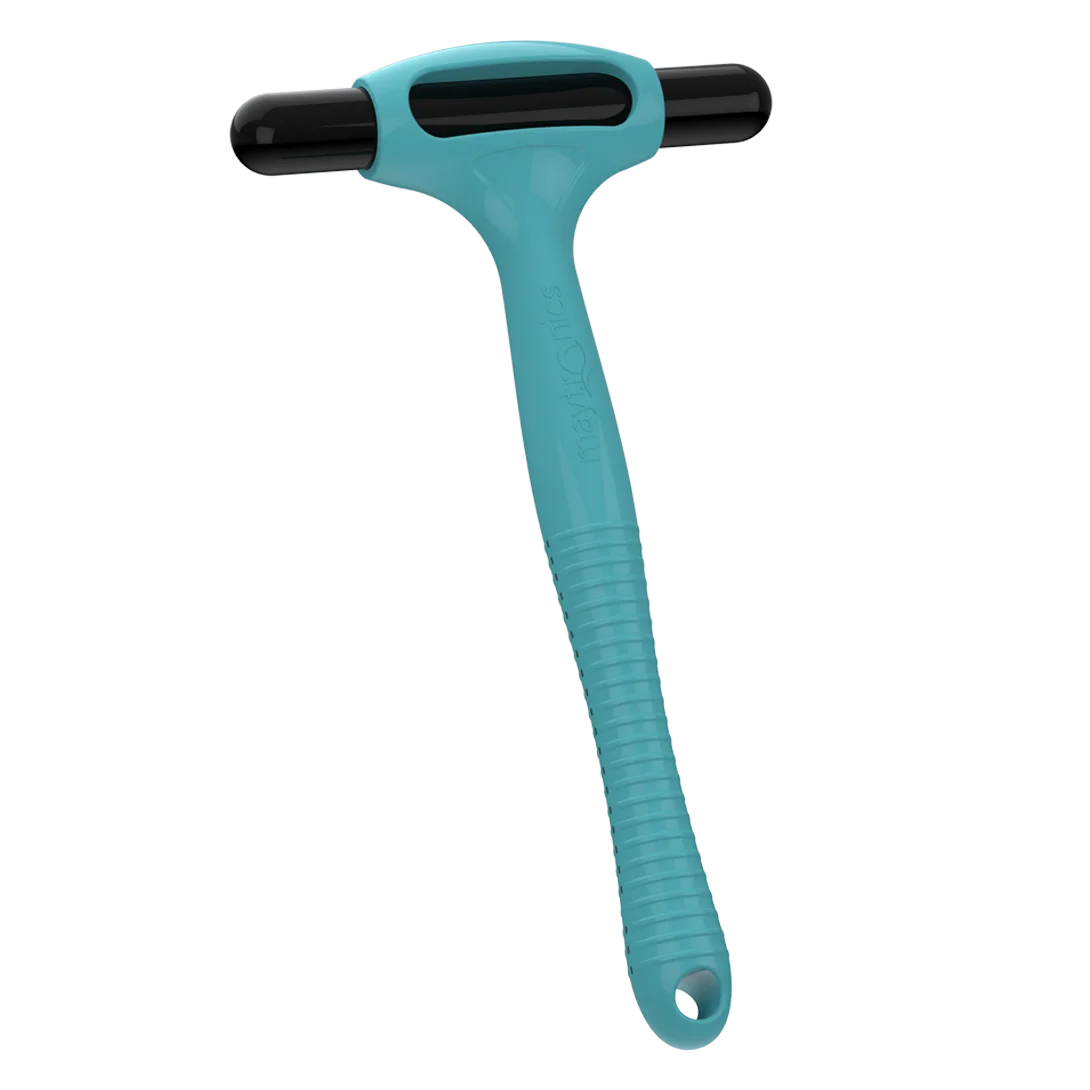
  • Use the Clicker (if included) by shaking it in the water for 3–5 seconds to call the robot to the waterline.
  • If the robot is not retrieved after one minute, it will go back down and turn to face a different wall.
  • The robot does not react if the power button is pressed while it is plugged into the charger. The battery LED will flash green while charging.

If the issue persists after completing these steps, contact customer support for further assistance.

Open this fix on its own page →

Why isn't the EON 100/120d cleaning the sun ledge and steps?EON 1003 parts

If your robot is not recognizing, reaching, or effectively cleaning the sun ledge or steps, try the following troubleshooting steps:

  1. Properly position the robot at startup

When starting a cleaning cycle, place the robot on the pool floor with the front side facing the sun ledge or steps.

  • Start the cycle in Full Coverage mode with the Maze scanning setting

This helps the robot prioritize climbing and cleaning these areas from the beginning of the cycle.

  1. Clean the filter basket

A clogged filter basket can reduce suction and climbing performance.

  • Remove the filter basket and rinse it thoroughly with a hose
  • The filter should appear white when clean
  • If the filter appears brown or green, continue rinsing until clean
  1. Check for software and app updates
  • Make sure you are using the latest version of the Maytronics One app. Update the app if an update is available.
  • If the app prompts you to update the robot’s software, complete the update before running another cycle

Outdated software may affect navigation and climbing behavior.

  1. Verify the water level

If water is not flowing out of the top of the robot while it is on the sun ledge, the water depth may be too shallow.

  • The minimum required water depth is 8 inches (20 cm)

Insufficient water depth can prevent the robot from operating correctly on ledges or steps.

Open this fix on its own page →

Problem 4 of 6 · 3 fixes

App, Wi-Fi & Bluetooth.

Why doesn't my cordless robot respond to the App while underwater?Most common

Our cordless models, the EON™ and Liberty 400/600, do not remain connected to Wi-Fi or Bluetooth while submerged and operating in the water.

After removing the robot from the water, if it was connected before, the Wi-Fi connection between the robot and the app will automatically reestablish.

To use the Maytronics One app, connect to the robot via Wi-Fi, configure your desired cleaning mode or weekly schedule (UltraRun™ Mode/Eco Mode), and then place the robot in the pool to begin the cycle. Once the robot is in the pool, it will run the selected program independently.

Our corded units allow for continuous Wi-Fi connectivity, as the connection is maintained through the power supply, which remains outside the water.

Note- The Liberty 400 pairs via Bluetooth only to the MyDolphin Plus app.

Open this fix on its own page →

Why can't I pair my cordless robot with the Maytronics One app?

The Maytronics One app is currently available for the EON 100, 120d, and Liberty 600 only.

If you’re having trouble connecting your cordless robot to the Maytronics One app, try the following steps:

  1. Check Bluetooth settings: Make sure Bluetooth is turned ON on your smartphone and that it is not connected to another device.

o On iOS: Go to Settings > Bluetooth.

  1. Check the Wi-Fi name and password: Make sure the network name and password is less than 32 characters, without spaces and special characters (i.e., # % & " $ £)

  2. Move closer to the robot: Keep your phone close to the robot during pairing and make sure the robot is in pairing mode (connectivity LED is blinking blue).

  3. Enable location services: Ensure location services are turned ON for your phone, as they are required for Bluetooth pairing.

  4. Fully charge the robot: A low battery can prevent pairing. Charge the robot fully before trying again.

  5. Confirm the robot is charging properly: Make sure the charger is securely connected and that your phone is actively searching for nearby Bluetooth devices.

  6. Reinstall the app if needed: Uninstall and reinstall the Maytronics One app, and be sure to allow all requested permissions during setup.

  7. Restart your phone: If the robot still isn’t found, restart your smartphone and try pairing again.

Note: Up to 10 devices can be recognized via Bluetooth (one user can connect at a time via Bluetooth), up to 5 users can connect via Wi-Fi.

Open this fix on its own page →

Why doesn't the Wi-Fi stay connected to the Maytronics One app?

The robot does not stay connected to Wi-Fi or Bluetooth while operating in the water.

After removing the robot from the water, if it was connected before, the connection between the robot and the app will automatically reestablish.

If you’re having trouble with your cordless robot staying connected to the Maytronics One app, try the following steps:

  1. Remove the robot from the water.

  2. Re-establish the connection by pressing the power button or connecting the robot to the charger. For best results, charge the robot to at least 50% (until the second battery level bar) before attempting to connect.

  3. Confirm your router is set to 2.4 GHz Wi-Fi only.

  4. If using a dual-band router, we recommend splitting the networks and assigning separate names to the 2.4 GHz and 5 GHz networks to differentiate between the two.

  5. Make sure the Wi-Fi signal is strong near the charging location. If needed, consult your internet provider about installing a 2.4 GHz Wi-Fi extender.

  6. Open the app and reconnect the robot once it is charging.

  7. If multiple users are connected, unpair extra users in the app settings and try again.

Note: Up to 10 devices can be recognized via Bluetooth (one user can connect at a time via Bluetooth), and up to 5 users can connect via Wi-Fi.

Open this fix on its own page →

Problem 5 of 6 · 1 fix

Replacing parts at home.

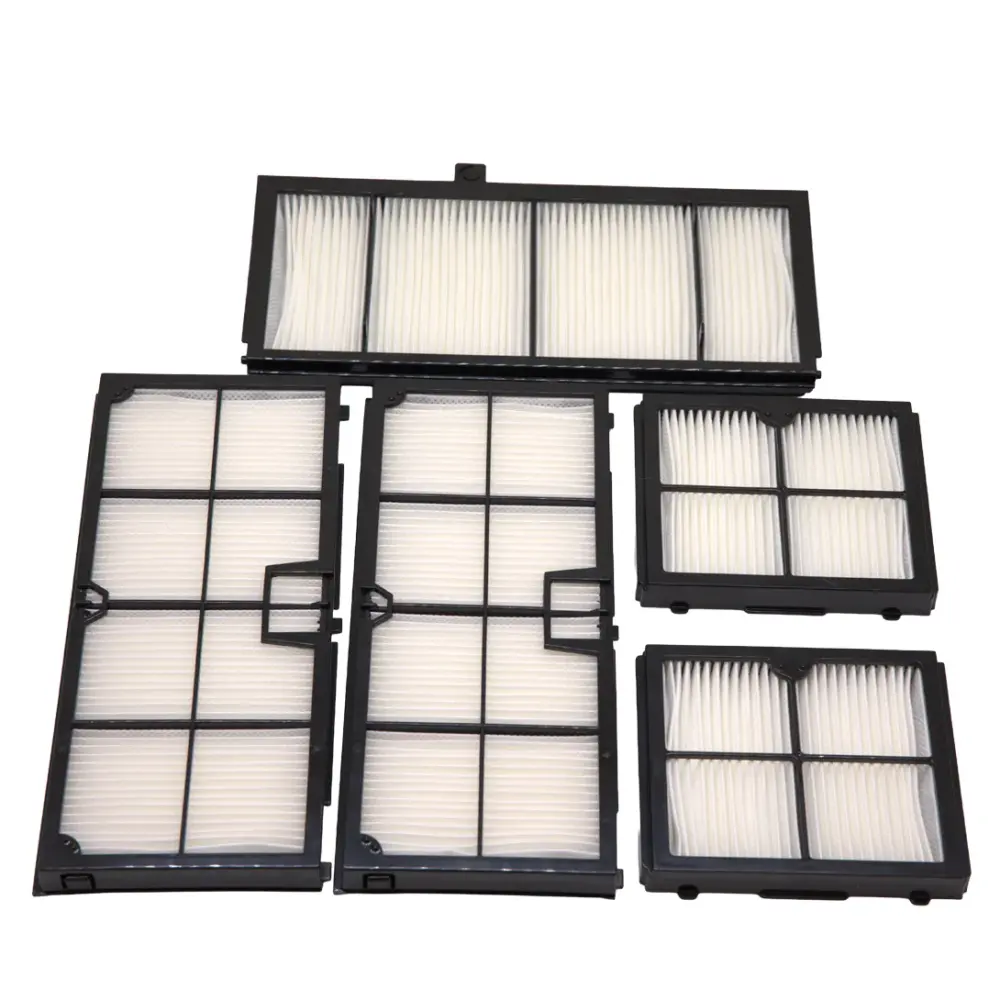
How do I replace the filter panels on my EON?3 parts

How to replace the DebrisLock™ basket filter panels:

Remove the old filter panels

  1. Open the filter cover.
  2. Remove the filter basket from the robot.
  3. Remove the filter lid, starting with the side that has the notch.
  4. Remove the two longer filter panels by pushing them out from the inside of the filter basket.
  5. Remove the two smaller side filter panels by pushing them out from the inside of the filter basket.

Install the new filter panels

  1. Insert the smaller side filter panels from the inside of the filter basket, with the grid facing outward.
  2. Push it into the frame until you hear a click.
  3. Repeat with the longer filter panels, from inside the filter basket with the grid facing outward. Push it into the frame until you hear a click.
  4. Install the filter lid, starting with the side that has a notch.

Open this fix on its own page →

Problem 6 of 6 · 3 fixes

Other questions.

My EON isn't behaving properlyMost common

If your EON is not working properly, the first and most important step is to make sure your robot software is up to date.

Software updates include the latest improvements and fixes to help ensure your robot performs as expected.

Update Your EON Robot Software

  1. Download the MaytronicsOne app and make sure Bluetooth is enabled on your smartphone.
  2. Fully charge the robot. The battery indicator should show three solid green bars. Disconnect the robot from the charger before continuing.
  3. Open the MaytronicsOne app, create an account or sign in, and enter the validation code sent to your email.
  4. Press and hold the power button for 3–5 seconds to enable Bluetooth pairing. The LED will blink blue.
  5. Follow the on-screen instructions to pair your robot. Once your robot is found, select it to begin pairing. Make sure your smartphone is not currently connected to another Bluetooth device.
  6. Complete the software update if prompted. This step is essential.

During the update:

  • Stay near the robot.
  • Do not close the app or leave the update screen until the update is complete.
  • Do not interrupt the update process.
  1. Once the software update is complete, connect the robot to 2.4 GHz Wi-Fi. You can also choose to skip Wi-Fi setup and connect later.

  2. Once the robot is successfully connected, the LED will blink three times and then turn solid blue.

Important: Always make sure your EON is running the latest available software before continuing with additional troubleshooting.

Keeping the robot software updated ensures your EON has the latest improvements and capabilities.

Open this fix on its own page →

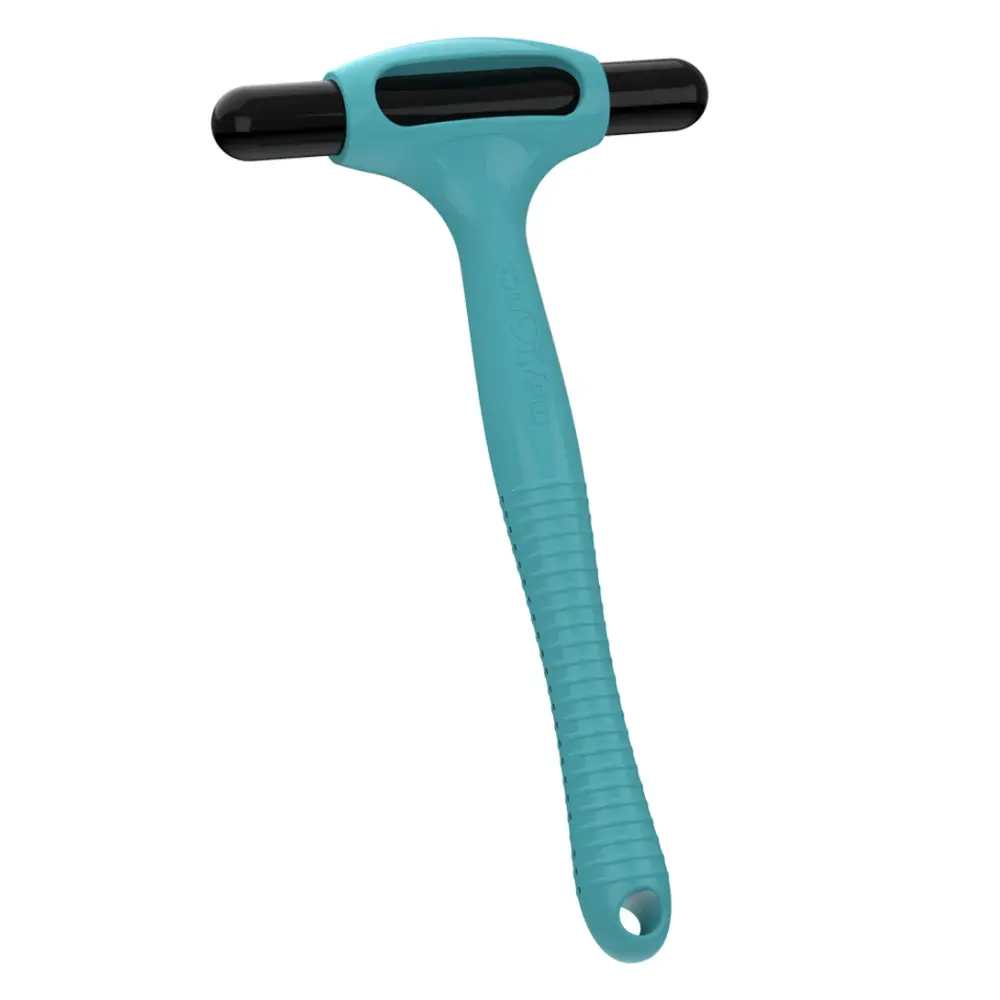
How do I use the Clicker with my cordless robot?

Use the Clicker to stop or pick up the robot! Read more to understand the differences:

Note: The Clicker is for retrieving the Dolphin Liberty 300/400/600 at the end of a cycle.

The Liberty 600 and EON™ 100/120d feature the Click-to-Stop feature, which lets you stop the robot mid-cycle.

If you want to pick up your robot:

When the cleaning cycle ends, the robot will wait at the preferred Homing wall selected in the Maytronics One app, or at a wall chosen at the beginning of the cycle if no Homing wall is set, and wait for pickup.

To retrieve the robot, shake the Clicker in the water for at least 3 to 5 seconds. The robot will climb the wall and remain there for about one minute. If it is not removed, it will go back down and wait again at another wall.

If you want to stop your robot (Liberty 600 and EON™ 100/120d):

During the cleaning cycle, shake the Clicker for 3–5 seconds to stop the robot. Make sure the robot is on the pool floor and not climbing when you shake the Clicker.

Then, shake it again, and the robot will go towards the Homing wall, provided the Homing feature has been calibrated.

Important: The robot will not respond to the Clicker while it is actively climbing. The Homing feature is also unavailable when Beach Entry is enabled in the app.

Clicker in Eco Mode/UltraRun™ Mode:

Using the Clicker in Eco/UltraRun™ Mode cancels the remaining scheduled cycles. Restart the Eco/UltraRun™ Mode before returning the robot to the pool.

While in Eco/UltraRun™ Mode, the robot can detect the Clicker for 14 days. If the Eco/UltraRun™ Mode starts with a full battery, the Clicker feature remains available for at least 2 days after the 2-week (when applicable) Eco/UltraRun™ Mode.

Open this fix on its own page →

The Clicker is not working with my cordless robot

Note: The Clicker is for retrieving the Dolphin Liberty 300/400/600 at the end of a cycle.

The Liberty 600 and EON™ 100/120d feature the Click-to-Stop feature, which lets you stop the robot mid-cycle.

  • For the Liberty 600 and EON™ 100/120d, activating Beach Entry under Pool Features disables Click-to-Stop. You can still use the Clicker at the end of the cycle to bring the robot over, but it won’t stop mid-cycle. Turn off Beach Entry to re-enable Click-to-Stop.
  • In Eco Mode/UltraRun™, the first Clicker shake cancels the mode. The second shake calls the robot to the waterline for pickup.

Try these steps if Click Up isn’t working:

  1. Pool filtration or circulation can create noise that blocks the Clicker signal. Turn the system off temporarily and try again.
  2. Shake the Clicker vigorously for at least 3 seconds before use, then shake for 5 seconds while submerging it.
  3. Confirm the robot was fully charged. If the battery was low, it may have entered Shutdown Mode. Check the LED: blinking green means enough battery; no green means it needs charging; flashing red indicates an internal error.
  4. Shake the Clicker to check for water inside.
  5. Fully charge the robot, let it finish a full cycle, then try the Clicker again, shaking it strongly and submerging it in water deep enough.

This can also occur if the pool or ground surface has steep slopes.

Open this fix on its own page →

From the user manual

Symptom, cause, fix.

The troubleshooting table printed in the EON 100 manual, one card per symptom. A part named here is in the parts list below.

Maytronics OneTM troubleshooting

pair the ics OneTM app to tic pool cleaner.

Likely cause
  • The Bluetooth® on one of your devices is either OFF or not in pairing mode.
  • The mobile phone is too far from the robot.
  • Mobile phone location is OFF. You did not give the required permissions when installing the app.
  • Battery is too low.
What to do
  • Turn the Bluetooth® OFF and on in your smartphone. For iOS – Go to settings → Bluetooth®.
  • Get closer to the robot.
  • Turn mobile phone location ON
  • Fully charge the robot
  • Check that the robot's charger is connected well and that your mobile phone's Bluetooth® is searching for nearby devices.
  • Try uninstalling and reinstalling the Maytronics OneTM app, and give all permissions. If it still doesn't find your robot, try restarting your mobile phone.
  • If none of the above troubleshooting helps, contact Maytronics customer care
Fi® doesn't stay ed. It works via th® when near t, but loses equently.

Likely cause
  • The Wi-Fi® router alternates between 2.4 and 5 GHz frequencies causing disconnection when the 2.4 one is lost.
  • The Wi-Fi® signal is too weak to maintain a connection.
What to do
  • The device connects only to the standard 2.4 GHz Wi-Fi® frequency. If you have a dual or quad band router, to prevent connectivity issues, split and give separate names to the 2.4 and 5GHz networks. Consult your internet provider or see online instructions for your specific router brand.
  • If the signal near the power supply is not strong enough to easily stream an online video, consider installing a 2.4GHz Wi-Fi® extender.

ROBOTIC POOL CLEANER troubleshooting

The robot does NOT start.

Likely cause
  • An object is stuck in the tracks or wheels.
  • An object or hair is stuck in the impeller.
  • The robot is not fully charged.
  • The robot is out of the water.
  • The red error indicator LED is ON.
What to do
  • Carefully remove the object from tracks or wheels.
  • Clean the impeller (see section 1.4).
  • Charge the battery to 100% -3 green bars.
  • Place the robot in the water within 30 seconds after starting it.
  • Check app for error message and troubleshooting.
  • If none of the above troubleshooting helps, contact Maytronics customer care
The robot is moving in circles.

Likely cause
  • Clogged filter basket.
  • Debris stuck in the impeller housing or impeller cover.
  • An object is stuck in the tracks or wheels.
  • Algae buildup or pool water does not meet specifications.
What to do
  • Clean the filter basket. It should be white and clean when touching. If it is brown or green, clean it with a hose. If it stays brown, it may be time for a replacement filter.
  • Clean the impeller (see section 1.4).
  • Carefully remove the object from tracks or wheels.
  • Correct pool and water conditions.

The robot doesn't charge properly.

Likely cause
  • The wall power outlet isn't working.
  • An object or dirt is preventing a proper connection between the charger and the robot.
  • The robot is too hot or cold to be charged properly.
  • It hasn't charged for enough time.
What to do
  • The charger has a green LED when it gets electricity from the wall outlet. Test the power outlet with another device or try charging the robot from an outlet that works.
  • Make sure that the charger connections are clean on the robot
  • Charge in the shade or indoors. If summer, try charging at night.
  • It can take up to 4.5 hours for a full charge.

The robot does not turn or moves in one direction only.

Likely cause
  • Debris stuck in the impeller housing or impeller cover.
What to do
  • Clean the impeller (see section 1.4).

The robot moves but does not clean the pool.

Likely cause
  • Clogged filter basket.
  • Debris stuck in the impeller housing or impeller cover.
What to do
  • Clean the filter basket. It should be white. If it is brown or green, clean it with a hose.
  • Clean the impeller (see section 1.4).

The robot does not climb up the walls.

Likely cause
  • The filter is too full to allow proper jet propulsion up the wall.
  • Debris is stuck in the impeller housing.
  • Algae on walls.
  • Unsuitable pH level.
What to do
  • Clean the filter and make sure that there is nothing stuck in the impeller. The filter should be white. If it is brown or green, clean it with a hose.
  • Clean the impeller (see section 1.4).
  • Check the level of chemicals in the water. Improper levels may allow the growth of algae, making the walls slippery. If so, adjust the levels and scrub the walls.

Robot is not waiting at the waterline when I arrived. It is standing near a wall.

Likely cause
  • At the end of each cycle, the robot waits on the floor next to its Homing wall.
What to do
  • When shaking the Clicker in the water for over 3-5 seconds, the robot will climb and wait for 1 minute.
  • The ClickUpTM feature is available for up to 14 days after a normal 2 hour cycle if the battery was full when started.
  • After UltraRun™ Mode or if the battery wasn't full when started, the ClickUpTM feature is available for at least 2 days.
  • If the robot is not taken out after 1 minute of waiting, it will climb down and turn to face another wall. The next time you use the Clicker in the water, the robot will climb up a different wall.
Replacement parts

12 genuine parts that fit the EON 100.

Worn filters, brushes and tracks cause most of the problems above. These are the genuine parts Maytronics lists for model 99994400-US; each one opens with its price and fitting notes.

Downloads

Manuals, guides and how-to videos.

Beyond fixes

More about using the EON 100.

Setup, care, storage and the app: 25 more answers that apply to this robot.

Still stuck?

Real help for the EON 100.

If the checks above did not fix it, the robot may need a repair. Under warranty, Maytronics handles power supplies by replacement and robots through its repair centers; have the serial number from the label under the handle ready.

Maytronics' own tools: self-service diagnostic and repair request · register your robot.