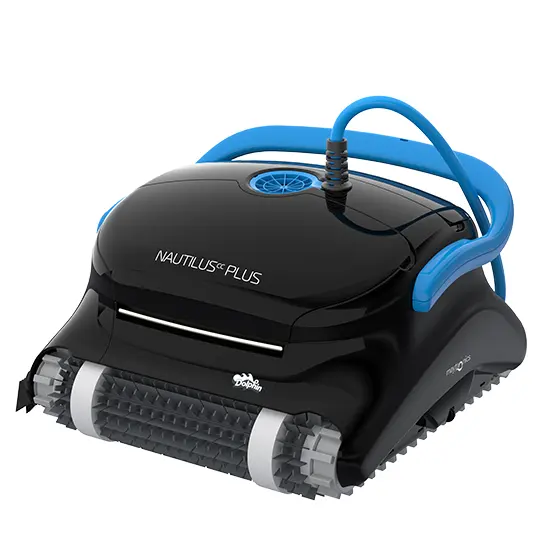
Dolphin Refurbished Nautilus CC Plus Wi-Fi troubleshooting.
25 fixes from Maytronics support and the Refurbished Nautilus CC Plus Wi-Fi user manual, sorted by what the robot is doing wrong, each with the genuine part that fixes it. Start with the checks at the top: they solve most calls before anything is replaced.
The Dolphin Refurbished Nautilus CC Plus Wi-Fi is a refurbished edition of the Nautilus CC Plus Wi-Fi: every fix on this page applies to both.
Start here
Five checks before you suspect the robot.
Maytronics' own diagnostic flow begins with the power supply, and so does this page. Unplug the supply before you touch the robot.
1Check the power supply first
With the robot out of the pool, unplug the blue cable from the power supply and switch the supply on by itself. If it will not power up, or shuts off on its own, the power supply needs service, not the robot.
2Reconnect the blue cable
Line up the notch on the plug, push it fully home and tighten the locking ring. A loose plug is the most common cause of a robot that will not start.
3Clear the impeller, tracks and brushes
Unplug the supply, turn the robot over and spin each brush by hand. Open the impeller cover with a Phillips screwdriver and pull out any hair or debris.
4Rinse the filter until it runs clear
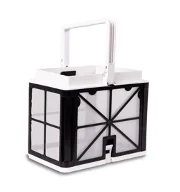
Clogged filters stop the robot climbing, make it circle and trigger short cycles. Brown or green filter panels that no longer rinse white need replacing.
5Check the pool
The robot needs at least 3 ft of water, water above 43°F (59°F for wall climbing) and balanced chemistry. Lay out only as much cable as the pool is long.
Power supply will not stay on with the cable disconnected? That is a power supply fault, not the robot: follow the power supply checks and contact Maytronics or chat with us about a replacement under warranty.
Pick your problem
What is the Refurbished Nautilus CC Plus Wi-Fi doing?
My Dolphin does not complete a cycle / Red light on the Power SupplyMost common
If your Dolphin robotic pool cleaner starts the cycle but does not complete or stops shortly after, or the Power Supply shows a red light (this means there is an error with the robot), follow these troubleshooting steps to try and resolve the issue:
Note: Before turning the robot on, it must be submerged in at least three feet of water.
Does the Power Supply Unit turn off as soon as the robot stops? If so, the issue may originate in the Power Supply. Please follow the relevant troubleshooting steps.
If the Power Supply unit remains on, but the Dolphin stops the cleaning cycle early, then:
1. Disconnect the Power Supply Unit
Disconnect the Power Supply Unit from the outlet and remove the Dolphin robot from the pool.
2. Check the driving system
Place the robot upside down, and try rotating the brushes by hand. Note: You should feel small resistance.
Check the tracks and brushes, and all the nooks and crannies for any obstructions or visible damage.
If your robot model has a Power Stream mobility system (located on top of the Impeller), please check the plastic cover around the motor unit and the grilles on the sides of your model for visible debris and remove the debris.
My Power Supply Unit does not work properlyMost common
If your Power Supply stops working, trips the GFCI outlet, or does not turn on at all, follow these troubleshooting steps to help diagnose and resolve the issue:
Step 1Check the Power Source
Let's ensure that the issue is not originating from your home outlet. Try plugging the power supply into a different verified, working outlet or by disconnecting any extension cord that may be in use.
If the power supply still does not turn on, we can move on to the next step.
Step 2Inspect the Blue and Black Cables
Examine the blue cable and the black power supply cord for any visible signs of damage, such as cuts, kinks, or frays.
If you find any cable damage, the cable should be replaced. Submit a warranty claim or visit your nearest dealer if you purchased from a local dealer.
If both cables appear to be in satisfactory condition and free from any damage, proceed to the next step.
Step 3Determine the Source of the Issue
Now let's identify whether the problem lies with the Dolphin's Motor, the Cable(s), or the Power Supply itself. To do this:
Disconnect the blue cable from the Power Supply Unit.
Plug the Power Supply Unit into a functioning electrical outlet.
Now, turn on the Power Supply Unit without reconnecting the blue cable.
Step 4Does the Power Supply Unit turn on and stay on?
After following the previous steps, does the Power Supply Unit turn on and stay on?
If the Power Supply turns and stays on, the issue is not with the Power Supply. There may be an issue with the Dolphin's cable or motor unit.
An authorized Dolphin technician should analyze and repair the robot. Submit a repair request or contact your local dealer (if you purchased the robot from a local dealer).
If the power supply doesn't turn on, or turns off immediately, or has stopped working altogether
It seems there is an issue with the Power Supply. run the power supply checks to create a warranty claim for a replacement power supply with our easy-to-use self-service tool!
Contact your local dealer if you purchased the robot from a local dealer for a replacement Power Supply Unit.
Note - We cannot complete Power Supply repairs.
Is a specific feature on your power supply not working? Verify in the user manual which features are included with your robot model.
My Power Supply works, but the Robot does not startMost common
If your robot doesn't start cleaning after powering it on, or if the main LED of the IoT Power Supply shows a Red light, complete the following troubleshooting steps to try and resolve the issue:
Disconnect the blue cable from the power supply. Inspect the blue cable to check for any cuts or damage.
Plug the power supply into a different outlet to verify that the issue isn't with the electrical outlet.
Reattach the blue cable back to the power supply and attempt to turn the unit on.
Check the impeller:
If debris is trapped in the impeller, open it, remove the debris, and reassemble it. For safety, use a Phillips screwdriver. Do not use a power drill. to see how to clean your impeller.
Check the tracks:
Turn the robot upside down and try rotating the brushes by hand. Does it make any strange noises? If it does, take a closer look. Check the tracks, brushes, and every nook and cranny for any obstructions or visible damage. How to clean the tracks
--
If your robot is out of warranty and you want to purchase replacement parts, click our replacement parts to visit our Spare Parts page. Ensure that you have the correct part number.
Click the user manual to check your robot’s user manual and learn more about its features and functions.
Why can’t I access all the features on the power supply unit?
Power supply features can vary between Dolphin models.
Each Dolphin robot is programmed with specific features based on its individual model. Some optional features may not be available on your particular robot or power supply.
Additionally, the same power supply housing is used across multiple Dolphin models. Some of these models support features such as Bluetooth connectivity, while others do not. Although the units may look identical externally, the internal functionality can differ depending on the model.
We advise you to refer to the user manual or the product page of your robot to see the features available with your Dolphin cleaner.
My Dolphin doesn't climb the walls or move sideways on wallsMost common
Optimal Pool Conditions for Your Robot
The robot should be used in water temperatures of 6°C - 35°C for optimal results. A low pool temperature can significantly hinder the robot's ability to climb. The water temperature should be maintained at a level higher than 15°C.
Checking Chemical Levels
Next, verify that the pool chemicals are within the recommended range. If the pH levels are too high or too low, this can affect the robot's climbing ability.
Additionally, if your robot has a fast mode or "Floor Only" mode, (only for models compatible with the MyDolphin/MyDolphin™ Plus app or with the power supply unit) verify that these modes have not been set.
Inspecting the Filters
It is imperative to check the filters. If you are using the Ultra-Fine (paper) filter, it should appear white. If the filter is brown or green, clean it with a garden hose set to the highest pressure. If the filter does not return to a white state– it is likely due to be replaced.
If you are using the Ultra-Fine filters, operate the robot with the Net Filters instead. If the robot is able to climb, this serves as an indication that the Ultra-Fine filters require replacement.
Debris in the Impeller
Make sure there is no debris obstructing the impeller. For instructions on how to clean your impeller, .
First, unplug the power supply from the outlet. Use a Phillips screwdriver, not a power drill.
If you notice debris trapped in the impeller, open it, remove the debris, and reassemble the impeller.
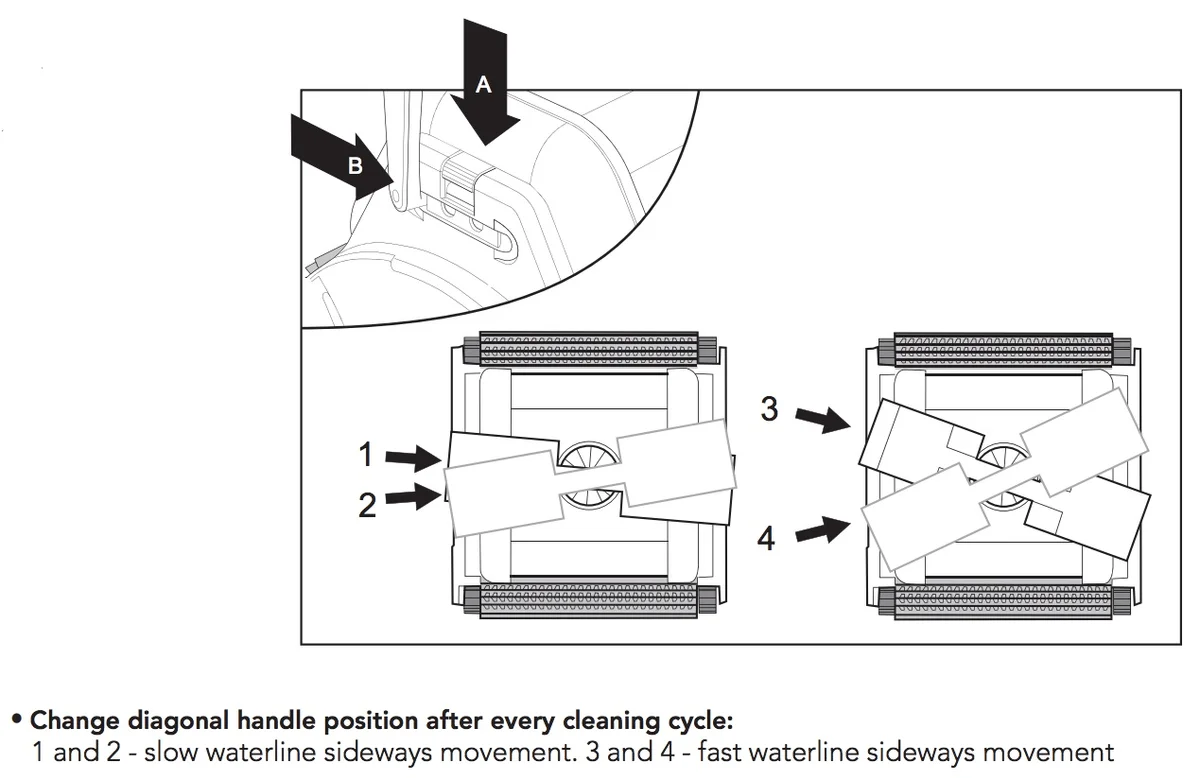
Does your robot have an adjustable handle?
Make sure the handle is aligned diagonally to help the robot climb.
For slow waterline cleaning (covers less surface area, but cleans more intensively): Put one end of the handle in the second/third slot, and the other end of the handle in the second/third slot (pictured above on the left side)
For fast waterline cleaning (covers more surface area, but cleans less intensively): Put one end of the handle in the first slot, and the other end of the handle in the fourth slot (pictured above on the right side)
Sufficient Cable Length
Ensure the robot has sufficient cable to allow it to climb the wall – the cable can pull the robot back if there is not enough of it.
To determine if you have the appropriate amount of cable in the pool, measure the cable length that matches your pool's longest dimension.
It is important to remember not to use an excessive length of cable to avoid tangling issues.
Brush Type
It’s important to use the correct brush based on your Dolphin model, the surface type and slopes of your pool.
PVC brushes are standard and work well for most pool floors.
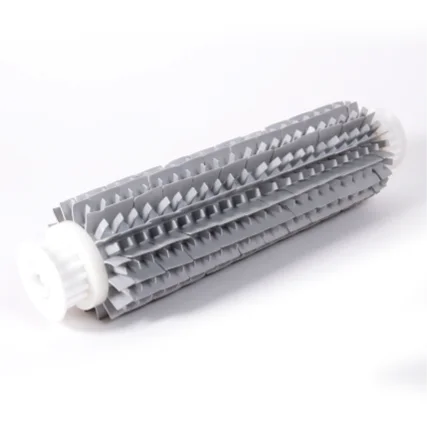
Combined brushes (PVC with foam climbing rings) help the robot climb and grip better—if your robot has climbing rings, don’t remove them! They’re essential for performance and should be replaced when worn.
Wonder Brush is the ideal choice for ultra-smooth or slippery surfaces like stainless steel or polished mosaic tile.
If your robot struggles to climb walls or stay attached to the pool surface, switching to a combined brush might help.
My Dolphin floats and does not sink to the bottom of the pool
If your Dolphin has brushes with foam rings, we recommend placing them in the water and allowing them to soak and absorb the water.
Also, there may be excess air inside your robot. When you place the robot into the water, gently tilt it from left to right or turn it upside down to release any excess air.
If you have a pool treated with salt, make sure that the salt content conditions are at the required level (NaCl Maximum = 5000 ppm). A high salt level can increase the robot's buoyancy.
My Dolphin gets stuck at the bottom or at the deep end of the pool
Check that the Dolphin filters (bag or cartridges) are not clogged.
We recommend cleaning the bag or cartridges after each use, but deeper cleaning may be required. Your filters may look clean, but there may be fine particles that are clogging the filters. How to clean the filters
How do I know if my filters need to be replaced?
Put the robot in the water for a 10-15 minute test cycle with the filters removed. Make sure there is no debris in the pool which can damage the robot. If the Dolphin robot functions well without the filters, then the filters are due to be replaced. Our Replacement Spare Parts page for more information
Make sure your pool water is chemically balanced and free of algae for the best cleaning results. to shop our pool chemicals
Our robots are programmed to do a wheelie to assist themselves in turning.
However, if the robot does a wheelie while either moving backward or forward, this may indicate a potential issue that requires our attention. Let us delve into the possible causes and solutions:
Potential Causes and Solutions
Excess Air in the System:
There may be an accumulation of excess air within the robot's system. To remedy this, it is advisable to flip the robot over before placing it in the pool, allowing any trapped air to escape.
Pool Chemical Balance:
It is imperative to ensure that the pool chemicals are properly balanced. Maintaining the chemicals within the recommended range is essential for preserving the longevity of the robot’s components and optimal functionality. to shop our pool chemicals
Blue Cable Slack:
Verify that the blue cable has enough slack and is not exerting a pull on the robot, which can hinder its movement. To check this, measure the pool’s longest side and allow this amount of cable in the pool.
The Ultra-Fine filter should appear white–if it is brown or green, clean it with a garden hose set to the highest pressure. If the filter does not return to a white state– it is likely due to be replaced. For further details, please visit our Replacement Spare Parts page or a local dealer near you
Impeller Maintenance:
It is also important to clean the impeller. For instructions on how to clean your impeller, .
First, unplug the power supply from the outlet. Use a Phillips screwdriver, not a power drill.
If you notice debris trapped in the impeller, open it, remove the debris, and reassemble the impeller.
If your robot is getting stuck on the pool drain and is unable to extract itself, try the following steps:
Turn the pool filter system off for the duration of the robot cleaning cycle. The additional suction from the main drain can cause the robot to get stuck.
There are after-market drain-assist devices that can be attached to the main drain cover that help prevent the Dolphin from getting stuck. (They can be found through an internet search.)
If your robot has an adjustable handle: Adjust the handle to the furthest slot in the front to help the robot overcome the drain.
Ensure that the cable is not twisted or bent and that it has sufficient cable length to reach the entire pool. Any excess cable should be rolled up on the caddy or laid alongside the pool.
Start the Dolphin from Different Locations
We recommend placing the robot in the area that the robot has missed from the beginning of the cycle. This can alter the robot's initial cleaning route, to enhance its efficiency.
Important Checks to Complete
Verify that the duration of the cleaning cycle is correct (check in the user manual how long the cleaning cycle is)
The first step we recommend is removing the robot from the pool and stretching the cable in the sun for at least 3 hours to remove the kinks and twists.
Once you've done that, to make sure you keep the cable free of tangles, we recommend keeping the water temperature over 59°F, and ensuring that the pool chemicals are within our recommended usage range.
to shop our pool chemicals
Most importantly – don't use too much cable! If your Dolphin has a Swivel, and especially if it doesn't, it is very important to measure out the right amount of cable.
To do that, measure out the same length of cable as the longest length in your pool. That's the amount of cable your robot needs.
The power supply should be positioned near the midpoint of the pool's longest side and set back several feet from the pool edge. This allows the blue cable to enter the water in a straight, relaxed line, helps maintain even tension as the robot moves through the pool, and lets the swivel rotate freely.
When placing the robot in the pool, loosely coiling the excess blue cable at the pool’s edge also helps it naturally feed in as the cleaner moves.
It's important to make sure the cable is wound correctly after each use.
We recommend that you also check that nothing is obstructing the Dolphin wheels or tracks, as this could cause the Dolphin to spin in circles and twist the cable. How to clean the tracks
This can happen with a new product as occasional shifting during shipment can cause the tracks to become loosened. If your Dolphin’s tracks come off during initial usage, this can be resolved by manually re-installing them.
The tracks on your Dolphin can become damaged and slack if the robot is used often in a pool with unbalanced chemicals. Make sure the chemicals in the pool meet our recommended parameters.
If the color on the tracks is faded and the tracks are loose and slipping off even after reinstalling and checking the chemicals, we recommend replacing the tracks.
Why is debris falling out of my robot when I remove it from the pool?
When you remove your Dolphin from the pool, gently pull it toward you using the cable. Once it reaches the edge, lift it from the water using the handle. Never lift the robot out of the pool by the cable.
Tilt the robot while placing it on the pool edge and allow the water to drain out. If debris continues to fall back into the pool, try removing the robot facedown/upside down.
If debris is still falling out, check the following:
Check the filter and debris-return flap. Make sure the non-return debris flap or bag at the bottom of the filter is seated correctly and working properly.
Very fine debris or a filter containing a large amount of debris may fall back into the pool when the robot is removed. Try using Ultra-Fine filters, if available for your robot, and make sure to clean the filters when removing the robot from the pool.
Check the filter intake opening (non-return debris flap). Check the non-debris return bag or flap on the bottom of the filter basket or cartridges to make sure it is seated correctly and is clear of obstructions.
Check the impeller. Make sure the impeller is clear of debris.
Check the springs, if applicable to your robot. Remove the filter basket and check the four springs on the bottom of the unit, underneath the filter basket. Make sure they are not clogged with debris.
Check the rapid drain flap, if applicable to your robot. Turn the robot upside down and check that the black rubber rapid drain flap behind the rear wheels is in place.
EON 100 models with a monoblock filter basket: Make sure the filter basket is installed correctly, with the filter lid latch facing the impeller.
My Dolphin isn't cleaning the pool properlyMost common
If the robot is not cleaning the pool as it used to or is missing spots, we recommend verifying the following parameters.
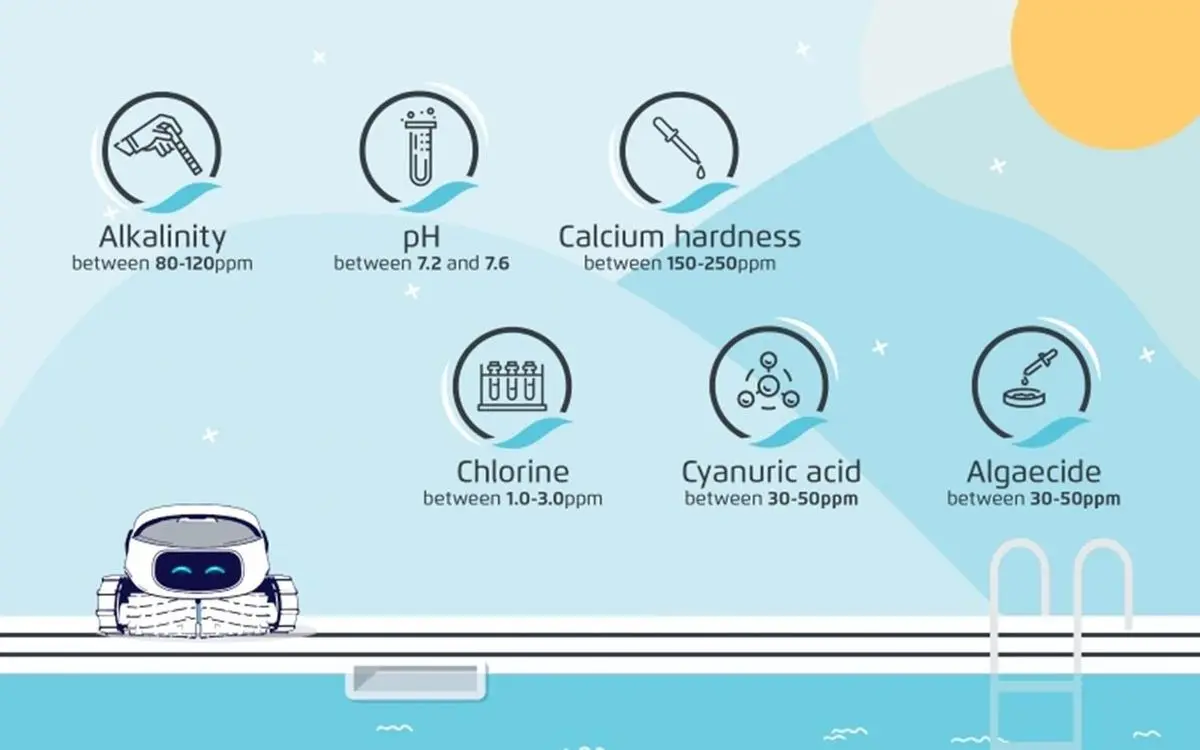
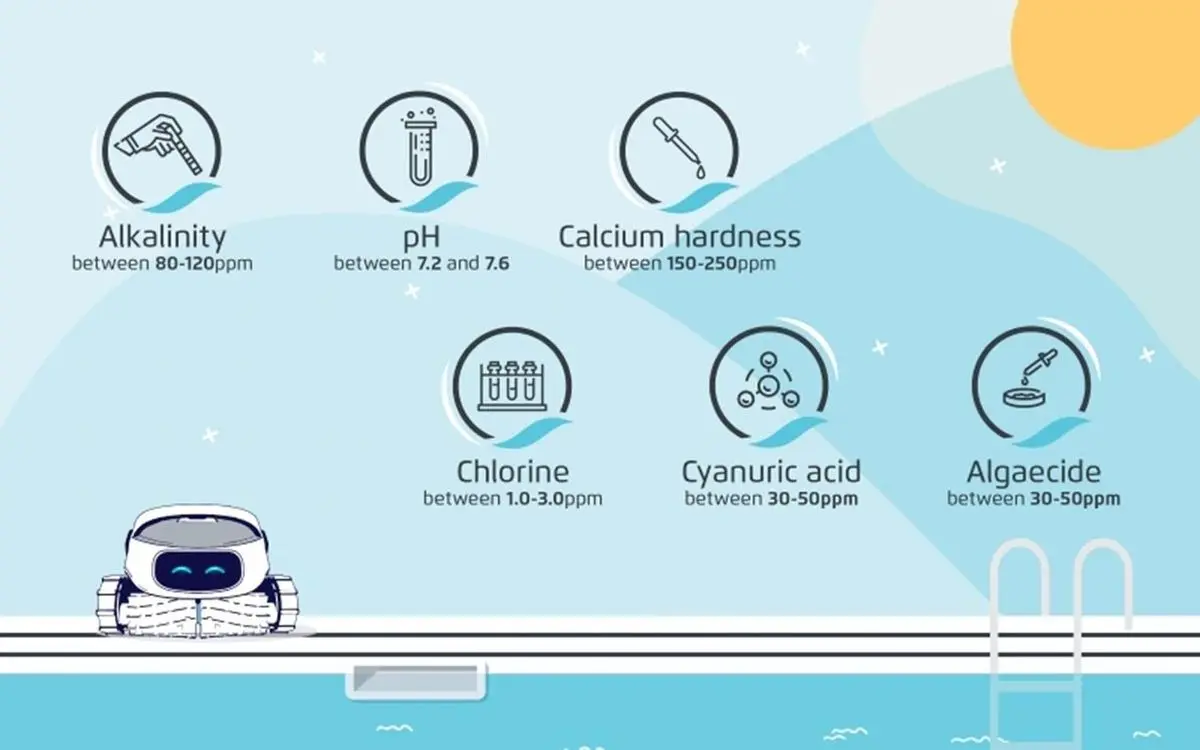
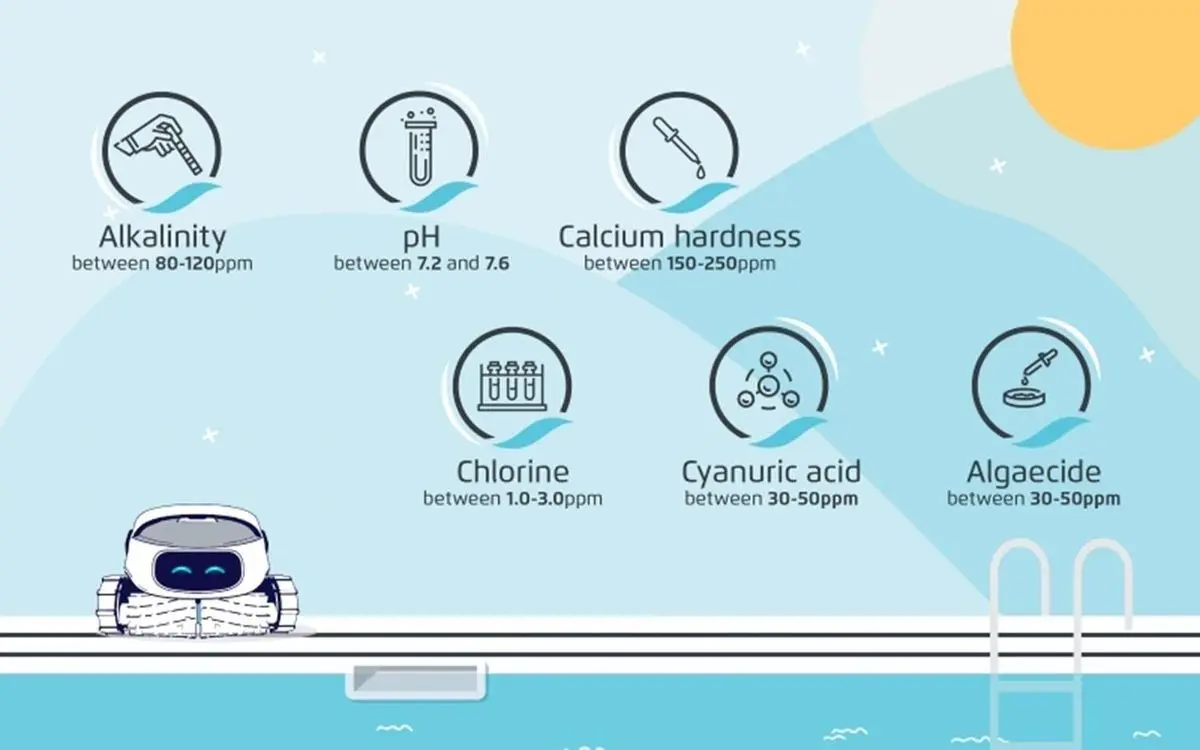
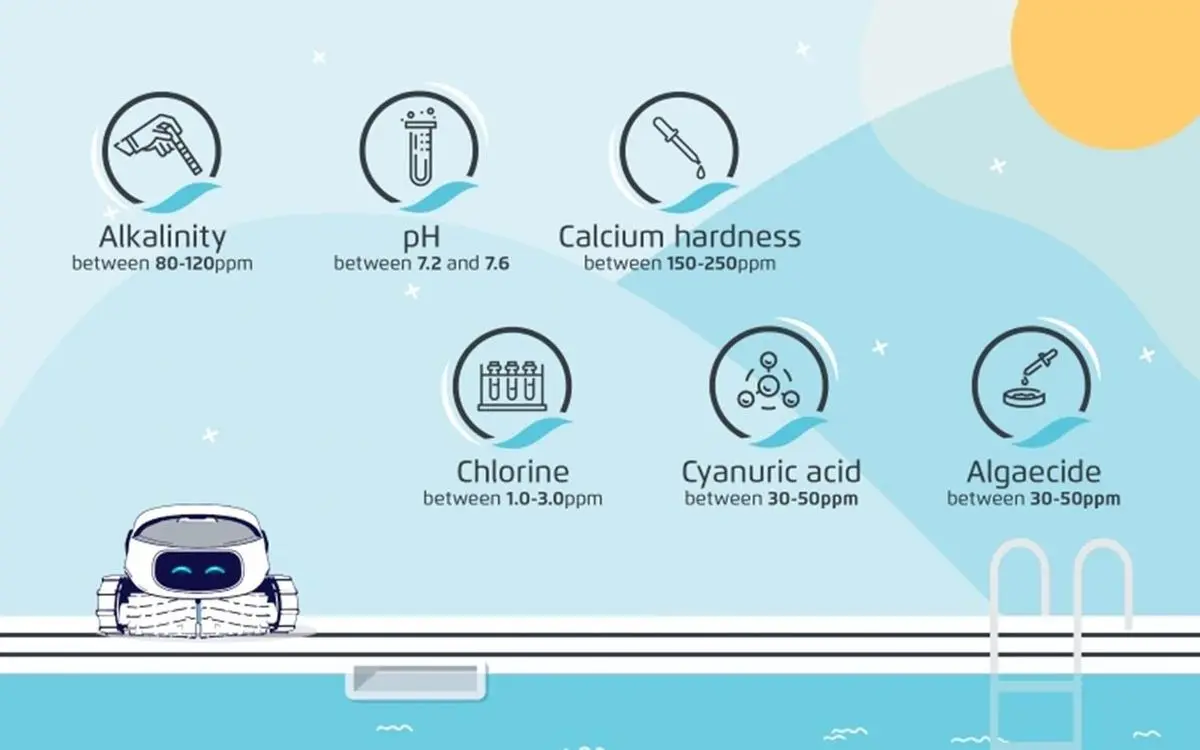
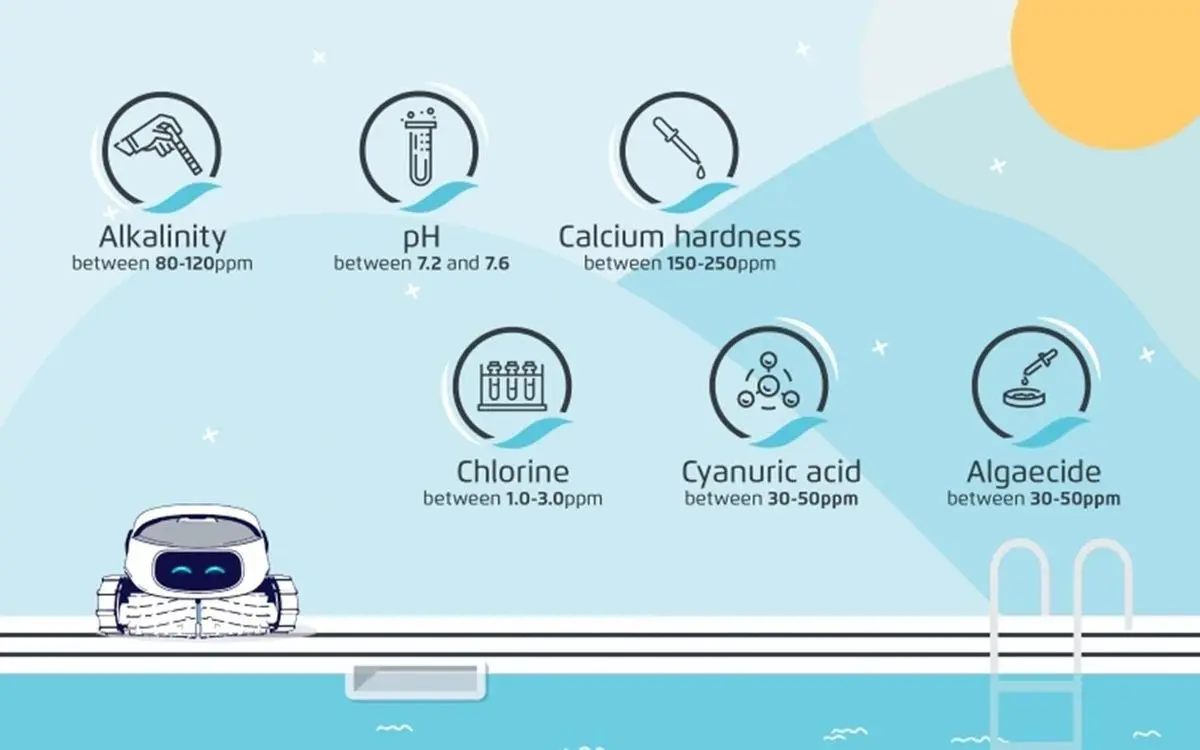
Check that the chemical levels meet the following parameters:
Alkalinity: 80-120 ppm
pH: 7.2-7.6
Calcium Hardness: 150-250 ppm
Chlorine: 1.0-3.0 ppm
Cyanuric Acid: 30-50 ppm
Algaecide: 30-50 ppm
It is essential to maintain these levels for the best cleaning results and to preserve the robot's longevity.
The weather, our body chemistry, and additional factors can affect the chemical levels in the pool, therefore we recommend checking the chemical levels regularly. to shop our pool chemicals
Check that the water temperature is between 43° - 95° Fahrenheit.
If your robot struggles to climb, ensure the pool temperature is higher than 59°F, as low temperatures can make it difficult for the robot to climb.
If there is a specific area in your pool that the robot is missing, we recommend putting the robot in that area from the start of the cycle.
If the robot is getting stuck in the deep end of the pool, it may be possible to upgrade the back brush on your robot to a Combined Brush or Wonder Brush. Please contact us contact us to verify if this solution will be suitable for your robot model.
What kind of debris is in the pool?
Depending on the type of debris there is in the pool, will help determine which filter type is most suitable for use.
If the debris is fine debris, such as sand and dirt, we recommend using ultra-fine filters. If your robot model did not come with ultra-fine filters, they can be purchased separately. Our Replacement Spare Parts page for more information
If the debris is large debris such as tree foliage, we recommend using our fine (net) filters.
If the debris is sticky, algae-like debris, we recommend inquiring with your pool technician for further analysis and action.
If you complete a chemical shock, wait at least 24 hours after the treatment, before placing the robot back in the pool and verify that the chemical levels have returned to normal.
If there is a large amount of debris in the pool, we recommend running multiple cycles in a row and cleaning the filter after each cycle.
How does the robot filter look? Is it quite full? Could it be clogged?
It is important to clean the filter after each cleaning cycle to prevent the filters from getting clogged. How to clean the filters
We recommend using fine filter panels for large debris such as leaves and bugs, and ultra-fine filter panels for tiny debris such as dust, dirt, and sand.
Verify that the filters are not clogged and that the robot is free from debris, as clogged filters can interfere with the suction process and prevent the robot from picking up debris effectively.
First, unplug the power supply from the outlet. Use a Phillips screwdriver, not a power drill.
If you notice debris trapped in the impeller, open it, remove the debris, and reassemble the impeller.
Check your filter's non-return valve–the opening at the bottom of the filter–or the little black pouch attached to it and make sure it is free of debris.
Rapid drain flap
If applicable to your robot, make sure that the rubber rapid drain flap on the back of the robot is securely installed.
Brushes
Please ensure that the PVC brushes are fully intact, with no tears, or external damage. If they show signs of wear and tear, we recommend replacing the PVC brushes. Our Replacement Spare Parts page for more information
If the brush has white climbing rings, they should be white in color, and not flattened or damaged. If they show signs of wear and tear, we recommend replacing the climbing rings. Our Replacement Spare Parts page for more information
Tracks
Please ensure that the tracks are tightly fitted on the robot, without damage or discoloration.
Why isn't the robot cleaning the debris on the steps/ledge/tanning shelf?
It is important to note that our robots are not designed to clean steps, stairs, or ledges. We recommend brushing the debris from the steps onto to the floor of the pool so that the robot can clean the debris.
Our robots require submersion in at least 35” of water to function properly.
If there is debris in the seam of a steep slope, we recommend brushing the debris from the seam onto a flat surface so that the robot will be able to reach the debris.
Important tips!
Make sure to put enough blue cable in the water to allow the cleaner to reach all areas in the pool.
It is important to make sure that the robot has a cable long enough to allow full coverage of your pool. You can measure the distance between the two farthest corners of the pool to get an understanding of the amount of blue cable needed. If your pool's length is over 30', make sure to use a robot with a cable length of 60'.
It is important to make sure that your robot's brush type is compatible with your pool coating.
If your pool has a PVC, concrete tile, concrete, or gunite coating, it is most compatible with a robot that comes with a PVC brush.
If your pool has a PVC, rough ceramics, fiberglass, or mosaic coating, it is most compatible with a robot that comes with a Combined brush (nylon should be removed before use).
If your pool has a smooth ceramic, stainless steel, or glass coating, it is most compatible with a robot that comes with a Wonder brush.
My Dolphin's filter is full - How do I clean it?Most common
To take the best care of your filters, we recommend cleaning the filters after each cycle to make sure they last longer.
Remove the Filter Basket or Panels.
Rinse with Water: Use a garden hose or a high-pressure stream of water to rinse away the debris.
Reinsert the Filters: Place the filters back into your robot without the need for them to dry.
Click below to watch a video that shows how to clean your filters:
Robot with basket filters
Robot with two cartridge filters
Special Considerations for Ultra-Fine Filters
It is important to note that if you are using ultra-fine filters, even if they appear to be clean, they may still be obstructed by tiny particles such as sand and dust. A useful tip is to observe the color of the filter:
If the ultra-fine filters do not wash out white anymore, this is a clear sign that they are indeed clogged, and we recommend replacing them.
My Dolphin's "full filter" indicator lights up when the filter is not full
If your IoT power supply LED is flashing blue and yellow while the robot is working and/or has a steady yellow light after the cycle is complete, this indicates the filter is full.
Complete the following cleaning maintenance on your robot:
Clean the filters thoroughly. Although the filters may appear clean, small particles may dry on the material and clog the filter.
It is recommended to clean the bag or cartridges after each cleaning cycle, but deeper cleaning may be required. Bag filters can be washed in the washing machine at 30 degrees, let them air dry. Filter cartridges can be cleaned in the dishwasher at 30 degrees.
After you have completed the maintenance:
If your power supply has a Reset button, hold the reset button on the power supply until the light goes off (approximately 5 – 20 seconds).
If your power supply does not have a Reset button, unplug the power supply from the electrical socket, wait a few moments, and then plug it back in to complete a reset.
Make sure the power supply is unplugged from the outlet.
If you notice debris trapped in the impeller, open the impeller, remove the debris, and reassemble it. (Caution: Use a Phillips-head screwdriver; do not use a power drill.)
If your robot model has grilles on the sides, check for visible debris there as well.
Depending on your Dolphin model, click on one of the short videos below that show how to clean the impeller of your Dolphin robot.
Videos with basket filters
S50 (Cayman, T15, T25, Active 10, Escape, Encore, E20, E25)
These instructions are relevant for the Dolphin robot models. You can find instructions on how to clean the impeller of your model on our online manual website.
MyDolphin Plus Wi-Fi Connectivity GuideMost common
Maytronics MyDolphin™ Plus application, connected via the Cloud, allows you to control your Dolphin robot from anywhere, at any time, thanks to real-time connectivity.
Here is a quick video to make your first connection easy!
Compatibility
Apple (iOS): version 10 or later / iPhone, iPad, iPod
Android: operating system version 5 or later
Wi-Fi Network Requirements
Transmitting the 2.4 Ghz frequency only
Network password of less than 32 characters, without spaces and special characters (i.e., # % & " $ £)
A signal strength at the location of the power supply unit that is at least 60%, i.e., 2 out of the 3 possible bars.
If your Wi-Fi® network's technical specifications do not allow this connection, you can also connect to your Dolphin robot via Bluetooth® only.
Getting started with the MyDolphin™ Plus App
Ensure that your smart mobile device is connected to your Wi-Fi® network and that your signal strength is at least 60% at the location of the power supply, i.e. 2 bars out of 3.
Verify you have the name and password of your Wi-Fi® network available (the password must be less than 32 characters).
Make sure Bluetooth® is enabled on your phone or tablet.
For Android users: Please make sure that your GPS and location-based services are turned ON.
For iOS 13 users only: You must allow the application to use Bluetooth® and location-based services while the application is running.
Preparing your Dolphin to establish the connection
Connect the power supply unit to an electrical outlet and the blue cable on the Dolphin robot to the power supply unit.
The power supply connectivity LED will start flashing blue.
Place the Dolphin in the water.
Press the power supply unit on/off button to start the cleaning cycle of your Dolphin.
Connecting your Dolphin to your phone/tablet
Launch the MyDolphin™ Plus app.
Click Accept and grant access to all required permissions.
Sign up by creating an account or use your Gmail/Facebook/Apple account.
Scan the QR code on the side of the power supply unit, or press "Search manually" to establish the connection with your robot. "Search manually" will appear under the QR scanner. The application will start pairing with your power supply once the robot is found via Bluetooth®.
Wait until the connectivity LED is solid blue and a success message shows in the application.
The application will now ask you to connect to your Wi-Fi network.
Verify that the name of your Wi-Fi network appears in the Wi-Fi network name field.
Type in the password (which must be less than 32 characters) for your Wi-Fi network, and press Continue.
Wait a few moments, because this might take up to 2 minutes, depending on the signal strength of your Wi-Fi network. During this process, your power supply LEDs will flash between green and blue.
Wait until the connectivity LED is solid green and a success message is displayed in the application.
First Bluetooth® Connection
Please verify that you have granted all permissions when signing up on the app (location / BLE / etc.) and that all conditions are met (Wi-Fi / Cellular / BLE).
Please make sure that the blue cable is properly connected to the PWS.
When trying to connect, does a picture of the robot come up?
You have now successfully paired your robot to the app!
You can now give your Dolphin a name, register its warranty, and enjoy the app's features.
Stuck on Loading screen:
The connection process is divided into three stages. Percentages represent these stages. If the app is stuck on one of these percentages, this can indicate a specific issue.
First Stage – 0-10% / Sending WIFI info to the power supply (phone-power supply)
After the initial Bluetooth® connection, the app sends Wi-Fi details from the phone to the power supply. If it is stuck at this percentage, the connection was cut or not sent properly.
Close the app, reopen it, and try reconnecting, standing close to the power supply to ensure connection. Also verify that the Wi-Fi network’s name is correct and that there are no foreign letters or characters.
Second Stage – 10-50% / Power supply is connecting to the router
This stage is checking the Wi-Fi network requirements (2.4 GHz), this will take up to two minutes.
Verify that the network requirements are correct if stuck on this stage.
Third Stage – 50-90% / Power supply is connecting to cloud
If the connection fails here, it is because there is an issue with the cloud/connection to the cloud.
Reset the router.
The MyDolphin Plus app works with WPA/WPA2-Personal & WPA2/WPA3-Personal.
Note - It is not possible to purchase a Wi-Fi-compatible power supply and pair it with a non-Wi-Fi robot to use the MyDolphin Plus app.
Refer to the user manual to verify if your Dolphin model is compatible with the MyDolphinPlus app.
A few reasons may be preventing the MyDolphin Plus app from connecting to your robot.
Click below on the option that applies to you to see the troubleshooting steps:
For My Dolphin Plus™:
My Power Supply AND/OR Motor Unit has been replaced and I cannot connect to the App anymore
If a new or replacement power supply does not locate the robot, there are a few steps that will help resolve the issue:
Delete and reinstall the MyDolphin Plus app.
Reset the power supply unit by disconnecting it from the electrical outlet for 60 seconds and then plug it back in.
Place the robot back in the pool and turn it on using the power supply unit's ON/OFF button. Let the robot operate for about 5 minutes. Do not connect to the app yet.
While the robot is working in the pool, make sure that you are standing near the power supply unit. Install the MyDolphin Plus app and then reconnect.
I have connected previously, and cannot connect anymore.
Make sure that you are using the latest version of the app. Complete the app update if needed.
Verify that the network name has not been changed and that the phone is connected to the same network the app intends to connect.
Please reset the power supply and router by disconnecting each from the electric outlet, waiting 30 seconds, and reconnecting.
We suggest deleting and reinstalling the app, ensuring you have allowed the pop-up notification "Allow while the app is working". Make sure you have enabled all operating conditions needed for the app to work correctly (Location Services, Bluetooth, 3G/4G, or Wi-Fi with at least 60% in signal strength).
Verify that your Wi-Fi network is set on 2.4GHz only and not on 5GHz or dual band.
I am connected, but the signal keeps disconnecting
It could be that your pool area's Wi-Fi signal is low, which could cause connectivity issues.
To resolve this issue, we recommend the following:
Place your power supply closer to your home router/extender.
Place your router closer to the power supply.
You can also use an extender for the Wi-Fi signal. (In this case, please consult with your local internet provider.)
For more help, you can also consult the General Wi-Fi Connectivity Guide.
If you receive a message that MyDolphinPlus is incompatible with your robot model, download the MyDolphin App or verify if your robot model includes an app in the User Manual here.
For My Dolphin™ :
The power supply is too far from the smart device, or your Bluetooth® is disabled or not working correctly.
Try these steps to resolve the issue:
Try to turn off and then turn on the Bluetooth® in your smartphone
For IOS – Go to Settings → Bluetooth®.
For Android – Go to Settings and turn the Bluetooth® icon off/on.
Get closer to the Power Supply.
Ensure that you don’t have any interference/obstacles.
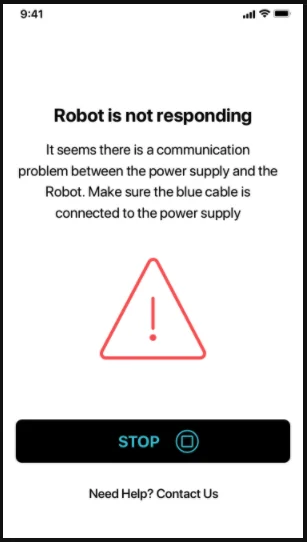
Robot is not responding Error / Communication Issue
If this error message appears on the My Dolphin Plus App, this indicates an issue with the blue cable's ability to communicate commands to the robot (sent by the app) from the Power Supply unit.
Try the following troubleshooting steps:
Check the blue cable connection. Make sure the blue cable is securely plugged in and check the cable for any damage.
Test the robot. Place the robot in the pool and try using the app's Manual Drive feature or switching to a different cleaning mode (if applicable). If the app shows the Communication Error message again, there is a Communication Issue, and the robot must be repaired.
Click run the power supply checks to complete a warranty claim and send your robot to our service center for repair.
If the robot was purchased through a local dealer, please refer to your local dealer for repair services.
The troubleshooting table printed in the Refurbished Nautilus CC Plus Wi-Fi manual, one card per symptom.
Cable twisting or cable coils up
What to do
Check for any obstruction in the pool
Remove excess cable from the pool
Make sure filter cartridge is clean
Straighten cable and lay it in the sun periodically
Robot pool cleaner is moving in circles or does not reach all pool areas
What to do
Check for foreign objects in moving parts
Make sure filter elements are clean and that the filter doors are closed
Make sure that there is enough cable laid out to cover the whole pool
Before using the robot pool cleaner at the beginning of the sea- son you should brush any algae from the floor and walls of the pool
Robot pool cleaner not sinking
What to do
Make sure the Wonder brushes or the combined brushes are soaked in water
Motor is not working
What to do
Check if the impeller is blocked
Check if the drive system is blocked
Electrical problem (power supply), check power source. If power source is in order, please contact your robot pool cleaner distributor
Robot pool cleaner flips on its side
What to do
Clean the filter cartridge
Pool cleaner does not connect to Wi-Fi®, and the power supply is Flashing green light
What to do
power supply is trying to connect to your home/pool Wi-Fi® network and cloud.
1. Weak internet signal.
2. Get the power supply closer to the Wi-Fi® source.
3. Consider use Wi-Fi® extender for a stronger signal.
Second connection after losing router/ Wi-Fi®: How to change to Bluetooth® after first Wi-Fi® /3G connection.
What to do
Losing router/ Wi-Fi®:
1. Open the app. The "our cloud services seems to be down" message will appear (can take a few seconds) and the globe on the top bar will turn red.
2. Scroll down and click "choose another solution" which will direct you to the Bluetooth® option. (*this solution will be a one-time solution. Note that in order to continue with Bluetooth® connection, the end user must be near the robot).
3. The app will connect to Wi-Fi® automatically when the connectivity returns. If it doesn’t reconnect, restart the app.
4. If network interruptions continue, try to improve the quality of the home router signal (move closer to the router).
Initial connection. How to connect with Bluetooth® only.
What to do
Before you start: CONNECT VIA Wi-Fi®, 3G/4G MUST BE OPEN
1. Plug in the power supply.
2. Connect the robot to the power supply.
3. Download the new MyDolphin™ Plus app.
4. Login to the app and allow the required permissions.
5. Scan the QR code and follow the app instructions.
6. Click "go online" (at this stage, iOS users need to minimize the app and re-open it. Android users can click "choose network" and "Later").
How to change to Wi-Fi® after initial Bluetooth® connection.
What to do
1. Make sure your Bluetooth® and Wi-Fi® are enabled.
2. Open the MyDolphin™ Plus app and connect to the robot via Bluetooth®.
3. Go to Settings and click “Wi-Fi® Settings”.
4. Follow the app instructions to go online.
Changing your Wi-Fi® network.
What to do
Router was replaced
1. Log into the app → you will see a connection error.
2. Go to "settings" at the top bar on the screen.
3. Go to "Wi-Fi® settings" → Click "change Wi-Fi® network" → “change to the new Wi-Fi® network” (enter the Wi-Fi® name and passcode) → Click "continue" and wait to receive notification that the robot has been configured to the new Wi-Fi®.
4. Simultaneously, the LED color on the power supply will turn solid green (this is the confirmation that the Wi-Fi® is connected).
For Android users. Power supply replacement for new Wi-Fi® connection.
What to do
New power supply for a robot connected through Wi-Fi®
1. Turn on the power supply while it is connected to the robot and let it work for several seconds (it will sync with the robot).
2. Login to the app. A connection error message will appear.
3. Go to “check other solutions”.
4. Click on the Bluetooth® icon in the top bar.
5. Click “change connectivity”, “set Wi-Fi® connectivity” and then “go online”.
6. Enter your Wi-Fi® name and password. You see the home screen. The power supply LED will flash green.
For iOS users. Power supply replacement for new Wi-Fi® connection
What to do
New power supply for a robot connected through Wi-Fi®
1. Turn on the power supply while it is connected to the robot and let it work for several seconds (it will sync with the robot).
2. Login to the app. A connection error message will appear.
3. Go to “settings”, on the top bar → click on “robot details” → “disconnect from the robot” →“proceed” → “search for nearby robots” → your robot” → click on “change connectivity” → ”set Wi-Fi® connectivity” → ”go online”.
4. Enter your Wi-Fi® name and password.
Motor unit replacement for unit that was not reported to the support system by the technician.
What to do
1. Disconnect the power supply from the wall socket before use.
2. After replacing the motor unit (MU), reconnect the power supply to the wall socket and turn on the power supply. Let the robot work for several seconds.
3. Open the MyDolphin™ Plus app. You will see a connection error.
4. Go to “settings” in the top bar → “robot details” → “disconnect from the robot” →“Proceed” → “search for nearby robots” find and select the “new Dolphin MU s/n” → a “is this your robot?” message will appear. After checking the s/n number, press “Yes this is my robot” → The MU will link to robot and the app → home screen. If you do not recognize the serial number, press to add the robot s/n manually or scan the QR Code.
Real help for the Refurbished Nautilus CC Plus Wi-Fi.
If the checks above did not fix it, the robot may need a repair. Under warranty, Maytronics handles power supplies by replacement and robots through its repair centers; have the serial number from the label under the handle ready.